
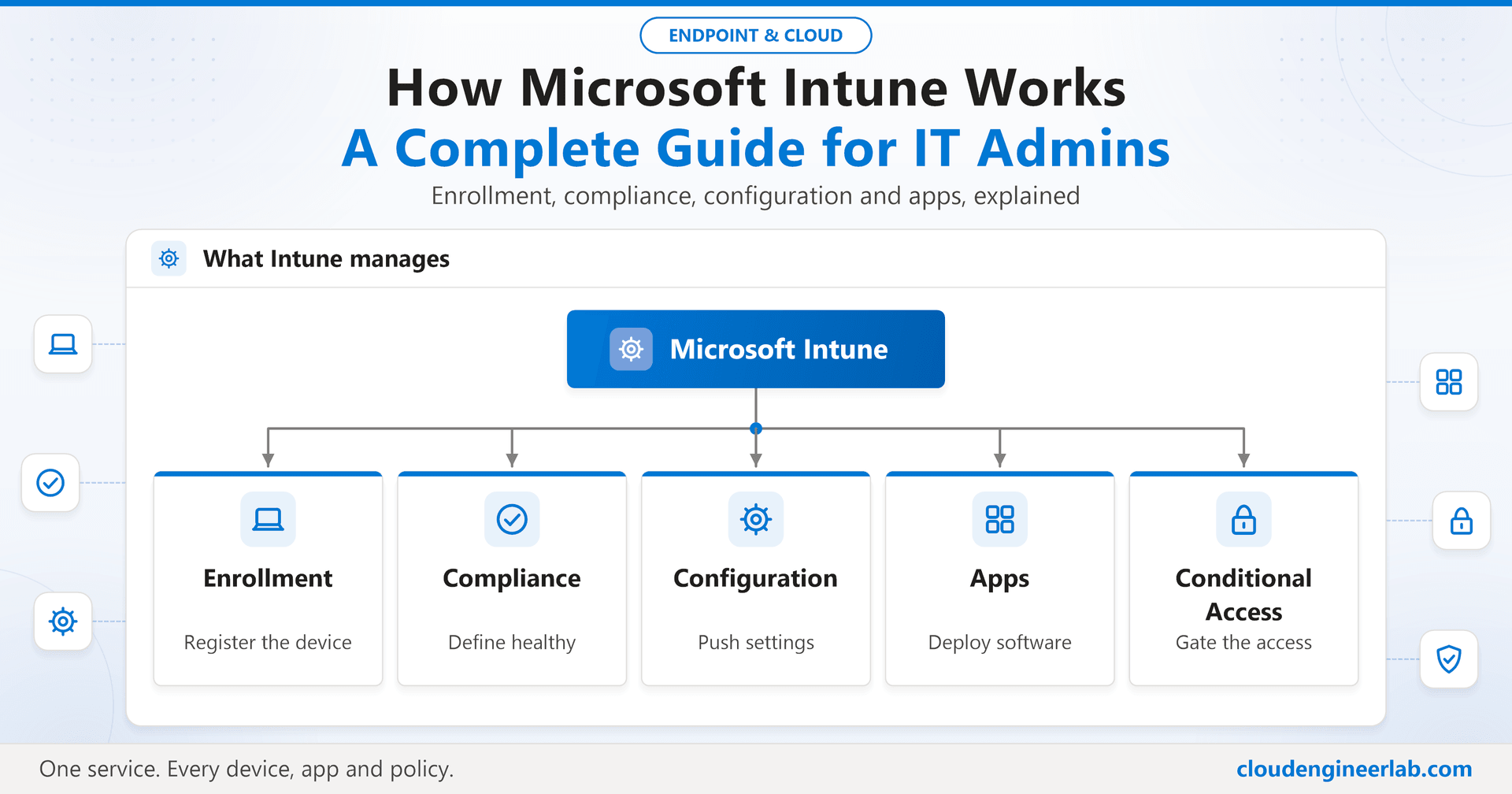
How Microsoft Intune Works: A Complete Guide for IT Admins
Microsoft Intune is the backbone of modern endpoint management. This guide explains how it works, how devices get enrolled, how compliance is enforced, and how it connects to Azure AD, with real-world examples from production environments.
If you have ever wondered how a company manages thousands of laptops and phones without physically touching them, the answer is usually Microsoft Intune.
I have been working with Intune for several years now, managing enterprise device fleets across multiple organisations. In this guide, I will walk you through exactly how it works, in plain English, with no unnecessary jargon.
What is Microsoft Intune?
Microsoft Intune is a cloud-based service that lets IT teams manage devices and applications remotely. It is part of the Microsoft 365 family and sits inside the Microsoft Endpoint Manager admin centre.
Think of it as a remote control for every device in your organisation: laptops, phones, tablets, and even desktops. From one place, you can:
- Push software and apps to devices
- Enforce security settings like PIN requirements and encryption
- Wipe a lost or stolen device remotely
- Check which devices are compliant with your company policies
- Block non-compliant devices from accessing company resources like Outlook or SharePoint
Intune works on Windows, macOS, iOS, iPadOS, and Android. You do not need to manage all platforms; you can pick only what your organisation uses.
How Intune Fits Into the Microsoft Ecosystem
Before we go deeper, it helps to understand where Intune sits alongside the other Microsoft services you might already use.
Entra ID (formerly Azure AD) handles who the user is: their identity, password, and group memberships.
Intune handles what the device is doing: is it encrypted? Does it have the right apps? Is it running an approved OS version?
Conditional Access is the gatekeeper: it checks both identity (Entra ID) and device health (Intune) before allowing access to company data.
How Device Enrolment Works
Enrolment is the process of registering a device with Intune so it can be managed. There are several ways this can happen.
User signs in with their company account
The user opens Settings on their device and adds their Microsoft 365 work account. On Windows, this is called Work or School Account. On iOS and Android, they install the Company Portal app.
Device registers with Entra ID
The moment the work account is added, the device registers itself with Microsoft Entra ID. Entra ID now knows this device exists and who owns it.
Intune enrolment happens automatically
Because Intune is linked to Entra ID (via auto-enrolment settings), the device is automatically enrolled in Intune. No extra steps needed for the user.
Policies and apps are pushed to the device
Intune detects the device, checks which user it belongs to, and pushes the correct configuration profiles, compliance policies, and required apps. This all happens silently in the background.
Device checks in regularly
After enrolment, the device checks in with Intune every 8 hours (Windows) or every 6 hours (iOS/Android) to receive any new or updated policies.
For new company devices, you can use Windows Autopilot to automate the entire setup process. The user just signs in with their work account, and Intune does the rest, no IT desk visit needed.
Understanding Compliance Policies
A compliance policy is a set of rules your device must follow to be considered healthy. If a device breaks any of these rules, it is marked Non-Compliant.
Here are common compliance rules IT admins use:
| Rule | What It Checks |
|---|---|
| Minimum OS version | Device must run at least Windows 11 23H2 |
| Encryption required | BitLocker (Windows) or FileVault (Mac) must be on |
| PIN / password required | Device must have a lock screen with a minimum PIN length |
| Antivirus active | Windows Defender or another antivirus must be running |
| No jailbreak or root | iOS and Android devices must not be jailbroken |
| Firewall enabled | Windows Firewall must be active |
What Happens When a Device is Non-Compliant
This is where Conditional Access comes in. When a device fails a compliance check, Intune marks it as non-compliant. Conditional Access then reads that status and can:
By default, Intune gives a device a grace period (typically 1–3 days) before blocking access. This gives users time to fix the issue without being locked out immediately. You can adjust this in the compliance policy settings.
Configuration Profiles: Pushing Settings to Devices
While compliance policies check whether a device meets your standards, configuration profiles actively push settings to the device.
Examples of what you can configure through profiles:
- Wi-Fi settings: push company Wi-Fi credentials so users never have to type a password
- VPN configuration: deploy VPN profiles to all managed laptops automatically
- Email setup: configure Outlook to connect to Exchange Online without user input
- Security settings: disable USB ports, force screen timeout, restrict Bluetooth
- Windows Update rings: control when and how Windows updates are installed
Think of configuration profiles as your silent IT technician: they set up the device exactly how you want it, without the user ever needing to do anything.
App Deployment
Intune can push apps to devices automatically. There are three types of app assignments:
| Assignment Type | What It Means |
|---|---|
| Required | App is installed automatically. User cannot remove it. |
| Available | App appears in Company Portal. User can install it when they want. |
| Uninstall | App is removed from the device silently. |
You can target apps to groups of users or groups of devices. For example:
- Push the Cisco VPN client to all devices in the "Remote Workers" group
- Make Power BI Desktop available in Company Portal for anyone in the "Data Team" group
- Uninstall a retired application from all managed devices in one click
The Admin Centre: Where You Manage Everything
All Intune management happens through Microsoft Endpoint Manager Admin Centre at intune.microsoft.com. The main areas you will work in are:
| Section | What You Do There |
|---|---|
| Devices | See all enrolled devices, check compliance status, run remote actions |
| Apps | Deploy, update, and remove applications |
| Endpoint Security | Configure antivirus, firewall, BitLocker, and attack surface rules |
| Reports | Compliance reports, device inventory, app install status |
| Conditional Access | Set access rules (lives in Entra ID but launched from here) |
Common Questions I Get From New Admins
Can users see what IT can see on their personal phone?
On personally-owned devices enrolled with the BYOD (Bring Your Own Device) method, Intune can only see the device name, OS version, and whether the device is compliant. It cannot see personal apps, photos, messages, or browsing history.
What happens if a device is stolen?
You can perform a Remote Wipe from the Intune admin centre. For company-owned devices, this wipes everything back to factory settings. For personal BYOD devices, only the work data and apps are removed; personal data stays intact.
Does Intune work without internet?
The device needs internet access to check in with Intune and receive new policies. However, policies that have already been applied continue to work offline.
Summary
Microsoft Intune is a powerful tool that gives IT teams full control over the devices accessing company data, without needing to physically touch each device.
Here is a quick recap of how it all fits together:
- Enrolment: devices register with Intune through Entra ID
- Compliance policies: define the health rules devices must follow
- Configuration profiles: push settings and Wi-Fi, VPN, email configs automatically
- App deployment: install or remove apps silently across your entire device fleet
- Conditional Access: blocks non-compliant devices from accessing Microsoft 365 resources
If you are just getting started with Intune, the best first step is to enrol one test device, create a basic compliance policy, and watch how the whole flow works end to end. Once you see it in action, everything clicks.
The Microsoft Intune documentation at learn.microsoft.com is genuinely excellent. Use it alongside real-world experimentation in a dev tenant; that combination will make you confident in Intune faster than any course.

Written by
Chetan Yamger
Cloud Engineer · AI Automation Architect · Modern Workplace Consultant
Cloud Engineer, AI Automation Architect, and Modern Workplace Consultant based in Amsterdam, Netherlands. Specializing in scalable, secure enterprise solutions with Microsoft Azure, Intune, PowerShell, and AI-driven automation using ChatGPT, Gemini, and modern LLM technologies.
Stay in the loop.
New articles, straight to you.
Deep-dive technical articles on Intune, PowerShell, and AI — no noise, no spam.
Discussion
Share your thoughts — your email stays private
Leave a comment