
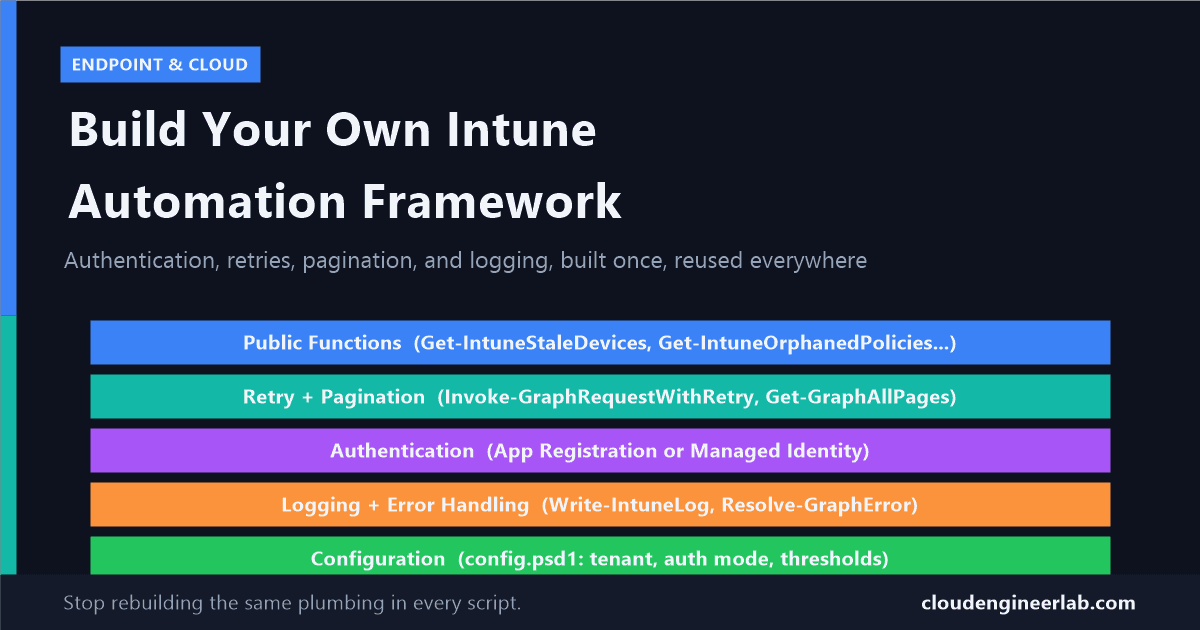
Build Your Own Intune Automation Framework with PowerShell and Microsoft Graph
Individual scripts don't scale past the third one. Here's how to structure authentication, retries, pagination, and logging into a reusable PowerShell module.
I've written two posts on this site about automating Intune: one script that automates a single compliance report, and a wider tour across devices, apps, policies, compliance, and reports. Both hold up fine as individual scripts. Neither would survive being the fourth script, or the tenth.
The problem isn't the Graph calls, it's everything around them. Every script needs its own authentication block, its own retry logic, its own pagination handling, its own ad-hoc logging. Copy that boilerplate into ten scripts and a Graph throttling change, or a rotated client secret, means editing ten files instead of one. This post is about building the layer that sits underneath all of that: a small, real PowerShell module that every future Intune script can just import and use.
The Framework's Shape
IntuneAutomation/
├── IntuneAutomation.psd1        # Manifest: version, exported functions, dependencies
├── IntuneAutomation.psm1        # Loader: dot-sources everything below
├── config.psd1                  # Tenant ID, auth mode, thresholds (no secrets)
├── Public/
│   ├── Connect-IntuneAutomation.ps1
│   ├── Get-IntuneStaleDevices.ps1
│   └── Get-IntuneOrphanedPolicies.ps1
├── Private/
│   ├── Invoke-GraphRequestWithRetry.ps1
│   ├── Get-GraphAllPages.ps1
│   ├── Write-IntuneLog.ps1
│   └── Resolve-GraphError.ps1
└── logs/
    └── IntuneAutomation-2026-09-17.log
Public functions are the module's actual API, the things another script calls. Private functions are internal plumbing that consumers never touch directly. Every public function in this framework is built entirely out of the private helpers below, none of them talk to Invoke-MgGraphRequest directly.
Authentication: One Function, Two Paths
A framework meant to run both on your laptop and inside Azure Automation needs to authenticate two different ways without the calling code caring which one is active. That decision belongs in config, not scattered across scripts.
# Private/Connect-IntuneAutomation.ps1 (dot-sourced, not directly callable by consumers)
function Connect-IntuneAutomation {
    param([hashtable]$Config)

    if ($Config.AuthMode -eq "ManagedIdentity") {
        if ($Config.UserAssignedClientId) {
            Connect-MgGraph -Identity -ClientId $Config.UserAssignedClientId -NoWelcome
        } else {
            Connect-MgGraph -Identity -NoWelcome
        }
        Write-IntuneLog -Level Info -Message "Connected via managed identity"
    }
    else {
        # App registration path, using a certificate rather than a client secret
        Connect-MgGraph -TenantId $Config.TenantId `
            -ClientId $Config.ClientId `
            -CertificateThumbprint $Config.CertificateThumbprint `
            -NoWelcome
        Write-IntuneLog -Level Info -Message "Connected via app registration (certificate)"
    }
}
Prefer a certificate over a client secret
The compliance report walkthrough uses a client secret because it's the simplest thing to explain in a first script. For a framework you intend to keep running for years, use a certificate instead: it doesn't need rotating every 12 months, and it can't be copy-pasted into a chat message by accident the way a secret string can. Generate one with New-SelfSignedCertificate, upload the public key under Certificates & secrets in the app registration, and reference the thumbprint in config, never the private key.
Managed Identity: The Part Everyone Gets Wrong Once
Inside Azure Automation or an Azure Function, a managed identity removes credential management entirely, no secret, no certificate, nothing to rotate or leak. But there's a step people miss the first time: assigning the managed identity an Azure role does nothing for Graph access. Azure RBAC roles control access to Azure resources. Microsoft Graph permissions are a completely separate system, and a managed identity needs an actual Graph app role assignment, the same kind an app registration needs, granted directly to its service principal.
# One-time setup script, run interactively by an admin, not part of the framework itself
$MiObjectId  = "<managed-identity-object-id>"        # From the Automation Account's Identity blade
$GraphAppId  = "00000003-0000-0000-c000-000000000000" # Microsoft Graph's fixed app ID, same in every tenant

Connect-MgGraph -Scopes "AppRoleAssignment.ReadWrite.All", "Application.Read.All"

$GraphSp = Get-MgServicePrincipal -Filter "appId eq '$GraphAppId'"
$AppRole = $GraphSp.AppRoles | Where-Object { $_.Value -eq "DeviceManagementManagedDevices.Read.All" }

New-MgServicePrincipalAppRoleAssignment -ServicePrincipalId $MiObjectId `
    -PrincipalId $MiObjectId -ResourceId $GraphSp.Id -AppRoleId $AppRole.Id
Repeat that assignment once per permission the managed identity needs. It's a five-minute setup step, but skipping it is exactly why "managed identity automation" so often fails on its first real Graph call with a 403 that has nothing to do with the code.
Permissions: Split by Blast Radius, Not Convenience
It's tempting to grant one app registration every permission every function might ever need. Don't. A framework used for both reporting and destructive actions (retire, wipe, bulk policy assignment) should have two separate identities behind it:
| Identity | Permissions | Used by |
|---|---|---|
| Reporting identity | *.Read.All scopes only, across Devices, Apps, Configuration | Scheduled reports, dashboards, anything read-only |
| Action identity | Adds DeviceManagementManagedDevices.PrivilegedOperations.All, DeviceManagementConfiguration.ReadWrite.All | Only the specific functions that sync, retire, wipe, or assign |
A leaked reporting credential should never be able to wipe a device
If your reporting identity can also retire and wipe devices, every scheduled report script becomes a single point of failure for the entire fleet. Two identities is more setup once. It's a much smaller blast radius forever after.
The config file (see the end of this post) simply points each function at whichever identity it's supposed to use.
Functions: What Goes Public, What Stays Private
The public/private split isn't just folder tidiness, it's the actual contract of the framework. A public function reads like a sentence: Get-IntuneStaleDevices, Get-IntuneOrphanedPolicies. A private function is an implementation detail the public functions share.
# Public/Get-IntuneStaleDevices.ps1
function Get-IntuneStaleDevices {
    param(
        [int]$DaysSinceSync = 30,
        [hashtable]$Config = $script:IntuneAutomationConfig
    )

    Connect-IntuneAutomation -Config $Config
    Write-IntuneLog -Level Info -Message "Fetching devices, checking sync age > $DaysSinceSync days"

    $Uri = "https://graph.microsoft.com/beta/deviceManagement/managedDevices?`$select=deviceName,lastSyncDateTime,userPrincipalName"
    $AllDevices = Get-GraphAllPages -InitialUri $Uri

    $Cutoff = (Get-Date).AddDays(-$DaysSinceSync)
    $Stale = $AllDevices | Where-Object { [datetime]$_.lastSyncDateTime -lt $Cutoff }

    Write-IntuneLog -Level Info -Message "Found $($Stale.Count) stale devices"
    return $Stale
}
Notice what this function does not contain: no Connect-MgGraph call with raw credentials, no manual pagination loop, no bare Write-Host. All three are borrowed from private helpers. That's the entire point of building the framework first.
Error Handling: The Real Message Is Usually Buried
A generic try/catch around a Graph call catches the failure, but $_.Exception.Message on a failed Invoke-MgGraphRequest call often just says something like "Response status code does not indicate success: 400 (Bad Request)." The actual reason is inside the response body, which you have to read separately.
# Private/Resolve-GraphError.ps1
function Resolve-GraphError {
    param($ErrorRecord)

    try {
        $ErrorBody = $ErrorRecord.ErrorDetails.Message | ConvertFrom-Json
        return [PSCustomObject]@{
            Code    = $ErrorBody.error.code
            Message = $ErrorBody.error.message
            Raw     = $ErrorRecord.Exception.Message
        }
    }
    catch {
        # The error wasn't JSON, fall back to whatever .NET gave us
        return [PSCustomObject]@{
            Code    = "Unknown"
            Message = $ErrorRecord.Exception.Message
            Raw     = $ErrorRecord.Exception.Message
        }
    }
}
Every private and public function in this framework wraps its Graph calls the same way:
try {
    $Response = Invoke-MgGraphRequest -Method GET -Uri $Uri
}
catch {
    $GraphError = Resolve-GraphError -ErrorRecord $_
    Write-IntuneLog -Level Error -Message "$($GraphError.Code): $($GraphError.Message)"
    throw
}
You still re-throw, a framework function shouldn't silently swallow an error the caller needed to know about, but now the log line actually says something like Authentication_MissingOrMalformed: Access token is empty instead of a useless HTTP status line.
Logging: Structured Lines, Not Write-Host
Write-Host output can't be captured, redirected, or shipped anywhere. A framework meant to run unattended needs logs a human (or Log Analytics) can actually consume later.
# Private/Write-IntuneLog.ps1
function Write-IntuneLog {
    param(
        [ValidateSet("Info", "Warning", "Error")]
        [string]$Level = "Info",
        [string]$Message,
        [hashtable]$Config = $script:IntuneAutomationConfig
    )

    $Entry = [PSCustomObject]@{
        Timestamp = (Get-Date).ToString("o")
        Level     = $Level
        Function  = (Get-PSCallStack)[1].Command
        Message   = $Message
    }

    $LogFile = Join-Path $Config.LogPath "IntuneAutomation-$(Get-Date -Format 'yyyy-MM-dd').log"
    $Entry | ConvertTo-Json -Compress | Add-Content -Path $LogFile

    if ($Level -eq "Error") { Write-Warning $Message }  # still surface errors interactively
}
One JSON object per line means the log file is already shaped for ingestion into Log Analytics, Power BI, or just Select-String when you're debugging at 2am. (Get-PSCallStack)[1].Command automatically captures which function actually logged the line, without hardcoding the function name into every call.
Retry Logic: A Wrapper Every Function Shares
This is the piece that turns "worked in testing" into "still works after six months of scheduled runs." Graph throttles, Intune endpoints frequently omit the Retry-After header they're supposed to send, and a framework should absorb that reality once instead of every function handling it differently.
# Private/Invoke-GraphRequestWithRetry.ps1
function Invoke-GraphRequestWithRetry {
    param(
        [string]$Uri,
        [string]$Method = "GET",
        [string]$Body,
        [int]$MaxRetries = 5
    )

    for ($Attempt = 0; $Attempt -lt $MaxRetries; $Attempt++) {
        try {
            $Params = @{ Method = $Method; Uri = $Uri }
            if ($Body) { $Params.Body = $Body; $Params.ContentType = "application/json" }
            return Invoke-MgGraphRequest @Params
        }
        catch {
            $StatusCode = $_.Exception.Response.StatusCode.value__
            if ($StatusCode -ne 429 -and $StatusCode -ne 503) {
                $GraphError = Resolve-GraphError -ErrorRecord $_
                Write-IntuneLog -Level Error -Message "$($GraphError.Code): $($GraphError.Message)"
                throw
            }

            $RetryAfter = $_.Exception.Response.Headers["Retry-After"]
            $Jitter     = Get-Random -Minimum 0 -Maximum 3
            $Delay      = if ($RetryAfter -and [int]$RetryAfter -gt 0) {
                [int]$RetryAfter + $Jitter
            } else {
                # Intune endpoints often send Retry-After: 0 or omit it entirely.
                # Back off hard anyway rather than trusting a zero-second wait.
                ([Math]::Pow(2, $Attempt) * 10) + $Jitter
            }

            Write-IntuneLog -Level Warning -Message "Throttled (attempt $($Attempt + 1)/$MaxRetries), waiting $Delay seconds"
            Start-Sleep -Seconds $Delay
        }
    }

    throw "Request to $Uri failed after $MaxRetries retries"
}
The jitter matters more than it looks like it should: without it, several scheduled scripts that all got throttled at the same moment retry at the same moment too, and throttle each other again in near-perfect sync.
Pagination: Handled Once, Not Once Per Script
Invoke-MgGraphRequest doesn't paginate for you the way typed cmdlets with -All do. Every raw call needs to follow @odata.nextLink manually, so the framework does it exactly once, centrally.
# Private/Get-GraphAllPages.ps1
function Get-GraphAllPages {
    param([string]$InitialUri)

    $Results = [System.Collections.Generic.List[object]]::new()
    $Uri = $InitialUri

    while ($Uri) {
        $Response = Invoke-GraphRequestWithRetry -Uri $Uri
        $Results.AddRange([object[]]$Response.value)
        $Uri = $Response.'@odata.nextLink'
    }

    return $Results
}
Every public function that needs a full dataset calls this one helper instead of writing its own do { } while ($nextLink) loop, which means the retry logic above is automatically applied to every single page, not just the first request.
Rate Limits: Design Around Numbers That Are Actually Documented
The retry wrapper handles throttling after it happens. It's worth also designing around the limits Microsoft actually publishes so you throttle yourself less often in the first place:
| Endpoint family | Documented limit |
|---|---|
deviceManagement/reports/exportJobs | 100 requests/tenant/minute; 8/minute per user; 48/minute per app |
| General Graph throttling | Varies per service, always check for Retry-After first |
If a function kicks off several report exports in a loop, add a deliberate small delay between submissions rather than firing them as fast as the loop allows:
foreach ($ReportName in $ReportsToExport) {
    Start-ReportExport -ReportName $ReportName
    Start-Sleep -Seconds 2   # stay well under the 48/minute per-app ceiling
}
Two seconds costs you almost nothing across a handful of reports and keeps you nowhere near a limit you'd otherwise discover the hard way during your busiest scheduled run.
Configuration Files: Settings and Secrets Are Not the Same Thing
Everything that changes between environments, tenant ID, which auth mode to use, where logs go, belongs in config, not hardcoded in functions. Everything genuinely secret belongs in neither, a certificate thumbprint is fine in config because it identifies a cert, it isn't the private key.
# config.psd1
@{
    TenantId               = "your-tenant-id"
    AuthMode               = "AppRegistration"   # or "ManagedIdentity"
    ClientId               = "your-client-id"
    CertificateThumbprint  = "A1B2C3D4E5F6..."
    UserAssignedClientId   = $null                # only used when AuthMode = ManagedIdentity
    LogPath                = "C:\IntuneAutomation\logs"
    MaxRetries             = 5
}
The module loads this once on import:
# IntuneAutomation.psm1
$script:IntuneAutomationConfig = Import-PowerShellDataFile -Path "$PSScriptRoot\config.psd1"

Get-ChildItem "$PSScriptRoot\Private\*.ps1" | ForEach-Object { . $_.FullName }
Get-ChildItem "$PSScriptRoot\Public\*.ps1"  | ForEach-Object { . $_.FullName }

Export-ModuleMember -Function (Get-ChildItem "$PSScriptRoot\Public\*.ps1").BaseName
Why .psd1 instead of .json for config
A .psd1 file is native PowerShell data, Import-PowerShellDataFile reads it straight into a hashtable with no parsing step, and it supports comments, which JSON doesn't. For a PowerShell-only framework, it's the more natural fit than JSON; reach for JSON instead if something outside PowerShell also needs to read the same config.
How a Call Actually Flows
Notice that the consumer, whatever script calls Get-IntuneStaleDevices, never sees any of this. It just gets a list of devices back, or a clear thrown error if something genuinely went wrong.
Using It
Once the module is built, every script from here on shrinks to almost nothing:
Import-Module .\IntuneAutomation\IntuneAutomation.psd1

$Stale = Get-IntuneStaleDevices -DaysSinceSync 30
$Orphaned = Get-IntuneOrphanedPolicies

Write-Host "$($Stale.Count) stale devices, $($Orphaned.Count) orphaned policies"
Compare that to rebuilding authentication, retry logic, and pagination inside every new script, which is exactly what both of my earlier Intune posts do, because at the time each was a single script solving a single problem. This framework is what those two posts should have been built on top of, and what any script you write after this one can be.
What to Build Next
Start with the two private helpers that matter most
Invoke-GraphRequestWithRetry and Get-GraphAllPages alone eliminate most of the copy-pasted boilerplate across scripts you already have. Wrap your existing scripts around them before writing anything new.
Migrate one existing script into a Public function
Take the compliance report or the stale-device check from earlier posts and rebuild it as a proper Public function using the framework's helpers. It's the fastest way to prove the framework actually works end to end.
Add Pester tests once you have three or four Public functions
A framework without tests just moves where the bugs hide. This wasn't covered in depth here, it's worth its own post, but even simple tests that mock Invoke-MgGraphRequest catch a surprising number of regressions.
If you build this out for your own tenant, I'd be interested to hear which private helper ends up doing the most work in practice. In my experience it's almost always the retry wrapper, not the flashy public functions. Drop a comment below.

Written by
Chetan Yamger
Cloud Engineer · AI Automation Architect · Modern Workplace Consultant
Cloud Engineer, AI Automation Architect, and Modern Workplace Consultant based in Amsterdam, Netherlands. Specializing in scalable, secure enterprise solutions with Microsoft Azure, Intune, PowerShell, and AI-driven automation using ChatGPT, Gemini, and modern LLM technologies.
Stay in the loop.
New articles, straight to you.
Deep-dive technical articles on Intune, PowerShell, and AI — no noise, no spam.
Discussion
Share your thoughts — your email stays private
Leave a comment