
Stop Clicking in Intune: Automate Endpoint Management with PowerShell + Graph API
Real, working PowerShell and Graph examples across devices, apps, policies, compliance, and reports, not just theory about what the API can do.
Open the Intune admin centre and count how many clicks it takes to answer one simple question: "which devices haven't checked in for a month, and are any of them missing a compliance policy entirely?" You're filtering a device list, cross-referencing a policy assignment page, probably exporting two separate things to Excel and comparing them by hand. That's fifteen minutes for one question you'll ask again next week.
I already wrote about automating one specific report with PowerShell and Graph. This post is the wider version: real, runnable examples across the five areas that make up almost everything an endpoint engineer clicks through manually, devices, applications, policies, compliance, and reports, using the actual cmdlets and Graph endpoints, not a conceptual overview of what's theoretically possible.
The Pipeline
PowerShell
    ↓
Microsoft Graph
    ↓
Intune
    ↓
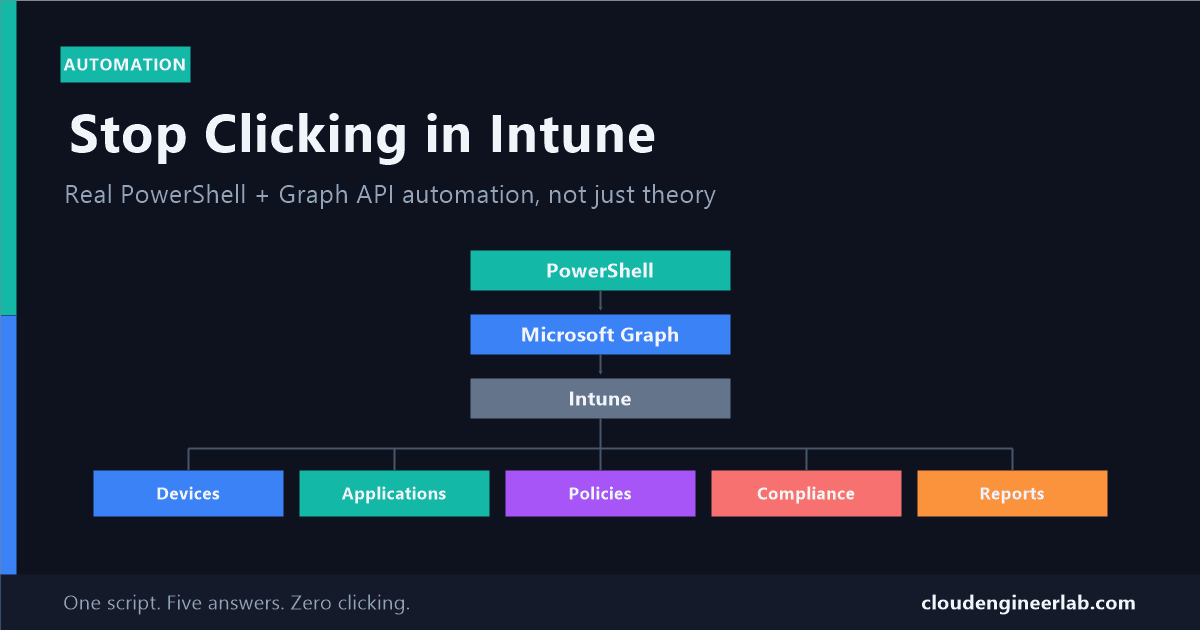
Devices ── Applications ── Policies ── Compliance ── Reports
PowerShell is the client. Microsoft Graph is the single API surface every one of those five areas sits behind. Intune is the service actually enforcing what you configure. Every example below follows that exact chain.
One-Time Setup
You need an app registration with the right Graph permissions before any of this works unattended. I covered the full walkthrough, creating the registration, generating a client secret, and connecting without an interactive login, in the compliance report post. Here's the permission each domain in this post actually needs:
| Domain | Read permission | Write / action permission |
|---|---|---|
| Devices | DeviceManagementManagedDevices.Read.All | DeviceManagementManagedDevices.PrivilegedOperations.All (sync, retire, wipe) |
| Applications | DeviceManagementApps.Read.All | DeviceManagementApps.ReadWrite.All |
| Policies | DeviceManagementConfiguration.Read.All | DeviceManagementConfiguration.ReadWrite.All |
| Compliance | DeviceManagementConfiguration.Read.All + Group.Read.All | Not needed for the examples below |
| Reports | DeviceManagementManagedDevices.Read.All + DeviceManagementConfiguration.Read.All | Not needed for the examples below |
Request every scope up front
Consent all of these at once when you set up the app registration. Adding a missing scope later means going back through admin consent again, and a script failing with a 403 halfway through a scheduled run at 3am is a worse way to discover you forgot one.
# Connect once, with every scope this post uses
Connect-MgGraph -TenantId $TenantId -ClientSecretCredential $Credential
Devices: Beyond Just Listing Them
Listing devices is one line. The examples that actually save time are the ones portal clicking makes tedious: finding stale devices, and taking action on them without opening each one individually.
# Devices that haven't checked in for 30+ days
$StaleCutoff = (Get-Date).AddDays(-30)

$AllDevices = Get-MgDeviceManagementManagedDevice -All -Property `
    DeviceName, LastSyncDateTime, OperatingSystem, UserPrincipalName, Id, AzureAdDeviceId

$StaleDevices = $AllDevices | Where-Object { $_.LastSyncDateTime -lt $StaleCutoff }

Write-Host "Stale devices (30+ days): $($StaleDevices.Count)" -ForegroundColor Yellow
$StaleDevices | Select-Object DeviceName, UserPrincipalName, LastSyncDateTime
Once you know which devices are stale, force a sync on all of them instead of asking each user to open Company Portal:
foreach ($Device in $StaleDevices) {
    Sync-MgDeviceManagementManagedDevice -ManagedDeviceId $Device.Id
    Write-Host "Sync triggered: $($Device.DeviceName)"
}
And for genuine offboarding, retiring a device removes company data and management without touching personal data, the standard action for BYOD or a leaver's phone:
$LeaverDevices = Get-MgDeviceManagementManagedDevice -Filter "userPrincipalName eq 'sara@company.com'"

foreach ($Device in $LeaverDevices) {
    Invoke-MgRetireDeviceManagementManagedDevice -ManagedDeviceId $Device.Id
    Write-Host "Retire requested: $($Device.DeviceName)"
}
Sync, retire, and wipe are all live actions
There's no confirmation dialog once the script runs, Invoke-MgWipeDeviceManagementManagedDevice really does wipe the device. Test every one of these against a single throwaway device ID before pointing it at a filtered list, and never run a wipe or retire loop without printing the target list and eyeballing it first.
Applications: Real Install Status, Not the Deprecated Endpoint
If you search for "check app install status with Graph," a lot of what you'll find points to deviceAppManagement/mobileApps/{id}/deviceStatuses. That endpoint was deprecated back in 2023. The method the Intune portal itself uses now is the same export job mechanism covered in the Reports section below, just with a different report name: DeviceInstallStatusByApp.
$Body = @{
    reportName = "DeviceInstallStatusByApp"
    filter     = "(ApplicationId eq '$AppId')"
    format     = "csv"
    select     = @(
        "DeviceName", "UserPrincipalName", "Platform", "AppVersion",
        "AppInstallState", "AppInstallStateDetails", "HexErrorCode"
    )
} | ConvertTo-Json

$Job = Invoke-MgGraphRequest -Method POST `
    -Uri "https://graph.microsoft.com/beta/deviceManagement/reports/exportJobs" `
    -Body $Body -ContentType "application/json"
$AppId is the app's object ID from Get-MgDeviceAppManagementMobileApp, findable by name:
$App = Get-MgDeviceAppManagementMobileApp -Filter "displayName eq 'Google Chrome'"
$AppId = $App.Id
Same mechanism, different report name
This is genuinely the same export job pattern used for every report in this post. Once you understand the exportJobs workflow once (see the Reports section), app install status, device compliance, and general device inventory are all the same three steps: submit, poll, download.
For bulk assignment, the typed SDK cmdlets for app assignment are inconsistent across app types, some work cleanly, others have open GitHub issues where the assignment silently doesn't resolve to the right group. When that happens, dropping to a raw request against the documented endpoint is the practical fix, not a workaround to be embarrassed about:
$AssignBody = @{
    mobileAppAssignments = @(
        @{
            "@odata.type" = "#microsoft.graph.mobileAppAssignment"
            intent        = "required"
            target        = @{
                "@odata.type" = "#microsoft.graph.groupAssignmentTarget"
                groupId       = $GroupId
            }
        }
    )
} | ConvertTo-Json -Depth 5

Invoke-MgGraphRequest -Method POST `
    -Uri "https://graph.microsoft.com/beta/deviceAppManagement/mobileApps/$AppId/assign" `
    -Body $AssignBody -ContentType "application/json"
Policies: Finding the Ones Nobody Is Using
Every tenant accumulates policies from pilots, tests, and departed admins that quietly stopped being assigned to anything. Finding them by clicking through each policy's assignment tab one at a time is exactly the kind of task automation exists for.
$AllPolicies = Get-MgDeviceManagementDeviceCompliancePolicy -All

$OrphanedPolicies = foreach ($Policy in $AllPolicies) {
    $Assignments = Get-MgDeviceManagementDeviceCompliancePolicyAssignment -DeviceCompliancePolicyId $Policy.Id

    if ($Assignments.Count -eq 0) {
        [PSCustomObject]@{
            PolicyName = $Policy.DisplayName
            PolicyId   = $Policy.Id
            CreatedOn  = $Policy.CreatedDateTime
        }
    }
}

Write-Host "Orphaned compliance policies: $($OrphanedPolicies.Count)" -ForegroundColor Yellow
$OrphanedPolicies | Format-Table -AutoSize
And when you do need to roll a policy out to a newly created group, assignment is one call instead of five clicks through the portal's assignment UI:
New-MgDeviceManagementDeviceCompliancePolicyAssignment -DeviceCompliancePolicyId $PolicyId -BodyParameter @{
    target = @{
        "@odata.type" = "#microsoft.graph.groupAssignmentTarget"
        groupId       = $GroupId
    }
}
Compliance: Catching the Risk the Portal Won't Surface for You
A dangerous setting I've written about before is the tenant-wide toggle that marks any device with no compliance policy assigned as automatically non-compliant. The portal will not proactively tell you which devices that actually affects. Finding them means cross-referencing every managed device against every compliance policy's assignment targets, exactly the kind of multi-step lookup that's tedious by hand and trivial in a script.
# Step 1: build the set of devices covered by ANY compliance policy assignment
$CoveredDeviceIds = [System.Collections.Generic.HashSet[string]]::new()

$AllPolicies = Get-MgDeviceManagementDeviceCompliancePolicy -All

foreach ($Policy in $AllPolicies) {
    $Assignments = Get-MgDeviceManagementDeviceCompliancePolicyAssignment -DeviceCompliancePolicyId $Policy.Id

    foreach ($Assignment in $Assignments) {
        $TargetType = $Assignment.Target.AdditionalProperties["@odata.type"]

        if ($TargetType -eq "#microsoft.graph.allDevicesAssignmentTarget") {
            # Every device is covered, no need to check further
            $CoveredDeviceIds.Add("ALL") | Out-Null
            continue
        }

        $GroupId = $Assignment.Target.AdditionalProperties["groupId"]
        if ($GroupId) {
            $Members = Get-MgGroupTransitiveMember -GroupId $GroupId -All
            foreach ($Member in $Members) {
                $CoveredDeviceIds.Add($Member.Id) | Out-Null
            }
        }
    }
}

# Step 2: compare every managed device's Entra device ID against that set
if (-not $CoveredDeviceIds.Contains("ALL")) {
    $AllDevices = Get-MgDeviceManagementManagedDevice -All -Property DeviceName, AzureAdDeviceId, Id

    $UncoveredDevices = $AllDevices | Where-Object {
        -not $CoveredDeviceIds.Contains($_.AzureAdDeviceId)
    }

    Write-Host "Devices with NO compliance policy assigned: $($UncoveredDevices.Count)" -ForegroundColor Red
    $UncoveredDevices | Select-Object DeviceName, Id
}
This is a simplified version
This script checks group-based and all-devices assignments, which covers most real tenants. It doesn't separately reconcile exclusion assignments, if your policies use assignment exclusions, treat this as a starting list to verify rather than a final answer.
Run this before you ever flip that tenant-wide toggle. A list of names is a much safer thing to review than an outage.
Reports: The Mechanism Behind Every Big Export
Every report above a trivial size in Intune goes through the same three-step job pattern: submit a request describing what you want, poll until it's ready, download the result. This is what the Intune portal itself does behind its own "Export" buttons.
function Get-IntuneReportExport {
    param(
        [string]$ReportName,
        [string]$Filter = "",
        [string[]]$Select
    )

    $Body = @{
        reportName = $ReportName
        format     = "csv"
    }
    if ($Filter) { $Body.filter = $Filter }
    if ($Select) { $Body.select = $Select }

    $Job = Invoke-MgGraphRequest -Method POST `
        -Uri "https://graph.microsoft.com/beta/deviceManagement/reports/exportJobs" `
        -Body ($Body | ConvertTo-Json) -ContentType "application/json"

    # Poll until the export is ready
    do {
        Start-Sleep -Seconds 5
        $Status = Invoke-MgGraphRequest -Method GET `
            -Uri "https://graph.microsoft.com/beta/deviceManagement/reports/exportJobs('$($Job.id)')"
    } while ($Status.status -ne "completed")

    # Download the finished file
    $OutFile = "C:\Reports\$($ReportName)_$(Get-Date -Format 'yyyyMMdd_HHmmss').zip"
    Invoke-WebRequest -Uri $Status.url -OutFile $OutFile
    return $OutFile
}

# Real example: full device inventory, only the columns you actually need
Get-IntuneReportExport -ReportName "Devices" -Select @(
    "DeviceName", "managementAgent", "ownerType", "complianceState", "OS", "OSVersion", "LastContact"
)

# Real example: everything currently non-compliant
Get-IntuneReportExport -ReportName "DeviceNonCompliance"
Always pass -Select explicitly
Microsoft's own documentation is direct about this: don't build automation around a report's default columns. Column sets can change. Naming your exact columns in the select array means your script keeps working even if Microsoft adds fields to the default output later.
The exportJobs API has real, documented throttling limits worth designing around: 100 requests per tenant per minute total, with 8 per minute for a single user and 48 per minute for a single app. If you're running several report exports back to back in one script, stagger them, you won't get anywhere near these limits with the sequential pattern above, but a script kicking off exports in a tight parallel loop will.
Putting It All Together: One Script, Five Answers
This is the actual payoff. A single script covering all five domains, the kind of thing you'd run first thing and read in thirty seconds instead of clicking through five separate screens.
Connect-MgGraph -TenantId $TenantId -ClientSecretCredential $Credential

Write-Host "`n=== Monday Morning Endpoint Summary ===" -ForegroundColor Cyan

# Devices
$AllDevices = Get-MgDeviceManagementManagedDevice -All -Property LastSyncDateTime
$StaleCount = ($AllDevices | Where-Object { $_.LastSyncDateTime -lt (Get-Date).AddDays(-30) }).Count
Write-Host "Devices not synced in 30+ days: $StaleCount"

# Compliance
$NonCompliantCount = ($AllDevices | Where-Object { $_.ComplianceState -eq "noncompliant" }).Count
Write-Host "Non-compliant devices: $NonCompliantCount"

# Policies
$Policies = Get-MgDeviceManagementDeviceCompliancePolicy -All
$OrphanedCount = ($Policies | Where-Object {
    (Get-MgDeviceManagementDeviceCompliancePolicyAssignment -DeviceCompliancePolicyId $_.Id).Count -eq 0
}).Count
Write-Host "Orphaned compliance policies: $OrphanedCount"

# Reports: kick off the full non-compliance export for anyone who wants the detail
Get-IntuneReportExport -ReportName "DeviceNonCompliance"
Write-Host "Full non-compliance report exporting to C:\Reports"

Disconnect-MgGraph
Four questions and one report export, answered in the time it takes the script to run, not the time it takes to click through four separate parts of the admin centre and manually cross-reference two of them.
What Actually Made This Reliable
Three habits carry across every example in this post, and they're the difference between a script that works once in a demo and one you can actually schedule:
Always use -All
Every Graph list call in this post paginates past 1,000 records by default. Skip -All on a large tenant and you get silently incomplete data, not an error telling you something's wrong.
Name your columns explicitly
Both for -Property on SDK cmdlets and select on report exports. Default column sets are not a stable contract to build automation on.
Drop to Invoke-MgGraphRequest when the typed cmdlet fights you
The typed SDK doesn't cleanly cover every assignment scenario. A raw request against the documented REST endpoint is a normal, supported fallback, not a hack.
Every script here is something you could genuinely schedule this week. Start with whichever of the five domains costs you the most clicks right now, that's the one worth automating first.
If you build out the compliance cross-reference script for your own tenant, I'd like to know how many uncovered devices it actually turns up. In most tenants I've seen, it's never zero. Drop a comment below.

Written by
Chetan Yamger
Cloud Engineer · AI Automation Architect · Modern Workplace Consultant
Cloud Engineer, AI Automation Architect, and Modern Workplace Consultant based in Amsterdam, Netherlands. Specializing in scalable, secure enterprise solutions with Microsoft Azure, Intune, PowerShell, and AI-driven automation using ChatGPT, Gemini, and modern LLM technologies.
Stay in the loop.
New articles, straight to you.
Deep-dive technical articles on Intune, PowerShell, and AI — no noise, no spam.
Discussion
Share your thoughts — your email stays private
Leave a comment