
Microsoft Graph for Intune: 15 Automation Tasks Every Endpoint Engineer Should Know
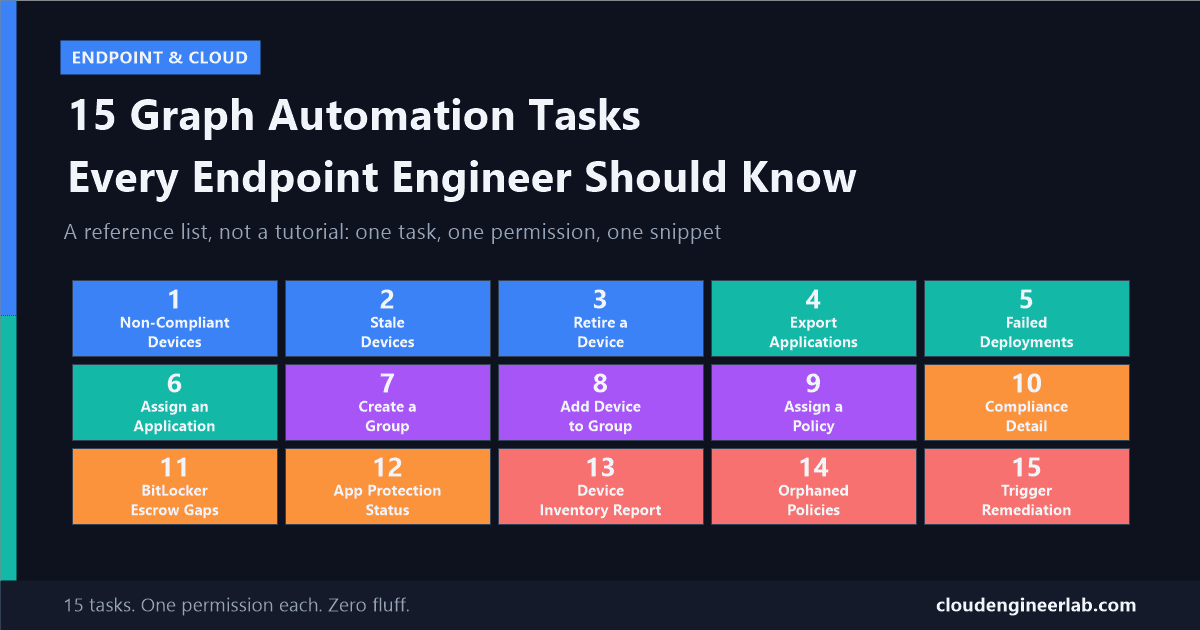
A reference list of 15 real, working Graph tasks, from finding stale devices to triggering remediation scripts, each with the exact permission and code.
I've written about the wider automation surface across Intune and how to structure a reusable framework around it. This post is neither of those. It's the reference list I'd have wanted pinned next to my monitor when I started: 15 concrete tasks, each with the exact permission scope and a working snippet, organised so you can find the one you need in ten seconds instead of reading a narrative to get there.
Every example assumes you're already connected (Connect-MgGraph), using either the app registration or managed identity pattern from the framework post. Permissions are listed per task so you can request exactly what each one needs, nothing more.
Devices
1. Find Non-Compliant Devices
Permission: DeviceManagementManagedDevices.Read.All
$NonCompliant = Get-MgDeviceManagementManagedDevice -All -Filter "complianceState eq 'noncompliant'"
$NonCompliant | Select-Object DeviceName, UserPrincipalName, OperatingSystem
2. Find Stale Devices
Permission: DeviceManagementManagedDevices.Read.All
$Cutoff = (Get-Date).AddDays(-30)
$AllDevices = Get-MgDeviceManagementManagedDevice -All -Property DeviceName, LastSyncDateTime
$Stale = $AllDevices | Where-Object { $_.LastSyncDateTime -lt $Cutoff }
Always use -All
Without it, Graph silently caps you at 1,000 devices. On a tenant with more than that, you'd report "no stale devices past row 1,000" without a single warning that anything was cut off.
3. Retire a Device
Permission: DeviceManagementManagedDevices.PrivilegedOperations.All
$Device = Get-MgDeviceManagementManagedDevice -Filter "userPrincipalName eq 'sara@company.com'"
Invoke-MgRetireDeviceManagementManagedDevice -ManagedDeviceId $Device.Id
Removes company data and management from the device without touching personal data, the standard action for a leaver's personal phone or a BYOD offboarding.
Applications
4. Export Every Application in the Tenant
Permission: DeviceManagementApps.Read.All
$AllApps = Get-MgDeviceAppManagementMobileApp -All
$AllApps | Select-Object DisplayName, Publisher, '@odata.type' |
    Export-Csv -Path "AppInventory.csv" -NoTypeInformation
The @odata.type field tells you what kind of app each row actually is (Win32, store app, Enterprise App Catalog entry), useful when your inventory has grown past what you can eyeball.
5. Detect Failed App Deployments
Permission: DeviceManagementApps.Read.All, DeviceManagementConfiguration.Read.All
$Body = @{
    reportName = "DeviceInstallStatusByApp"
    filter     = "(ApplicationId eq '$AppId')"
    select     = @("DeviceName", "AppInstallState", "AppInstallStateDetails", "HexErrorCode")
} | ConvertTo-Json

$Job = Invoke-MgGraphRequest -Method POST `
    -Uri "https://graph.microsoft.com/beta/deviceManagement/reports/exportJobs" -Body $Body -ContentType "application/json"
Don't use the old per-app deviceStatuses endpoint
deviceAppManagement/mobileApps/{id}/deviceStatuses was deprecated in 2023. DeviceInstallStatusByApp through the export job endpoint is the method the Intune portal itself uses now.
6. Assign an Application to a Group
Permission: DeviceManagementApps.ReadWrite.All
$Body = @{
    mobileAppAssignments = @(@{
        "@odata.type" = "#microsoft.graph.mobileAppAssignment"
        intent        = "required"
        target        = @{ "@odata.type" = "#microsoft.graph.groupAssignmentTarget"; groupId = $GroupId }
    })
} | ConvertTo-Json -Depth 5

Invoke-MgGraphRequest -Method POST -Uri "https://graph.microsoft.com/beta/deviceAppManagement/mobileApps/$AppId/assign" `
    -Body $Body -ContentType "application/json"
Groups and Targeting
7. Create a New Entra Security Group
Permission: Group.ReadWrite.All
New-MgGroup -DisplayName "Intune-Pilot-Ring" -MailEnabled:$false -MailNickname "IntunePilotRing" `
    -SecurityEnabled:$true -GroupTypes @()
GroupTypes @() (an empty array) is what makes this a plain security group. Set it to @("Unified") instead and you'd create a Microsoft 365 group, a completely different object type with a mailbox and calendar you almost certainly don't want here.
8. Add a Device to a Group
Permission: Group.ReadWrite.All
$DeviceObjectId = (Get-MgDevice -Filter "displayName eq 'LAPTOP-001'").Id

New-MgGroupMemberByRef -GroupId $GroupId -BodyParameter @{
    "@odata.id" = "https://graph.microsoft.com/v1.0/directoryObjects/$DeviceObjectId"
}
Use the device's Entra object ID, not its Intune ID
A managed device's Intune ID (Get-MgDeviceManagementManagedDevice) and its Entra directory object ID (Get-MgDevice) are two different values. Using the wrong one is the most common cause of a "Resource does not exist" error here, along with a known SDK quirk where New-MgGroupMember fails specifically for device objects even with a correct ID. New-MgGroupMemberByRef against the raw directoryObjects reference is the more reliable path.
9. Bulk-Assign a Compliance Policy to a New Group
Permission: DeviceManagementConfiguration.ReadWrite.All
New-MgDeviceManagementDeviceCompliancePolicyAssignment -DeviceCompliancePolicyId $PolicyId -BodyParameter @{
    target = @{ "@odata.type" = "#microsoft.graph.groupAssignmentTarget"; groupId = $GroupId }
}
Tasks 7, 8, and 9 chain together: create the group, populate it, then assign policy to it, three lines each instead of three separate trips through the portal's UI.
Compliance and Security
10. Retrieve Full Compliance Information for a Device
Permission: DeviceManagementManagedDevices.Read.All
$States = Get-MgDeviceManagementManagedDeviceDeviceCompliancePolicyState -ManagedDeviceId $DeviceId
$States | Select-Object DisplayName, State, SettingCount
This is the difference between "this device is non-compliant" and knowing which policy, and by extension which specific setting, is actually failing.
11. Find Devices Missing an Escrowed BitLocker Recovery Key
Permission: BitLockerKey.ReadBasic.All, DeviceManagementManagedDevices.Read.All
$RecoveryKeys = Get-MgInformationProtectionBitlockerRecoveryKey -All
$KeyedDeviceIds = $RecoveryKeys.DeviceId

$WindowsDevices = Get-MgDeviceManagementManagedDevice -All -Filter "operatingSystem eq 'Windows'"
$MissingEscrow = $WindowsDevices | Where-Object { $_.AzureAdDeviceId -notin $KeyedDeviceIds }
A device can show BitLocker as "on" in compliance and still have no recoverable key in Entra if encryption happened before the device was fully enrolled. This is the only way to actually catch that gap.
12. Check App Protection (MAM) Policy Status for a User
Permission: DeviceManagementApps.Read.All
Invoke-MgGraphRequest -Method GET `
    -Uri "https://graph.microsoft.com/beta/users/$UserId/managedAppRegistrations"
This is distinct from device compliance, it tells you whether a specific user's phone has actually checked in against your app protection policy, which matters most for BYOD users who were never MDM-enrolled in the first place.
Reports and Remediation
13. Generate a Full Device Inventory Report
Permission: DeviceManagementManagedDevices.Read.All, DeviceManagementConfiguration.Read.All
$Body = @{
    reportName = "Devices"
    format     = "csv"
    select     = @("DeviceName", "managementAgent", "complianceState", "OS", "OSVersion", "LastContact")
} | ConvertTo-Json

Invoke-MgGraphRequest -Method POST -Uri "https://graph.microsoft.com/beta/deviceManagement/reports/exportJobs" `
    -Body $Body -ContentType "application/json"
Poll the returned job ID until status: completed, then download from the url field it returns. Same mechanism as task 5, different reportName.
14. Find Orphaned (Unassigned) Policies
Permission: DeviceManagementConfiguration.Read.All
$Policies = Get-MgDeviceManagementDeviceCompliancePolicy -All
$Orphaned = $Policies | Where-Object {
    (Get-MgDeviceManagementDeviceCompliancePolicyAssignment -DeviceCompliancePolicyId $_.Id).Count -eq 0
}
Every tenant accumulates a few of these from pilots and departed admins. Run this quarterly, not just when you're troubleshooting.
15. Trigger a Remediation Script On Demand
Permission: DeviceManagementManagedDevices.PrivilegedOperations.All
$Body = @{ ScriptPolicyId = $RemediationScriptId } | ConvertTo-Json

Invoke-MgGraphRequest -Method POST `
    -Uri "https://graph.microsoft.com/beta/deviceManagement/managedDevices/$DeviceId/initiateOnDemandProactiveRemediation" `
    -Body $Body -ContentType "application/json"
Instead of waiting for a Proactive Remediation's normal schedule, this fires it immediately against a specific device, the fastest way to confirm a fix actually works before you trust it to run unattended across the whole fleet.
The Pattern Across All 15
None of these 15 need the full framework from my other post to run once. But the moment you're running more than two or three of them on a schedule, wrapping them in the retry, logging, and pagination helpers from that post is what keeps them working six months from now instead of just today.
Which of these 15 do you find yourself running the most? For me it's still task 2, stale devices never stop being the first thing worth checking. Drop a comment below with the one you'd add as number 16.

Written by
Chetan Yamger
Cloud Engineer · AI Automation Architect · Modern Workplace Consultant
Cloud Engineer, AI Automation Architect, and Modern Workplace Consultant based in Amsterdam, Netherlands. Specializing in scalable, secure enterprise solutions with Microsoft Azure, Intune, PowerShell, and AI-driven automation using ChatGPT, Gemini, and modern LLM technologies.
Stay in the loop.
New articles, straight to you.
Deep-dive technical articles on Intune, PowerShell, and AI — no noise, no spam.
Discussion
Share your thoughts — your email stays private
Leave a comment