
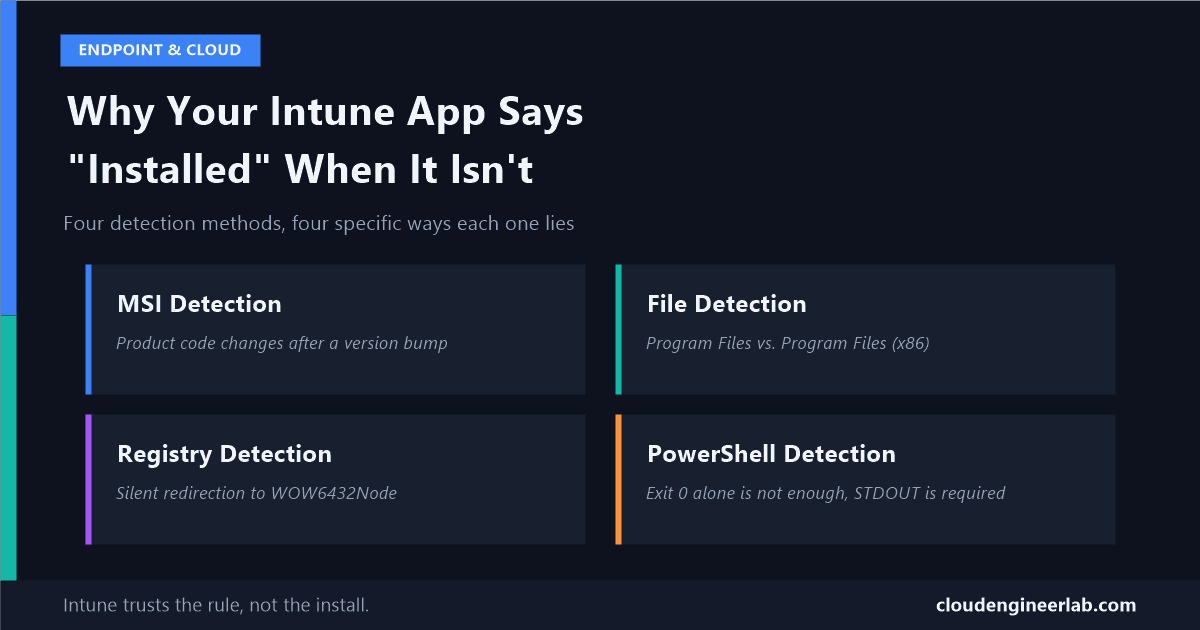
Application Detection Rules: Why Your Intune App Says "Installed" When It Isn't
MSI product codes, WOW6432Node redirection, PowerShell STDOUT rules, and the HKCU trap: the practical reasons detection rules lie, and how to fix each one.
I explained why detection rules run twice, once before install and once after, in the last post. This one is about the rule itself: the specific, practical reasons a detection rule reports the wrong answer, method by method, with the exact fix for each.
The core thing to internalise: Intune has no idea whether an app is actually installed. It only knows whether a detection rule matched. Those are usually the same thing. When they're not, you get a device the vendor's installer swears succeeded on, reported as failed, or worse, a device with a broken half-install that Intune confidently calls "Installed" because a leftover registry key happened to still be there.
MSI Detection
When you pick MSI as the detection type, Intune doesn't run the installer again or ask Windows "is this program in Control Panel." It queries Windows Installer's own product registration by the product code, a GUID Intune reads automatically from the .msi file when you upload it, and optionally checks that the installed version is equal to or greater than a specific value.
The gotcha that breaks after every major version bump
Many vendors change the MSI product code between major versions, it's a genuinely different Windows Installer product as far as the OS is concerned, even though it's "the same app" to everyone else. If you update the app in Intune with a new installer, the new product code gets picked up for the content, but if you'd switched to a manual detection rule at some point, or you're comparing against an old cached value, Intune is still checking for a GUID that no longer exists on the device. The new version installs perfectly and gets reported as failed, because Intune is looking for a product that, as far as Windows Installer is concerned, was never installed.
The fix: when you update an MSI-based Win32 app to a new version, re-check the detection rule's product code against the new installer rather than assuming it carried over correctly, especially for vendors known to rotate product codes.
File Detection
File detection checks for a file or folder's existence, or optionally its date modified, date created, version, or size. It's the most intuitive method and also the easiest to point at the wrong place, because Windows silently redirects file paths depending on process architecture.
A 32-bit process asking for C:\Program Files\VendorApp\app.exe on 64-bit Windows doesn't get an error, it gets silently redirected to C:\Program Files (x86)\VendorApp\app.exe by the File System Redirector. If your 32-bit app actually installed to Program Files (x86), a detection rule pointed at plain "Program Files" will never find it.
The fix: always verify the real install path on an actual test device rather than assuming it based on the app's name or vendor documentation. A quick check in File Explorer after a manual test install settles this in seconds.
Registry Detection
Registry detection can check for a key's existence, a value's existence, or a value's data (string, integer, or version comparison). It shares the exact same underlying redirection problem as file detection, just in the registry instead of the file system, and Intune exposes it as a specific checkbox: "Associated with a 32-bit app on 64-bit clients."
Here's the mechanical reason that checkbox exists: the Intune Management Extension itself runs as a 32-bit process. On 64-bit Windows, a 32-bit process reading or writing HKLM\SOFTWARE\... gets silently redirected to HKLM\SOFTWARE\WOW6432Node\..., the exact same registry reflection mechanism as the file system redirector above. That checkbox tells Intune whether the path you typed should be interpreted through that redirection or read from the native 64-bit view directly.
| App architecture | Checkbox setting | Path Intune actually checks |
|---|---|---|
| 32-bit app on 64-bit Windows | Yes | HKLM\SOFTWARE\WOW6432Node\... |
| 64-bit app | No | HKLM\SOFTWARE\... (native, no redirection) |
Get this backwards and the log tells you immediately
IntuneManagementExtension.log records the exact path it evaluated for every detection check. If a device with the app genuinely installed still shows as not detected, that log line is the fastest way to confirm whether Intune checked WOW6432Node when it should have checked the native path, or vice versa.
PowerShell Detection
This is the method with the most misunderstood rule in the entire list. A PowerShell detection script is not evaluated on exit code alone. It requires both of the following to be true:
Exit code 0
The script must exit with code 0. Any other exit code means not detected, regardless of anything else.
Non-empty STDOUT output
The script must also write something, anything, to standard output using Write-Host or Write-Output. Exit code 0 with no output at all still means not detected.
# WRONG: exits 0 unconditionally, but never writes to STDOUT when the app is missing
if (Test-Path "C:\Program Files\VendorApp\app.exe") {
    Write-Host "Found"
}
exit 0   # this always runs, so this script can never signal "not detected"

# RIGHT: STDOUT only happens on a genuine match, exit code is always 0
if (Test-Path "C:\Program Files\VendorApp\app.exe") {
    Write-Output "Detected"
}
exit 0
The "wrong" version above is a real, common mistake: because exit 0 sits outside the if block, the script exits successfully whether or not the app was found, but only writes to STDOUT when it was found. That part is actually correct by accident. The version that actually breaks is subtler: any script that exits non-zero on a "not found" path (a natural instinct if you're used to scripts treating non-zero as "false") gets treated as not detected for the right reason but for people copying that pattern into other checks, mixing exit-code-as-boolean logic with Intune's STDOUT requirement is where scripts go wrong in both directions.
Exit Codes
Separately from detection, the install command's own exit code has a default table of what counts as success:
| Exit code | Meaning | Treated as |
|---|---|---|
0 | Completed normally | Success |
1707 | Completed successfully | Success |
3010 | Success, restart required | Success (soft reboot) |
1641 | Success, restart initiated | Success (hard reboot) |
1618 | Another installation in progress | Not success, effectively a retry signal |
An installer returning anything outside this list fails, even on a clean install
If your vendor's installer legitimately exits with, say, 3 to mean "success, but a service restart is pending" (plenty of enterprise installers invent their own codes), Intune has no way to know that unless you explicitly add 3 as an additional success code in the app's configuration. Without that, a perfectly successful install is reported as a failure purely because nobody told Intune that exit code counted.
Remember from the packaging post: this exit code and the post-install detection rule are two independent signals. Both need to agree for a clean "Success." Fixing the exit code table doesn't help if the detection rule is also wrong, and fixing the detection rule doesn't help if a legitimate success code isn't in the table.
Detection Timing
Detection isn't continuous. It runs at specific points: once before install (to skip a redundant install), once immediately after (to confirm it worked), and then periodically afterward on the Intune Management Extension's own roughly 8-hour check-in cycle, not the device's general MDM sync schedule.
Practically, this means two things worth remembering when you're testing:
- If you manually install an app for testing and immediately check the Intune portal, the status may not update for hours, that's the IME's own cycle, not a bug. Force a sync (
Syncin Company Portal, or restarting the IME service) if you need to confirm the result sooner. - An app that was correctly detected as installed can flip back to "not installed" later if the detection rule stops matching, a failed update, a user uninstalling it, a competing tool removing files. That's the periodic re-check working as intended, not a false alarm.
User vs. System Context
This is the gotcha that looks like a registry detection problem but is actually a context problem, and it's one of the most common real support tickets in Win32 app deployment.
Win32 apps install, by default, in SYSTEM context. If your detection rule checks HKEY_CURRENT_USER, and detection is evaluated in SYSTEM context, it isn't reading the logged-in user's registry hive. It's reading SYSTEM's own HKCU, an essentially empty, unrelated profile hive that has nothing to do with the person actually using the device.
An HKCU detection rule under SYSTEM context can never see the real user's data
This isn't an edge case that happens sometimes, it's the default outcome for any app that writes its install marker to HKCU while Intune installs and evaluates it as SYSTEM. The app can be genuinely, perfectly installed for the logged-in user, and Intune will report it as not detected every single time, forever, until something changes.
Three real fixes, in order of preference:
Switch to an HKLM-based detection path if one exists
If the app writes anything machine-wide to HKLM, even just an uninstall entry, use that instead. This is the simplest fix and avoids the context mismatch entirely.
Set the app's install and detection context to User
If the app is genuinely a per-user install, configure the Win32 app itself to run in user context rather than system context, so HKCU checks are evaluated against the actual signed-in user's hive.
Write a custom PowerShell detection script that loads the target user's hive manually
For SYSTEM-context installs that must check a per-user marker, a script that enumerates logged-on user SIDs under HKU\ and checks there directly is the most reliable, if most involved, option.
A Practical Checklist When Detection Looks Wrong
Check IntuneManagementExtension.log first
It records the exact path, key, or script result that was evaluated. Guessing what Intune checked is unnecessary when the log states it directly.
Confirm the install context matches the detection rule's assumptions
An HKCU or per-user file path under a SYSTEM-context install is the single most common cause on this list.
Verify architecture redirection explicitly
Don't assume a 32-bit or 64-bit path based on the app's marketing description, check the real install location and the real registry location on a test device.
For MSI apps, confirm the product code actually matches the currently deployed version
Especially after any vendor major version bump.
For PowerShell detection, separate the exit code question from the STDOUT question
A script can be right about one and wrong about the other, and only one of the two failure modes will show up if you're only checking the exit code.
None of these five checks require guessing. Every one of them has a definitive, checkable answer on the device itself. Detection rules aren't fragile because Intune is unreliable, they're fragile because they encode assumptions about architecture, context, and product identity that are easy to get right by accident and easy to get wrong without noticing.
Which of these has cost you the most debugging time? For me it's still the HKCU-under-SYSTEM-context trap, it looks exactly like a flaky detection rule until you know to check the context first. Drop a comment below with yours.

Written by
Chetan Yamger
Cloud Engineer · AI Automation Architect · Modern Workplace Consultant
Cloud Engineer, AI Automation Architect, and Modern Workplace Consultant based in Amsterdam, Netherlands. Specializing in scalable, secure enterprise solutions with Microsoft Azure, Intune, PowerShell, and AI-driven automation using ChatGPT, Gemini, and modern LLM technologies.
Stay in the loop.
New articles, straight to you.
Deep-dive technical articles on Intune, PowerShell, and AI — no noise, no spam.
Discussion
Share your thoughts — your email stays private
Leave a comment