
Win32 App Packaging in Intune: What Actually Happens After You Upload .intunewin?
The mechanics behind the black box: what IntuneWinAppUtil actually does to your installer, how the file reaches a device, and why detection rules run twice.
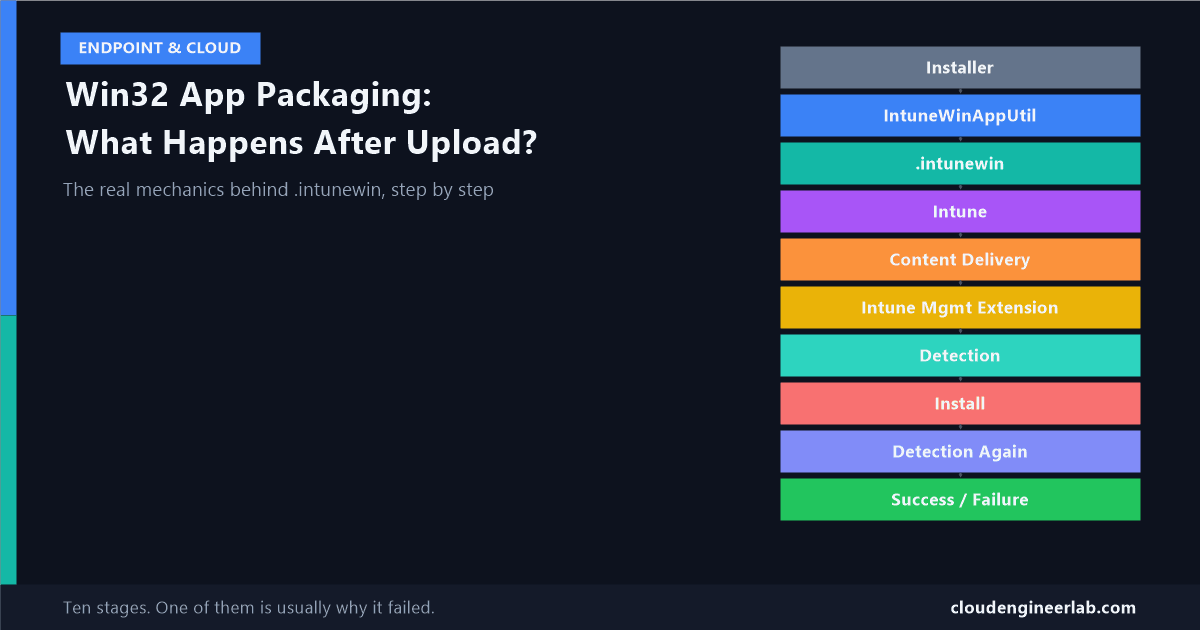
I've written about when to use the Enterprise App Catalog instead of packaging an app by hand. This post is about the hand-packaged path itself, the one that still runs underneath every Win32 app in every tenant, catalog or not. Most guides stop at "run IntuneWinAppUtil, upload the file, assign it." What actually happens between those steps is a real pipeline with real mechanics, and knowing it is the difference between guessing at a failed deployment and knowing exactly which of ten stages broke.
Installer
   ↓
IntuneWinAppUtil
   ↓
.intunewin
   ↓
Intune
   ↓
Content Delivery
   ↓
Intune Management Extension
   ↓
Detection
   ↓
Install
   ↓
Detection Again
   ↓
Success / Failure
Stage 1: The Installer
A Win32 app starts as exactly what its name implies: an ordinary .exe or .msi, the kind you'd install by double-clicking it, with a silent-install switch buried somewhere in a vendor's documentation. Intune's other app types, Store apps, LOB apps, later the Enterprise App Catalog, all exist because a raw Win32 installer is too unpredictable to hand directly to a device: arbitrary exit codes, arbitrary silent switches, no standard way to ask "is this already installed?" The Win32 app type, and the wrapping step that comes with it, is Intune's answer to that unpredictability.
Stage 2: IntuneWinAppUtil
The Win32 Content Prep Tool does four concrete things to your source folder, in order:
Compress
Your setup folder gets compressed into a working .intunewin container, effectively a zip of everything the installer needs.
Encrypt
That compressed content is encrypted with AES-256 in CBC mode, using a randomly generated key and IV for every single package you build. Integrity is verified separately with an HMAC-SHA256 hash.
Hash
A SHA-256 hash and byte length of the original, unencrypted content is calculated and recorded, so integrity can be verified after decryption later.
Describe
All of that, the encryption key, the IV, the HMAC hash and key, the unencrypted hash and size, plus basic metadata like the setup file name, gets written into a file called Detection.xml.
The tool then wraps the encrypted content and Detection.xml together into the final .intunewin file you actually upload.
Stage 3: .intunewin
Open a .intunewin file with any zip tool and you'll find exactly two things:
IntunePackage.intunewin
├── Metadata/
│   └── Detection.xml          ← encryption key, IV, HMAC, hashes, file metadata
└── Contents/
    └── IntunePackage.intunewin ← the actual encrypted, compressed installer
This encryption is not a secret locked behind Intune
Here's the detail that surprises most people: the decryption key lives inside the file itself, in plain sight, inside Detection.xml. Anyone with a copy of your .intunewin file, whether or not they have Intune access, can extract that key and decrypt the payload. Tools that do exactly this exist and are trivial to find. The encryption here is a packaging and integrity mechanism, proving the content wasn't tampered with in transit, not an access-control mechanism protecting your installer's contents from anyone who has the file. If your installer bundles a secret (an embedded license key, an internal config with a password), the .intunewin wrapper does not protect it any better than the original file did.
Stage 4: Intune
When you upload the file, either through the admin centre or via Graph, Intune's backend does more than just store the file:
- The encrypted content is stored in Azure Blob Storage, in storage scoped to your tenant.
- The key material from
Detection.xmlis separately recorded in Intune's own backend database against this specific upload, it doesn't just rely on the file's embedded copy at delivery time. - A content version is created. Every time you upload a new package file to update an existing Win32 app, that's a new content version, not a replacement of the old one.
Content versions accumulate
Old content versions don't automatically disappear when you upload a new one. On a tenant with a long history of app updates, unused content versions quietly take up storage and clutter the app's version history. It's worth periodically reviewing and removing ones nothing is assigned to anymore.
Stage 5: Content Delivery
This is the stage most admins have a mental model for that's actually wrong, borrowed from Configuration Manager's distribution point pattern. Intune doesn't work that way. Here's the real mechanism:
Discovery
The device's Intune Management Extension contacts Intune's discovery service to find the correct SideCar Gateway URI for your specific tenant.
Authentication
It authenticates using the device's own Entra join certificate, not a stored password or shared secret, and receives a bearer token.
Policy and content info
With that token, it queries the SideCar Gateway for which Win32 apps are actually assigned to this device or its signed-in user, and receives back the content location and the decryption key info alongside the assignment policy itself.
Download
The device downloads the encrypted .intunewin payload directly from Azure Blob Storage using the location it was just given.
There's no distribution point, no on-premises content server, and by default no peer-to-peer caching, though Delivery Optimization can be layered on top separately if you want devices on the same network to share downloaded content instead of each pulling it individually from Azure.
Stage 6: Intune Management Extension
None of the previous stage happens through the standard MDM (OMA-DM) channel your device already uses for configuration profiles. Win32 apps, and the arbitrarily complex install logic they need, are handled by a separate agent: the Intune Management Extension (IME).
| Detail | Value |
|---|---|
| Installed as | A Windows service, IntuneManagementExtension |
| Installed automatically when | The first Win32 app, PowerShell script, or similar workload is assigned to the device |
| Runs from | C:\ProgramData\Microsoft\IntuneManagementExtension |
| Check-in cadence | Roughly every 8 hours, independent of the regular MDM sync schedule |
| Key logs | IntuneManagementExtension.log (check-ins, policy), AppWorkload.log (Win32 app installs specifically), AgentExecutor.log (script execution) |
| Content cache | Content\Staging during download, C:\Windows\IMECache once decrypted |
Why a separate 8-hour cycle matters
If you push a new Win32 app assignment and a device doesn't pick it up immediately, that's often not a fault, it's the IME's own independent check-in timer, which doesn't necessarily line up with the device's last general MDM sync. AppWorkload.log is the first place to look when a device seems to be ignoring a new assignment.
Stage 7: Detection (Before Install)
Before a single byte of the installer runs, two separate gates have to pass, in a specific order that catches people off guard.
First, requirement rules. OS version, disk space, architecture, a custom requirement script, whatever you configured. If any single requirement rule fails, the app is marked not applicable for that device. Nothing downloads, nothing installs, and critically, nothing that looks like an error appears anywhere. A device that fails a requirement rule looks identical, in casual reporting, to a device that was never assigned the app at all.
Second, detection rules, run once before install. This is a completely different question: not "should this run here," but "is it already here." If the detection rule already finds the app, the install is skipped entirely. This is why an inaccurate detection rule (checking a version number that changed slightly, or a registry key that moved) can cause a real install to be silently skipped, Intune genuinely believes the app is already present.
A silently skipped requirement check is the hardest failure to diagnose
Because nothing errors, there's nothing to alert on. The only way to catch this is to actively check "not applicable" counts in the app's device status report, not just watch for failures.
Stage 8: Install
Only once both gates above pass does the actual install command run. Two mechanics here explain most of the weird failures people hit:
It runs as SYSTEM, inside Session 0, non-interactively by default. There's no visible desktop, no logged-in user context unless you specifically configured the app to run in user context. An installer that expects to show a UI dialog and wait for someone to click "Next" won't fail loudly, it'll just hang, because there's no session for that dialog to appear in and no user to click anything.
The install command's own exit code is captured, and you can define more than just "0 means success." Intune lets you specify additional codes as "success," or flag specific codes as requiring a soft or hard reboot, which matters because plenty of legitimate installers exit with something other than a plain zero on a clean success.
Stage 9: Detection Again (After Install)
The exact same detection rule that ran before install now runs again, and this second run, not the installer's own exit code, is what Intune actually trusts as the source of truth for whether the app is installed.
This produces the single most confusing support ticket in Win32 app deployment: the installer's own log says it succeeded, exit code 0, and Intune still reports the app as failed. That happens when the exit code and the detection rule disagree, the installer really did finish, but the detection rule is checking the wrong registry key, an outdated version number, or a file path that changed in a newer release of the app. Intune has no way to know the vendor's installer was telling the truth; it only knows what the detection rule found.
Treat a detection rule as living documentation
Every time you update a Win32 app's package to a new version, re-verify the detection rule still matches reality. A rule written for version 1.0 checking an exact version string will fail to detect version 1.1, even though the install itself works perfectly.
Detection doesn't stop after the first successful confirmation either. Win32 apps continue to be periodically re-evaluated afterward, which is how Intune notices if a required app gets uninstalled later and reinstalls it, or notices drift without you needing to manually re-check every device.
Stage 10: Success / Failure
The result of that second detection pass, plus the raw install exit code, gets written locally by the IME and reported back up to Intune during its next check-in cycle, not necessarily instantly. From there it flows into the same reporting mechanism I've covered from the Graph API side before: the DeviceInstallStatusByApp report, where the HexErrorCode column is that same raw exit code from Stage 8, and AppInstallState reflects the detection outcome from Stage 9. When you're reading that report, you're reading the output of this entire ten-stage pipeline, not a live status.
The Full Picture
Every one of the confusing Win32 app problems I've seen in real tenants traces back to one specific stage in this list: an app that "never even tries" is a requirement rule failing silently at Stage 7. An app stuck at "Installing" forever is Session 0 blocking a UI dialog at Stage 8. An app the vendor swears installed fine but Intune calls failed is a stale detection rule at Stage 9. Once you know which of the ten stages you're actually debugging, the fix is usually obvious. Without that mental model, it's guesswork.
If you've hit one of these ten stages breaking in a way I haven't covered here, I'd like to add it. Drop a comment with what actually went wrong and which stage it turned out to be.

Written by
Chetan Yamger
Cloud Engineer · AI Automation Architect · Modern Workplace Consultant
Cloud Engineer, AI Automation Architect, and Modern Workplace Consultant based in Amsterdam, Netherlands. Specializing in scalable, secure enterprise solutions with Microsoft Azure, Intune, PowerShell, and AI-driven automation using ChatGPT, Gemini, and modern LLM technologies.
Stay in the loop.
New articles, straight to you.
Deep-dive technical articles on Intune, PowerShell, and AI — no noise, no spam.
Discussion
Share your thoughts — your email stays private
Leave a comment