
Intune Enterprise App Management: Is Manual Application Packaging Becoming Obsolete?
Microsoft now packages hundreds of common apps for you. Here's what that actually replaces, and where hand-packaging Win32 apps still holds its ground.
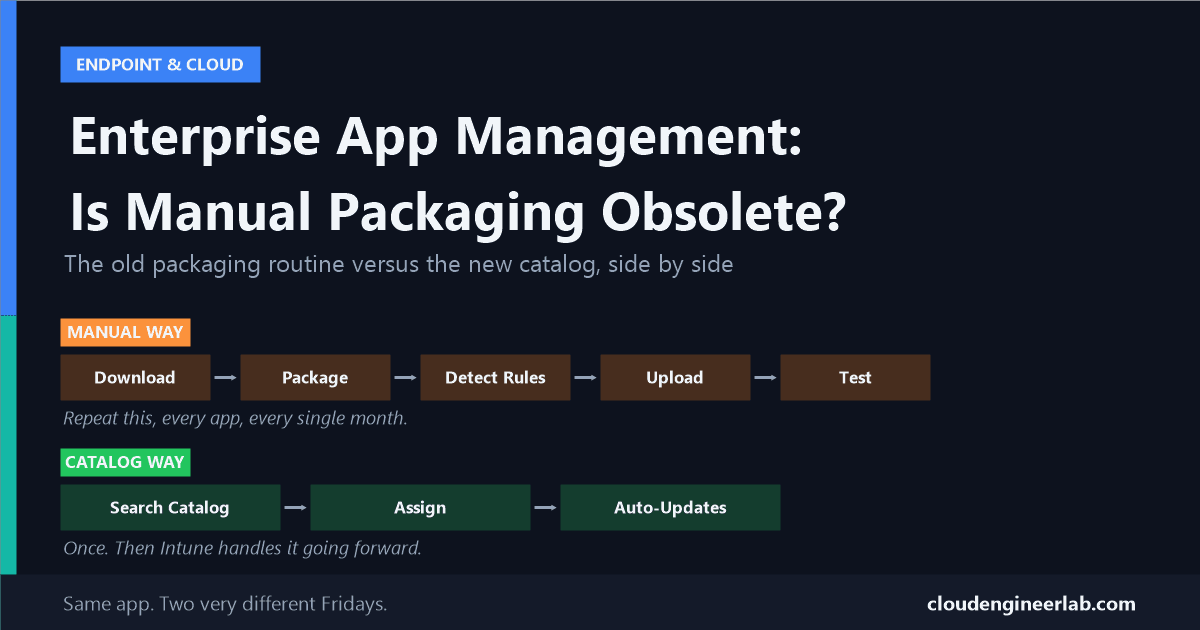
Picture an IT admin on a Friday afternoon. Google Chrome released a new version this week. So did Zoom. So did the PDF reader half the finance team uses. Each one needs to be downloaded, wrapped into Intune's .intunewin format, given detection rules, tested, and pushed out again, the exact same routine they did last month, and the month before that.
That routine has a name: manual application packaging. And for years, it was simply the job. Now Microsoft has built something that packages a lot of that work for you: Intune Enterprise App Management (EAM). This post explains what EAM actually does, in plain language, and gives you an honest answer to the question in the title: does hand-packaging apps still have a place, or is it on its way out?
Quick Definitions Before We Start
Before anything else, here is every term this post uses, translated once so you never have to guess again.
| Term | What it means, in plain English |
|---|---|
| Win32 app | A regular Windows program, the kind you'd normally install by double-clicking a .exe or .msi file |
| Packaging | Wrapping that program into a format Intune understands, plus telling Intune how to install it, how to check it worked, and how to remove it |
| Enterprise App Catalog | A library of common, popular apps that Microsoft has already packaged for you, ready to deploy with a few clicks |
| Auto-update | Once you assign a catalog app, Intune quietly installs each new version on its own, no repackaging required |
| Supersedence | The instruction that tells Intune "this new app replaces that old one," so devices upgrade instead of ending up with two versions installed |
| Graph API | The way a script or program talks to Intune directly, instead of a human clicking through the admin website |
Keep that table in mind. Everything below is really just those six ideas working together.
What Is the Enterprise App Catalog, Really?
Think of it like the difference between building your own vending machine from scratch versus renting one that already comes stocked, serviced, and restocked automatically.
Before EAM, every app you wanted to deploy through Intune, even something as ordinary as Google Chrome, was something you had to download, wrap, configure, and test yourself. It didn't matter that a thousand other IT teams around the world were doing the exact same thing with the exact same app that week.
The Enterprise App Catalog is Microsoft doing that repeated work once, centrally, so nobody has to do it a thousand times separately. It now holds several hundred common third-party applications, browsers, PDF readers, compression tools, communication apps, and other everyday software that shows up in almost every organisation's fleet. Under the hood, a catalog app is still technically a Win32 app. Microsoft has simply already done the packaging, detection logic, and installer configuration for you.
The simplest way to think about it
The Enterprise App Catalog doesn't replace Win32 apps. It replaces the packaging homework that used to come attached to every Win32 app.
Automatic Updates: The Part That Actually Saves Time
This is the feature that changes an admin's monthly routine the most.
The old routine, every single month
A new version of an app comes out. You download the new installer, rebuild the .intunewin package, update the detection rule to look for the new version number, upload it as a new app in Intune, and either replace the old assignment or set up supersedence so devices upgrade cleanly. Then you test it. Then the next app on your list needs the same thing.
The catalog routine, once
You add the app from the Enterprise App Catalog and assign it as Required. That's it.
What happens after that
When Microsoft publishes a newer version in the catalog, Intune notices and installs it on assigned devices automatically, whether it's a small patch or a major version jump. You don't create a new app. You don't touch supersedence. You don't repeat any of it next month.
One condition that trips people up
Auto-update only kicks in when the app is assigned as Required. If you assigned it as Available (so users install it themselves from Company Portal), it will not silently update in the background the same way. Check your assignment type if a catalog app seems stuck on an old version.
Supersedence: Replacing the Old with the New
Here's an everyday analogy. When a new phone model comes out, you don't keep using your old phone and your new one side by side forever, you trade the old one in and move everything over. Supersedence is Intune's version of that trade-in: it tells a device "install this new app, and get rid of that old one while you're at it," instead of leaving both versions cluttering the machine.
For a traditional Win32 app, you build that supersedence relationship by hand: open the old app's properties in Intune, go to Supersedence, and manually pick the new app that should replace it, then decide whether Intune should uninstall the old version first. You can chain up to 10 apps this way, but every link in that chain is something you built and now have to remember exists.
For a catalog app, you don't build a supersedence chain at all. Since Intune already knows it's updating the same app to a newer version rather than replacing it with a different one, there's no separate "old app" and "new app" for you to link together. The trade-in happens automatically as part of auto-update.
Traditional Win32 Packaging vs. Catalog Apps, Side by Side
Step 1: Download the installer yourself and find its silent-install command line switches.
Step 2: Use the Win32 Content Prep Tool to wrap it into a .intunewin file.
Step 3: Write detection rules yourself (a registry key, a file version, an MSI product code) so Intune knows if it's already installed.
Step 4: Upload it, assign it, and test it on a pilot group.
Step 5: When a new version ships, repeat every step above and set up a supersedence relationship so devices upgrade instead of duplicating.
Who's responsible for it working correctly forever: You, indefinitely.
Where Does Graph API Fit Into All This?
Think of the Intune admin portal like walking into a restaurant and ordering at the counter every single time. The Graph API is the delivery app: instead of a human clicking through screens, a script sends a structured request and gets a structured answer back, and it can do that for hundreds of apps in the time it takes you to click through five of them manually.
For Enterprise App Management specifically, Microsoft Graph exposes the entire catalog as data you can query. That matters once you have more than a handful of catalog apps to manage, because clicking "Add" a hundred times in a web browser is not a good use of anyone's afternoon.
Here's a beginner-friendly example. This PowerShell script simply asks Microsoft Graph for a list of every app currently sitting in the Enterprise App Catalog:
# Connect to Microsoft Graph with the permission needed to read app data
Connect-MgGraph -Scopes "DeviceManagementApps.Read.All"

# Ask Graph for the full Enterprise App Catalog (this is the "beta" endpoint,
# since EAM's catalog data isn't in the stable v1.0 API yet)
$catalogApps = Invoke-MgGraphRequest -Method GET `
    -Uri "https://graph.microsoft.com/beta/deviceAppManagement/mobileAppCatalogPackages"

# Show just the name and publisher of each app, instead of the full raw output
$catalogApps.value | Select-Object productDisplayName, publisherDisplayName
Nothing in that script clicks a single button in the admin centre. It asks a question in code, and Intune answers in code. That's the whole idea behind Graph automation: once your app estate is described as data instead of screens you click through, you can report on it, audit it, and bulk-manage it with a script instead of your mouse.
Where Custom Packaging Is Still Necessary
This is the honest part of the post. The catalog is genuinely useful, but it was never built to cover everything, and it isn't trying to.
| Situation | Why the catalog can't help here |
|---|---|
| Software your own company built | Line-of-business apps, internal tools, anything custom to your organisation simply isn't public software Microsoft could catalog in the first place |
| An app not in the catalog yet | The catalog covers common, popular software. Niche, industry-specific, or newer tools may not be listed |
| Non-default installer settings | If your organisation needs a specific silent-install switch, a custom install path, or particular configuration flags the catalog version doesn't offer, you need your own package |
| Strict version pinning for compliance or testing | If auditors or a change-control process require staying on an exact, specific version rather than always taking the latest one, auto-update actively works against you here |
| Apps needing custom pre-install or post-install scripts | Anything that needs extra steps (registry tweaks, license file drops, dependency checks) around the install itself still needs a hand-built package |
| Older or discontinued software | Legacy line-of-business tools that vendors no longer actively publish updates for were never candidates for a Microsoft-maintained catalog entry |
A useful rule of thumb
If an app is popular enough that thousands of other companies also need to deploy it, check the catalog first. If an app is specific to your business, your industry, or your compliance requirements, you're almost certainly still packaging it yourself.
So, Is Manual Packaging Becoming Obsolete?
Not obsolete. Smaller.
Before EAM, every single app on your fleet, whether it was Chrome or your own custom finance tool, went through the same manual packaging pipeline. That made "how do I package apps well" a huge part of an endpoint engineer's job.
Now that work splits into two very different piles. Common, everyday software increasingly belongs in the catalog pile: add it, assign it, forget it. Anything genuinely specific to your organisation still belongs in the manual pile, and that pile isn't shrinking to zero, because the catalog was never designed to hold software that only your company uses.
The actual skill shift for endpoint engineers isn't "learn to use the catalog instead of packaging apps." It's learning to correctly sort every new app request into the right pile before spending a single minute packaging anything.
A Quick Decision Checklist
Next time someone asks you to deploy a new app, run through these questions in order before opening the Win32 Content Prep Tool:
Is it already in the Enterprise App Catalog?
Search first. If it's there, you may be done in two clicks.
Does the catalog version's default configuration actually work for you?
If it installs silently, in the right location, with settings your organisation is fine with, use it as-is.
Do you need non-default install settings?
If yes, that's a sign you may still need your own package, even if the same app exists in the catalog.
Is version pinning a hard requirement for you?
If compliance or testing requires staying off the latest version, auto-update is a liability here, not a convenience. Package it manually and control the version yourself.
Is it software your own organisation built?
Then there's no catalog decision to make. It was always going to be a manual package.
If you get through all five questions and land on "catalog app, default settings, latest version is fine," that Friday-afternoon repackaging routine just disappeared for that app, permanently.
Have you moved any apps from a hand-built Win32 package over to the Enterprise App Catalog yet? I'd like to hear which ones worked cleanly and which ones you had to pull back out of the catalog. Drop a comment below.

Written by
Chetan Yamger
Cloud Engineer · AI Automation Architect · Modern Workplace Consultant
Cloud Engineer, AI Automation Architect, and Modern Workplace Consultant based in Amsterdam, Netherlands. Specializing in scalable, secure enterprise solutions with Microsoft Azure, Intune, PowerShell, and AI-driven automation using ChatGPT, Gemini, and modern LLM technologies.
Stay in the loop.
New articles, straight to you.
Deep-dive technical articles on Intune, PowerShell, and AI — no noise, no spam.
Discussion
Share your thoughts — your email stays private
Leave a comment