
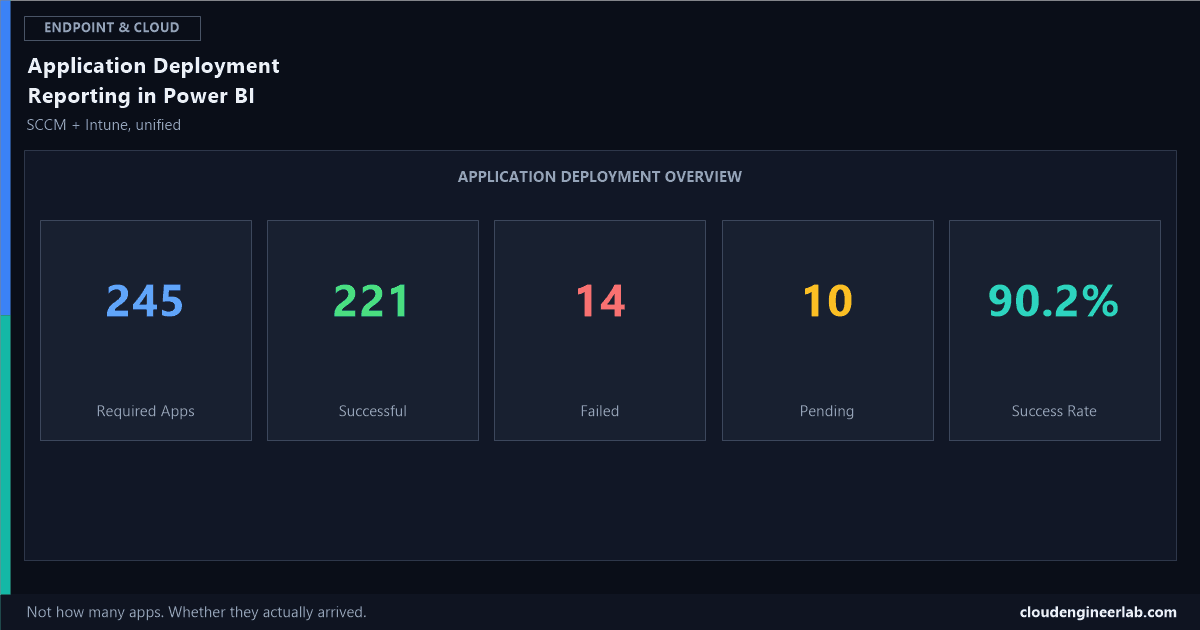
SCCM + Intune Application Deployment Reporting in Power BI
Not how many applications you have. Whether they actually reached the devices they were supposed to, and specifically why the ones that didn't, didn't.
The 15-report catalog lists Application Deployment Status and Failed Application Installations as two separate entries. This post is the deep dive that connects them, because the real operational question was never "how many applications do we have." It's this one: are applications actually reaching the devices they're supposed to reach, and when they don't, is that a packaging problem or a detection problem? Those are different failures with different fixes, and most out-of-the-box reporting collapses them into the same "Failed" bucket.
Application
    ↓
Deployment
    ↓
Target Collection / Group
    ↓
Device
    ↓
Installation
    ↓
Detection
    ↓
Success / Failed / Pending
    ↓
Power BI
The Eight Stages
Stages 5 and 6 are two different questions, and most dashboards ask only one
Installation asks "did the install process run and exit cleanly." Detection asks "can we independently confirm the software is actually there." A detection rule has no idea whether the install genuinely succeeded, it only knows whether its own specific check matched. Collapse these two into a single "Failed" status, and you lose the ability to tell a genuine packaging failure apart from a detection rule that's simply looking in the wrong place.
The Dashboard: Application Deployment Overview
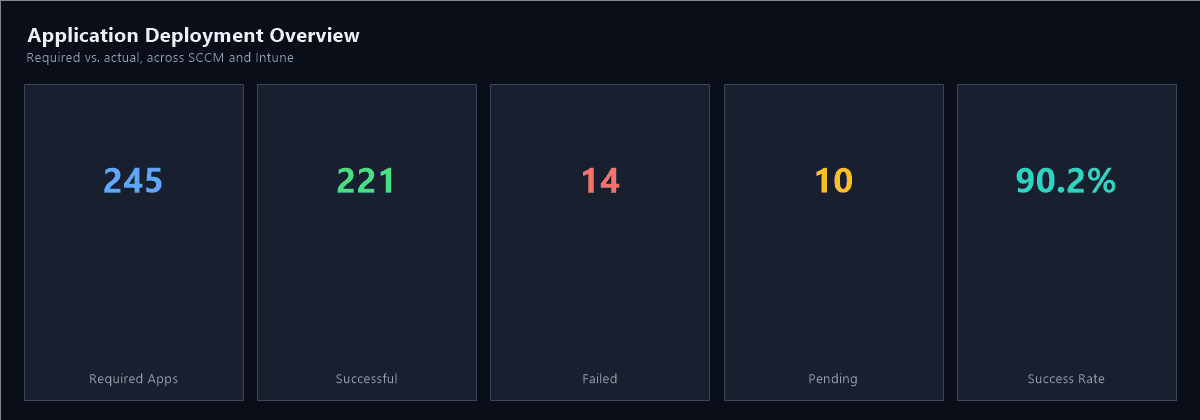
| Metric | Value |
|---|---|
| Required Apps | 245 |
| Successful | 221 |
| Failed | 14 |
| Pending | 10 |
| Success Rate | 90.2% |
A 90.2% success rate looks fine as a headline number and tells you almost nothing useful. The entire value of this report lives in what happens next, breaking that remaining 9.8% down into categories that actually point at a fix.
Investigate: Failed Deployments
The starting point, but not the destination. A raw "Failed" list without a reason code is a list someone still has to investigate manually, one device at a time. Pull the actual error or exit code alongside the failure, not just the count.
Investigate: Devices That Never Received the Application
This is the failure mode a simple status report can't see at all, because a device with no deployment record isn't in the "Failed" bucket, it's just silently absent. Finding it requires comparing two different populations: everyone in the target collection or group, against everyone who actually has a deployment status record.
Never Received =
COUNTROWS(
    EXCEPT(
        VALUES(TargetGroup[DeviceId]),
        VALUES(DeploymentStatus[DeviceId])
    )
)
A device that was added to the target group after the last content distribution cycle, or one sitting in a Configuration Manager collection that hasn't re-evaluated membership yet, shows up here, not in Failed. Treating this count as part of your failure rate, rather than a separate silent gap, is what actually closes it.
Investigate: Installation Succeeded but Detection Failed
The specific failure this whole report exists to surface. This requires keeping the install exit code and the detection result as two separate fields, not one collapsed status.
Detection-Only Failures =
CALCULATE(
    COUNTROWS(DeploymentStatus),
    DeploymentStatus[InstallExitCode] = 0,
    DeploymentStatus[DetectionResult] = "Not Detected"
)
Why this number matters more than the raw failure count
Every device this measure catches is a device where the software is very likely actually installed, and the detection rule is simply wrong, an MSI product code that changed between versions, a 32-bit path silently redirected on 64-bit Windows, a registry key checked under the wrong hive. Fixing the detection rule resolves every device this measure counts, immediately, without touching the install process at all. Treating these the same as a genuine install failure sends someone chasing a packaging bug that doesn't exist.
Investigate: Deployment Trends
Is the failure rate for a specific application improving after a packaging fix, or steady, or getting worse as it rolls out to a wider ring. A single point-in-time success rate can't answer this, only a trend against DimDate can.
Investigate: Application Versions
A success rate that looks fine in aggregate can hide one specific version quietly failing everywhere it's deployed, while older, already-installed versions inflate the overall number. Break success rate down by version, not just by application name.
Investigate: SCCM vs Intune Deployment Status
The same dual-source pattern from the unified dashboard build applies directly here: an application deployed through both Configuration Manager and Intune during a co-management migration can show meaningfully different success rates on each path, and that difference is itself a signal, either about the packaging format's compatibility with one management channel, or about a migration that isn't as complete as it looks.
Investigate: Packaging Problems vs Detection-Rule Problems
A packaging problem shows up as a genuine install failure
A non-zero exit code, an MSI error, a missing prerequisite. The full mechanics of what actually happens after a Win32 app uploads and runs are covered here, this is where that failure actually originates.
A detection-rule problem shows up as the Detection-Only Failures measure above
Exit code 0, detection result negative. The fix lives entirely in the detection rule configuration, not the installer.
Don't let one team own both without visibility into which is which
A packaging team chasing a phantom install bug because the dashboard mislabeled a detection issue as a failure is wasted investigation time, entirely avoidable by keeping these two fields separate from the start.
Full DAX Reference
Required Apps = COUNTROWS(TargetGroup)

Successful = CALCULATE(COUNTROWS(DeploymentStatus), DeploymentStatus[Status] = "Success")

Failed = CALCULATE(COUNTROWS(DeploymentStatus), DeploymentStatus[Status] = "Failed")

Pending = CALCULATE(COUNTROWS(DeploymentStatus), DeploymentStatus[Status] = "Pending")

Success Rate = DIVIDE([Successful], [Required Apps])

Never Received =
COUNTROWS(EXCEPT(VALUES(TargetGroup[DeviceId]), VALUES(DeploymentStatus[DeviceId])))

Detection-Only Failures =
CALCULATE(
    COUNTROWS(DeploymentStatus),
    DeploymentStatus[InstallExitCode] = 0,
    DeploymentStatus[DetectionResult] = "Not Detected"
)
Summary
| Investigation | What it actually catches |
|---|---|
| Failed Deployments | Genuine install failures, with an error code to act on |
| Never Received | Devices missing from the deployment entirely, invisible to a status-only report |
| Detection-Only Failures | Devices where the software is likely installed and the detection rule is wrong |
| Deployment Trends | Whether a fix is actually working, over time, not just today |
| Application Versions | A specific version quietly dragging down an otherwise healthy average |
| SCCM vs Intune Status | Whether a co-management migration is as complete as the headline number suggests |
None of this replaces the packaging and detection-rule posts already published on this site, it operationalises them, turning "check this one device manually when someone complains" into "see the whole fleet's actual deployment health, broken down by the specific reason anything didn't work."
Have you separated install exit code from detection result in your own reporting, or are they still collapsed into one status field? That one modelling decision is the difference between this report being genuinely diagnostic and just being a fancier failure count. Drop a comment with how your model handles it.

Written by
Chetan Yamger
Cloud Engineer · AI Automation Architect · Modern Workplace Consultant
Cloud Engineer, AI Automation Architect, and Modern Workplace Consultant based in Amsterdam, Netherlands. Specializing in scalable, secure enterprise solutions with Microsoft Azure, Intune, PowerShell, and AI-driven automation using ChatGPT, Gemini, and modern LLM technologies.
Stay in the loop.
New articles, straight to you.
Deep-dive technical articles on Intune, PowerShell, and AI — no noise, no spam.
Discussion
Share your thoughts — your email stays private
Leave a comment