
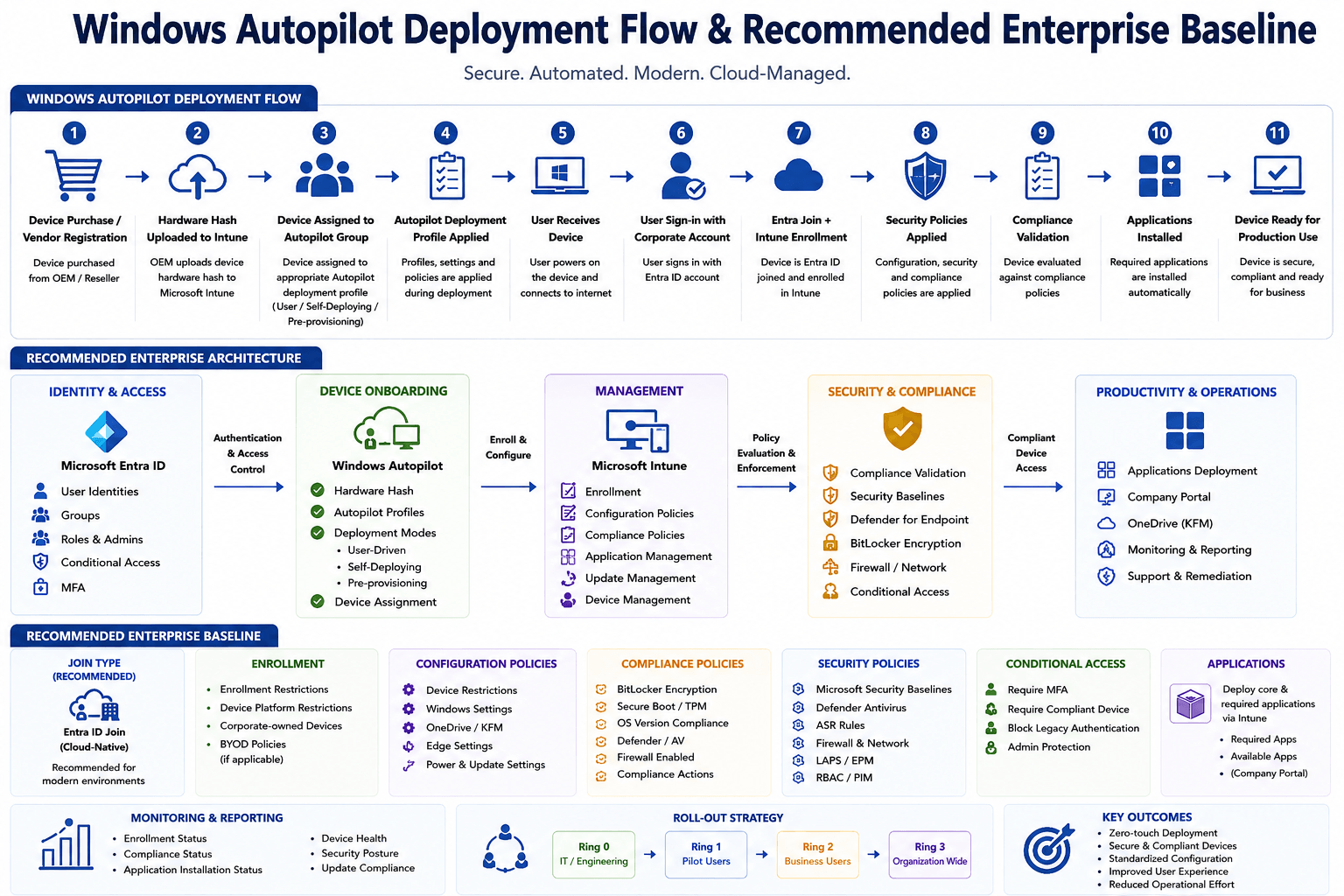
Windows Autopilot Deployment Flow & Recommended Enterprise Baseline
A complete guide to Windows Autopilot: every deployment mode explained, the full provisioning flow step by step, and the enterprise baseline every organisation should build on top of it.
Traditionally, deploying a new Windows laptop in an enterprise meant imaging it with a custom OS build, installing agents, configuring settings manually, and shipping it to the user, a process that could take hours per device and required physical access to hardware.
Windows Autopilot replaces all of that. A device can come straight from a vendor, be powered on by the user at their home or office, and be fully enrolled, configured, and corporate-ready within 30–45 minutes, with zero IT hands-on time.
This guide covers every Autopilot deployment mode, the complete provisioning flow, and the enterprise baseline you should layer on top of it so every device lands in a consistent, secure state from day one.
What is Windows Autopilot?
Windows Autopilot is a cloud-native device provisioning service built into Windows 10/11 and managed through Microsoft Intune. It works by pre-registering a device's hardware fingerprint (the hardware hash) in your tenant. When that device boots for the first time, Windows detects it is an Autopilot-registered device and automatically:
- Skips the standard consumer OOBE (Out-of-Box Experience)
- Shows your organisation's branded sign-in page
- Walks the user (or the device itself) through corporate enrollment
- Pulls all policies, apps, and configurations from Intune automatically
The device never needs to be touched by IT. The user gets a fully configured, compliant machine. IT gets visibility and control from day one.
What Autopilot is NOT
Autopilot does not image devices. It does not replace the OS or wipe the factory Windows installation. It provisions on top of the existing Windows installation: configuring it, joining it to Entra ID, enrolling it in Intune, and applying corporate settings.
The Hardware Hash: The Foundation of Autopilot
Before any Autopilot deployment can happen, the device must be registered in your Intune tenant. Registration is done using a hardware hash, a unique fingerprint of the device's hardware (motherboard, NIC, CPU serial, etc.) combined with the Windows product key.
How to get the hardware hash into Intune
| Method | How it works | Best for |
|---|---|---|
| OEM pre-registration | Dell, HP, Lenovo, Microsoft Surface upload hashes directly to your tenant at purchase time | New devices ordered from supported vendors |
| Microsoft Partner Centre (MPC) | Your reseller or CSP partner registers devices on your behalf | Partner-managed procurement |
| Manual CSV upload | IT runs a PowerShell script on the device, exports a .csv, uploads to Intune | Small batches, existing devices |
| Intune connector (existing devices) | Uses Configuration Manager co-management to register existing managed devices | SCCM/MECM to cloud migration |
Manual hash capture PowerShell:
# Run on the target device (local admin required)
Install-Script -Name Get-WindowsAutoPilotInfo -Force
Get-WindowsAutoPilotInfo -OutputFile C:\AutopilotHWID.csv
Upload the resulting .csv in Intune → Devices → Enrolment → Windows → Windows Autopilot → Devices → Import.
Autopilot Deployment Modes
Windows Autopilot has five deployment modes. Choosing the right one depends on whether devices are shared or personal, whether you need on-premises AD connectivity, and whether IT wants to pre-stage devices before handing them to users.
Mode 1: User-Driven, Azure AD Join (Cloud-Only)
The most common mode for modern cloud-first organisations. The device joins Entra ID only, no on-premises Active Directory required.
Who it is for: Organisations that are fully cloud (Microsoft 365, no on-prem file servers or legacy apps that require domain join).
What the user experiences:
- Powers on the device
- Sees the company-branded sign-in page
- Signs in with their corporate email and password + MFA
- Device joins Entra ID, enrolls in Intune, receives all policies and apps
- User reaches the desktop fully configured
Mode 2: User-Driven, Hybrid Azure AD Join
The device joins both on-premises Active Directory AND Entra ID. This is needed when users require domain-joined access, for example accessing on-premises file shares, using Group Policy, or running apps that authenticate against the on-prem domain.
Who it is for: Organisations in a hybrid model that still have on-prem AD and are not fully migrated to cloud.
Additional requirement: The Intune Connector for Active Directory must be installed on a Windows Server in your on-prem environment. This connector performs the domain join on behalf of the device during Autopilot provisioning.
Network requirement
During Hybrid AADJ Autopilot provisioning, the device must be able to reach your on-premises domain controller, either directly on the corporate network or over VPN. Devices provisioned off-network (e.g. at a user's home) will fail unless you have Always On VPN or DirectAccess pre-configured.
Mode 3: Self-Deploying Mode
No user interaction at all. The device provisions itself completely: no username, no password prompt. Used for kiosks, digital signage, shared workstations, and meeting room devices.
How it authenticates: The device uses its own TPM 2.0 chip to authenticate to Entra ID using a device certificate. This is why TPM 2.0 is a hard requirement for this mode.
What IT configures: A device configuration profile is applied automatically (kiosk mode, assigned access, single-app lock, etc.) with no user needed.
Mode 4: Pre-Provisioning (White Glove)
Pre-provisioning splits the Autopilot process into two phases:
- Phase 1 (IT/technician phase): IT scans a QR code on the device, the device downloads and installs all device-targeted policies and apps. This can take 20–45 minutes. When complete, IT reseals the device (ships it to the user or places it on their desk).
- Phase 2 (user phase): The user powers it on, signs in with their credentials. Only user-targeted policies and apps install at this point, which is much faster (5–10 minutes).
Why use it: Reduces user-facing provisioning time. Users do not sit waiting for apps to install; IT handles the heavy work in advance.
Mode 5: Autopilot for Existing Devices
Allows you to re-deploy existing Windows devices that are currently managed by Configuration Manager (SCCM/MECM) using Autopilot, without reimaging them. The process wipes and reloads Windows, then goes through the standard Autopilot User-Driven flow.
Who it is for: Organisations migrating from SCCM-based imaging to a cloud-native Autopilot model.
The Full Autopilot Deployment Flow: Step by Step
This is the complete end-to-end flow for the most common scenario: User-Driven, Entra ID Join.
Step 1: Device registered in Intune tenant
Before the device reaches the user, its hardware hash is uploaded to Intune (by the OEM, reseller, or IT). In Intune, the device appears under Autopilot Devices. An Autopilot profile is assigned to it (either directly or via group membership).
Step 2: User powers on the device
The user takes the device out of the box and powers it on. Windows starts the Out-of-Box Experience (OOBE). Normally this shows "Let's start with region," but Autopilot intercepts this early.
Step 3: Device contacts Windows Autopilot service
The device connects to the internet (via DHCP, ethernet or Wi-Fi). It contacts the Windows Autopilot Deployment Service at ztd.dds.microsoft.com. The service checks the hardware hash against registered devices in your tenant.
Step 4: Autopilot profile downloaded
The service returns your organisation's Autopilot profile, which defines join type (Entra ID or Hybrid), whether to skip privacy settings, whether to skip EULA, whether to hide the account setup page, naming template (e.g. CORP-%RAND:4%), and language/region settings.
Step 5: Company-branded sign-in page
OOBE skips the consumer setup steps and shows your organisation's sign-in page, with your company logo and tenant name. The user types their corporate email address.
Step 6: User authenticates (MFA)
The user completes authentication: password plus MFA (Authenticator app push, or FIDO2 key). Conditional Access policies are evaluated here. If the device is not yet compliant, a grace period allows the enrollment to proceed.
Step 7: Device joins Entra ID
Windows registers the device in Entra ID using the user's credentials. The device gets a device object in Entra ID with an Entra ID device ID. A device compliance record is created in Intune.
Step 8: Intune enrollment (MDM auto-enrollment)
Because the user's tenant has MDM auto-enrollment configured (and the user has an Intune license), the device automatically enrolls in Intune immediately after Entra join. No separate enrollment step needed.
Step 9: Enrollment Status Page (ESP)
If you have configured the Enrollment Status Page, the user sees a progress screen showing three phases: Device preparation → Device setup → Account setup. Each phase installs the assigned policies, certificates, and apps. The user cannot use the device until all required items complete (configurable).
Step 10: Policies and apps deploy
Intune pushes all device-targeted configuration profiles, compliance policies, security baselines, Win32 apps, and Microsoft Store apps. Critical apps (VPN client, endpoint protection, LOB apps) install before the user reaches the desktop.
Step 11: User reaches the desktop
Autopilot provisioning is complete. The device is Entra joined, Intune enrolled, BitLocker encrypted, Windows Hello configured, and all required apps installed. The user sees their personalised desktop and can start working immediately.
The Enrollment Status Page (ESP)
The ESP is the progress screen users see during provisioning. It is critical to configure it correctly: too strict and users sit waiting, too loose and they reach the desktop before security tools are installed.
ESP Phases
Recommended ESP settings
| Setting | Recommended value | Why |
|---|---|---|
| Show app and profile configuration progress | Yes | Users understand what is happening |
| Block device use until all apps and profiles are installed | Yes | Ensures security tools are in place before use |
| Allow users to reset device if installation error occurs | No | Prevents users from bypassing provisioning |
| Allow users to use device if installation error occurs after X minutes | 60 minutes | Prevents indefinite blocking on transient failures |
| Show error when installation takes longer than X minutes | 60 minutes | Surface issues for IT visibility |
| Turn on log collection and diagnostics page | Yes | Speeds up troubleshooting |
ESP App Blocking
Only mark apps as required in the ESP if they truly must be installed before the user starts working. Apps like M365 Apps, Teams, and OneDrive can be marked as not blocking; they will still install in the background after the user reaches the desktop.
Recommended Enterprise Baseline
Once Autopilot handles the provisioning, what you configure in Intune determines how secure and consistent every device is. A well-designed enterprise baseline means every device, regardless of when it was provisioned, lands in the same known-good state.
Here is the baseline stack, layer by layer.
Layer 1: Microsoft Security Baseline
Microsoft publishes a Security Baseline for Windows, a curated set of 300+ settings covering password policy, audit logging, Windows Defender, UAC, SMB signing, and more. These are based on the Center for Internet Security (CIS) benchmarks and Microsoft's own threat intelligence.
In Intune → Endpoint Security → Security Baselines, you can deploy the Microsoft 365 Security Baseline for Windows with a few clicks.
| Baseline type | What it configures |
|---|---|
| Windows Security Baseline | 300+ OS hardening settings |
| Microsoft Defender for Endpoint Baseline | Defender AV, EDR, attack surface reduction |
| Microsoft Edge Baseline | Browser security settings, phishing protection |
Apply the Microsoft Security Baseline first, then override specific settings with your own configuration profiles if your organisation has specific requirements (e.g. different password length policy). Baselines provide the floor; your profiles refine on top.
Layer 2: Compliance Policy
A compliance policy defines the minimum health requirements a device must meet to be considered "trusted." Devices that fail become non-compliant, which Conditional Access uses to block access to company resources.
Recommended compliance settings:
| Setting | Recommended value |
|---|---|
| Require BitLocker | Yes |
| Require Secure Boot | Yes |
| Require Code Integrity | Yes |
| Minimum OS version | Windows 10 22H2 / Windows 11 22H2 |
| Firewall required | Yes |
| Antivirus required | Yes |
| Antispyware required | Yes |
| Require Windows Hello for Business | Yes |
| Microsoft Defender ATP risk level | Low or Medium |
| Valid from (grace period after enrolment) | 1 day |
Layer 3: Configuration Profiles
These profiles push the actual settings to devices. Deploy all of these at device level (not user level) so they apply before the first user logs in.
BitLocker
| Setting | Value |
|---|---|
| Require device encryption | Yes |
| BitLocker, OS drive encryption method | XTS-AES 256-bit |
| Require additional authentication at startup | Yes (TPM + PIN or TPM only) |
| Recovery key backup | Azure AD (Entra ID), automatically escrowed |
| Warning for other disk encryption | Block |
Enable Silent Encryption for Autopilot-enrolled devices. BitLocker will encrypt in the background during OOBE without prompting the user, and the recovery key is automatically saved to Entra ID before encryption completes.
Windows Hello for Business
| Setting | Value |
|---|---|
| Configure Windows Hello for Business | Enable |
| Minimum PIN length | 6 |
| Maximum PIN length | 127 |
| Lowercase letters in PIN | Allowed |
| Uppercase letters in PIN | Allowed |
| Special characters in PIN | Allowed |
| PIN expiry | 0 (never; PIN is device-bound, expiry adds no security) |
| Remember PIN history | 0 |
| Allow biometric authentication | Yes |
| Use enhanced anti-spoofing | Yes |
| Use a hardware security key for sign-in | Allowed |
Windows LAPS
| Setting | Value |
|---|---|
| Backup directory | Azure AD (Entra ID) |
| Password age (days) | 7 |
| Administrator account name | Custom (rename default admin) |
| Password complexity | Large letters + small letters + numbers + specials |
| Password length | 20 |
| Post-authentication actions | Reset password and log off managed account |
Windows Firewall
| Setting | Value |
|---|---|
| Firewall, Domain network | Enable |
| Firewall, Private network | Enable |
| Firewall, Public network | Enable |
| Inbound connections | Block (default) |
| Outbound connections | Allow (default) |
Microsoft Defender Antivirus
| Setting | Value |
|---|---|
| Real-time protection | Enable |
| Cloud-delivered protection | Enable |
| Cloud protection level | High |
| Automatic sample submission | Send safe samples automatically |
| PUA protection | Enable |
| Network protection | Enable in block mode |
| Tamper protection | Enable |
Layer 4: Conditional Access
Conditional Access is the enforcement engine. It ties identity (Entra ID) and device health (Intune) together to control who accesses what.
Baseline Conditional Access policies every org should have:
| Policy | Conditions | Grant |
|---|---|---|
| Require MFA for all users | All cloud apps, all users | Require MFA |
| Require compliant device for corporate apps | M365 apps (Outlook, SharePoint, Teams), all users | Require compliant device |
| Block legacy authentication | All cloud apps, all users, legacy auth clients | Block |
| Require MFA for admin roles | All cloud apps, directory roles (Global Admin, etc.) | Require MFA + compliant device |
| Block high-risk sign-ins | All cloud apps, high sign-in risk (P2 required) | Block |
| Require WHfB for privileged access | Admin portals (Azure, Intune, Exchange admin) | Require phishing-resistant MFA |
Require P1
All Conditional Access policies require Entra ID P1 as a minimum. If you are on M365 E3 or Business Premium, you already have P1. If you are on M365 Business Basic, you do not.
Layer 5: App Deployment Strategy
| App category | Deployment method | Assigned to |
|---|---|---|
| Security essentials (VPN, EDR agent, cert) | Required, blocks ESP | Device groups |
| M365 Apps (Office, Teams, OneDrive) | Required, does not block ESP | User groups |
| Line-of-business apps | Required, does not block ESP | User groups |
| Optional/departmental tools | Available via Company Portal | User groups |
| Browser extensions, dev tools | Available via Company Portal | User groups |
Tip: Use Entra ID Dynamic Device Groups to automatically assign Autopilot profiles and app policies. For example:
(device.enrollmentProfileName -eq "Autopilot-Corporate-Standard")This means any device enrolled with that profile is automatically in the group and receives the correct apps and policies, no manual assignment needed.
Layer 6: Windows Update Rings
Windows Update for Business (WUfB) lets you control when devices receive Windows feature updates and quality updates. Staged rings prevent a bad patch from hitting all 5,000 devices at once.
Recommended ring structure:
| Ring | Target | Quality update deferral | Feature update deferral |
|---|---|---|---|
| Pilot | IT team, 20–30 devices | 0 days | 0 days |
| Early Adopters | Tech-savvy users, ~5% of fleet | 7 days | 30 days |
| General | Most of the organisation | 14 days | 60 days |
| Deferred | Critical/VIP users, servers | 21 days | 90 days |
Naming Convention: Device Name Template
Autopilot lets you define a device name template so every enrolled device gets a predictable, consistent name.
| Template | Example output | Use case |
|---|---|---|
CORP-%RAND:4% | CORP-A3F2 | Simple, generic |
W11-%SERIAL% | W11-5CG1234ABC | Tracks to serial number |
LDN-%RAND:5% | LDN-X7K2P | Site-code prefix (London) |
Rules: Max 15 characters, no spaces, letters/numbers/hyphens only. %RAND:n% generates n random alphanumeric characters. %SERIAL% uses the device serial number (may exceed 15 chars, so test first).
License Requirements
| Capability | Minimum License |
|---|---|
| Autopilot User-Driven (Entra ID Join) | Intune Plan 1 + Entra ID P1 |
| Autopilot Hybrid AADJ | Intune Plan 1 + Entra ID P1 + on-prem AD |
| Autopilot Self-Deploying | Intune Plan 1 + TPM 2.0 on device |
| Autopilot Pre-Provisioning | Intune Plan 1 + Entra ID P1 |
| Conditional Access enforcement | Entra ID P1 |
| BitLocker silent encryption | Intune Plan 1 |
| Windows LAPS (cloud) | Intune Plan 1 |
| Windows Hello for Business | Intune Plan 1 |
| EPM (standard users run elevated apps) | Intune Plan 2 / Suite |
| PIM for admin role protection | Entra ID P2 |
Common Autopilot Issues and Fixes
| Error | Cause | Fix |
|---|---|---|
0x80180014, Device not found | Hardware hash not registered | Upload CSV or wait for OEM registration to sync |
| ESP stuck at "Checking for updates" | Windows Update policy conflict | Add Windows Update URLs to firewall allowlist |
| Hybrid join fails at domain join phase | Intune Connector offline or device cannot reach DC | Check connector service, ensure DC reachable over VPN/network |
0x800705B4, Timeout during app install | Large app taking too long | Increase ESP timeout, optimise app size, use supersedence |
| Device name template not applying | Template set after device already registered | Re-register device, or rename manually via Intune |
| BitLocker recovery key not escrowing | Device enrolled before BitLocker policy applied | Trigger manual re-encryption via PowerShell |
Summary: Autopilot Plus Enterprise Baseline at a Glance
Windows Autopilot combined with a well-designed Intune baseline is the difference between "we manage devices reactively" and "every device in our fleet is in a known, secure, consistent state from the moment it is powered on."
The baseline I have described above (Microsoft Security Baseline, Compliance Policy, BitLocker, WHfB, LAPS, Conditional Access, and staged update rings) is what I deploy for enterprise clients. It is not the most restrictive possible configuration, but it is the right balance of security and usability for most organisations.
If you are planning an Autopilot rollout or want help designing your Intune baseline configuration for your specific environment, drop a comment below. I am happy to walk through it with you.

Written by
Chetan Yamger
Cloud Engineer · AI Automation Architect · Modern Workplace Consultant
Cloud Engineer, AI Automation Architect, and Modern Workplace Consultant based in Amsterdam, Netherlands. Specializing in scalable, secure enterprise solutions with Microsoft Azure, Intune, PowerShell, and AI-driven automation using ChatGPT, Gemini, and modern LLM technologies.
Stay in the loop.
New articles, straight to you.
Deep-dive technical articles on Intune, PowerShell, and AI — no noise, no spam.
Discussion
Share your thoughts — your email stays private
Leave a comment