
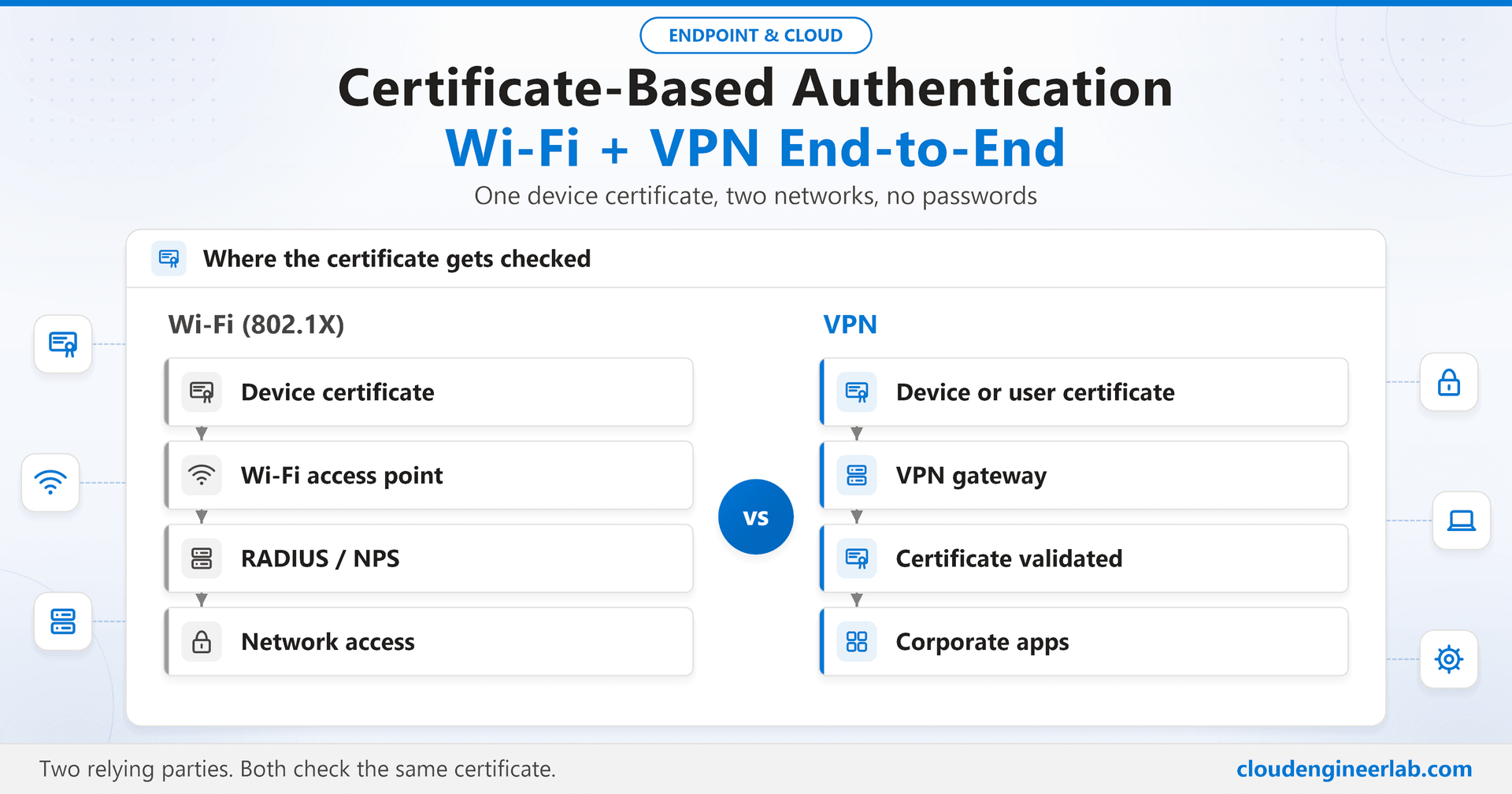
Certificate-Based Authentication with Intune: Wi-Fi + VPN End-to-End
What happens after the certificate lands: device vs user certificates, 802.1X, RADIUS and NPS, VPN authentication, EKUs, trust chains and troubleshooting.
Getting a certificate onto a device is only half the job. The PKI deep dive and the implementation lab cover how it gets there. This post is about the other half: what happens when the device actually uses that certificate, to join the corporate Wi-Fi and to connect to VPN, and why a perfectly issued certificate can still be rejected.
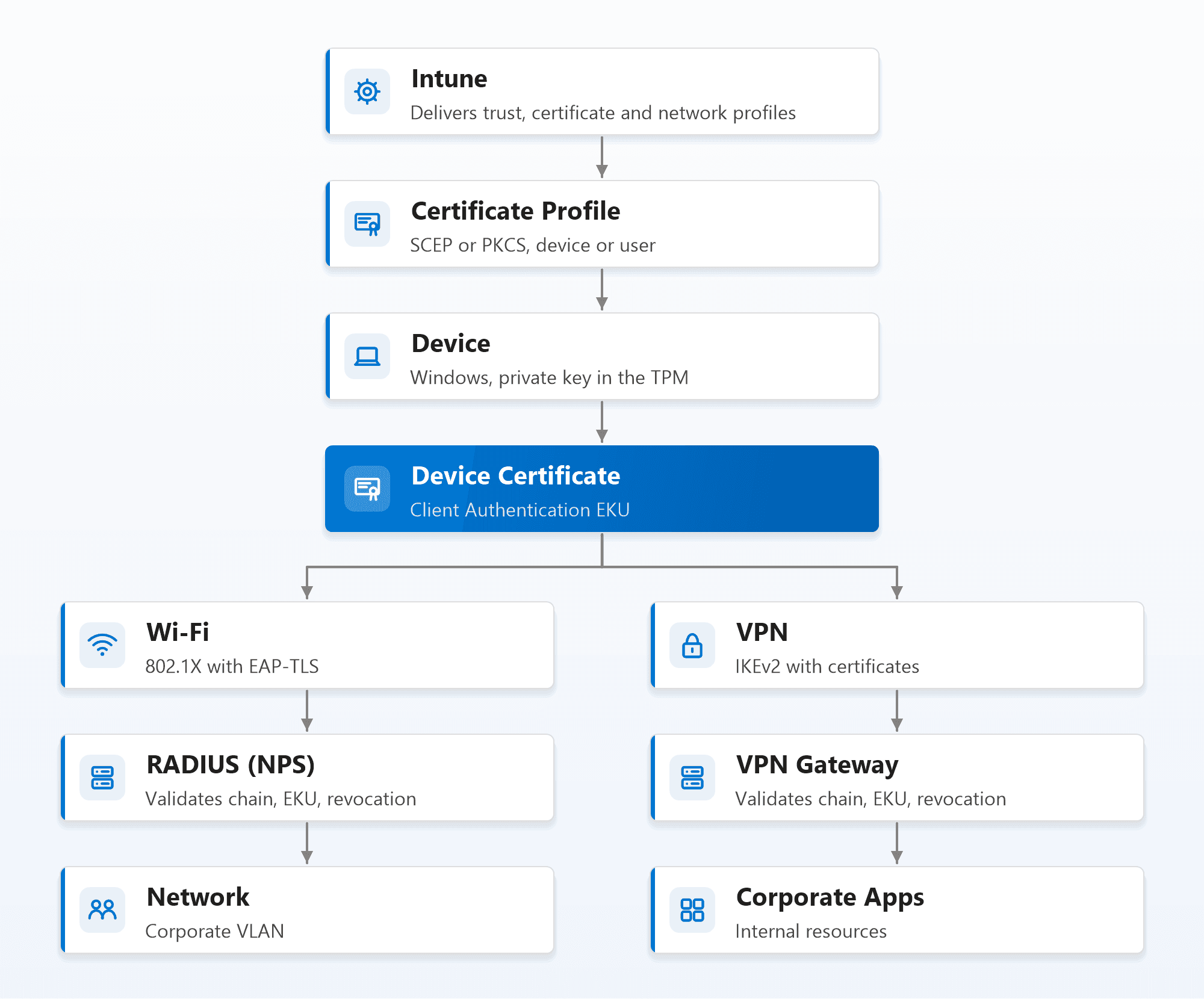
The key idea behind everything below: Intune doesn't authenticate anyone to the network. It delivers the certificate and the Wi-Fi and VPN profiles. The actual decision is made by a relying party, the RADIUS server for Wi-Fi and the VPN gateway for VPN, and each one runs its own checks against the certificate.
Device Certificates vs User Certificates
The first design decision is whose identity the certificate represents.
| Device certificate | User certificate | |
|---|---|---|
| Identifies | The machine | The person signed in |
| Available | From boot, before anyone signs in | Only after the user signs in |
| Lives in | Local Computer store (certlm.msc) | Current User store (certmgr.msc) |
| Typical subject | CN={{AAD_Device_ID}} | CN={{UserPrincipalName}} |
| Best for | Wi-Fi at the logon screen, Autopilot, shared devices, VPN device tunnel | Per-user network policy (VLAN by group), VPN user tunnel |
A device certificate means the network is available before sign-in. That matters more than it sounds: a brand new laptop at the Windows sign-in screen needs network access for the user's first sign-in, and a shared kiosk has no single user at all. A user certificate means the network knows who is connected, so RADIUS can apply different rules to Finance and Engineering.
Most enterprises use both
A common pattern is a device certificate for Wi-Fi (the device is always connected, signed in or not) and a user certificate for the VPN user tunnel (access to apps depends on the person). The Intune Wi-Fi profile even has an authentication mode setting for exactly this: machine, user, or machine or user.
Certificate EKUs: What the Certificate Is Allowed to Do
An Extended Key Usage (EKU) lists the purposes a certificate may be used for. Relying parties check it, and a certificate without the right EKU is rejected even if everything else is perfect. There are certificates on both sides of every connection, and each side needs its own EKU:
| Certificate | Required EKU | OID |
|---|---|---|
| Device or user certificate (the client) | Client Authentication | 1.3.6.1.5.5.7.3.2 |
| RADIUS server certificate | Server Authentication | 1.3.6.1.5.5.7.3.1 |
| VPN gateway certificate (IKEv2) | Server Authentication, plus IP security IKE intermediate for Windows RRAS gateways | 1.3.6.1.5.5.7.3.1, 1.3.6.1.5.5.8.2.2 |
Keep client certificates narrow
Give the client certificate only Client Authentication. A certificate with extra EKUs, or with no EKU at all (which many systems treat as "any purpose"), is more useful to an attacker who steals it, and some relying parties reject unexpected combinations.
Trust Chains: Two Separate Trust Decisions
Certificate authentication is mutual. Two independent trust checks happen on every connection, and both have to succeed:
- The device must trust the server. Before sending anything, the device checks the RADIUS server's (or VPN gateway's) certificate: does it chain to a root the device trusts, and does its name match what the profile expects?
- The server must trust the device. The RADIUS server or gateway checks the device's certificate: does it chain to a root it trusts, does it have the Client Authentication EKU, and is it unrevoked?
The two chains don't have to come from the same CA. The RADIUS server's certificate often comes from the same internal CA as the device certificates, but it doesn't have to. What matters is that each side holds the other side's root.
How each side gets that trust:
- Device side: an Intune trusted certificate profile for each root (and issuing CA) involved, plus the Wi-Fi profile's Root certificates for server validation and Certificate server names settings, which pin exactly which server the device may talk to.
- Server side: the root and issuing CA certificates in the RADIUS server's or gateway's trust store, and network access to the CA's CRL location so revocation can be checked.
Never skip server validation
Leaving the Wi-Fi profile's server validation empty, or trusting any server, lets a rogue access point with its own RADIUS server impersonate your network. With certificate authentication the attacker can't steal a password, but the device would still connect to a network you don't control. Always set both the trusted root and the exact server names.
802.1X: How Wi-Fi Authentication Actually Works
802.1X is the port-based access control standard behind enterprise Wi-Fi (and wired network authentication). It has three roles:
- Supplicant: the device, which wants network access.
- Authenticator: the access point (or switch), which blocks traffic until told otherwise.
- Authentication server: the RADIUS server, which makes the decision.
The access point never inspects the certificate itself. It just relays messages between the device (using EAP over the wireless link) and the RADIUS server (using the RADIUS protocol), then opens or keeps closed the port based on the answer. With EAP-TLS, the conversation looks like this:
1. The device associates with the access point
The access point lets through only authentication traffic. Everything else is blocked until RADIUS says yes.
2. The RADIUS server presents its certificate
The device checks it against the trusted root and the server names in its Wi-Fi profile. If either check fails, the device stops here, which is exactly what protects it from a rogue network.
3. The device presents its certificate
The device sends its certificate and proves it holds the private key by signing part of the TLS handshake. The key never leaves the device, and with a TPM-backed certificate it can't.
4. RADIUS validates and decides
RADIUS checks the chain, the EKU and revocation, maps the certificate to an identity, and evaluates its network policies. The answer is Access-Accept or Access-Reject.
5. The access point opens the port
On Access-Accept, the access point lets the device's traffic through, sometimes onto a specific VLAN that RADIUS chose.
Compare that with PEAP-MSCHAPv2, the common password-based alternative: the user's password is the secret, so it can be phished, reused or guessed. EAP-TLS replaces the secret with a private key that never leaves the device, the same reasoning behind phishing-resistant MFA.
RADIUS and NPS
RADIUS is the protocol access points and VPN gateways use to ask "should this client be let in?". Network Policy Server (NPS) is Microsoft's RADIUS server, a Windows Server role and still the most common choice in organisations with Active Directory.
A working NPS setup for certificate-based Wi-Fi has four parts:
- RADIUS clients: every access point or wireless controller, each with a shared secret.
- A server certificate: issued to the NPS server with the Server Authentication EKU, from a CA your devices trust.
- A connection request policy: usually the default, processing requests locally.
- A network policy: conditions (for example the NAS port type Wireless - IEEE 802.11 and a group), and under constraints the EAP type Microsoft: Smart Card or other certificate, pointing at the server certificate above.
The Mapping Problem for Cloud-Only Devices
NPS does one more thing that is easy to miss: after validating the certificate, it maps it to an account in Active Directory and evaluates group-based policy against that account. That works for domain-joined and hybrid joined devices. It fails for cloud-only Entra joined devices, which have no AD computer object to map to.
Windows has also tightened certificate-to-account mapping (strong certificate mapping), so certificates increasingly need to prove which AD account they belong to, for example through the security identifier. For hybrid identities, Intune can put that SID into the certificate's subject alternative name with the {{OnPremisesSecurityIdentifier}} variable.
For genuinely cloud-only fleets, the realistic options are:
- A cloud RADIUS service that validates certificates against Entra ID and Intune instead of Active Directory. This is where most cloud-native organisations end up.
- Placeholder AD objects that let NPS map cloud devices. It works, but it's a workaround to maintain, not a design.
Decide this before you roll out
Check which kind of devices your RADIUS server will see before you deploy the first Wi-Fi profile. A pilot of hybrid joined devices can succeed completely and still fail for every new Autopilot device that comes after it.
The Intune Wi-Fi Profile
The Wi-Fi profile ties everything together. For Windows: Devices > Configuration > Create > Windows 10 and later > Templates > Wi-Fi, type Enterprise.
| Setting | Value |
|---|---|
| SSID | Your corporate network name |
| EAP type | EAP-TLS |
| Certificate server names | The exact name on the RADIUS server certificate |
| Root certificates for server validation | The trusted certificate profile for the RADIUS server's root |
| Authentication mode | Machine, user, or machine or user |
| Client certificate for client authentication | Your SCEP or PKCS certificate profile |
Assign the Wi-Fi profile, the certificate profile and the trusted certificate profiles to the same groups. If any one of them is missing on a device, the Wi-Fi profile can't work.
VPN Authentication
VPN works on the same principle: the gateway validates the device's or user's certificate instead of a password. On Windows, the Microsoft-native design is Always On VPN, and it has two tunnel types:
| Device tunnel | User tunnel | |
|---|---|---|
| Connects | Before sign-in | After the user signs in |
| Certificate | Device certificate | User certificate |
| Protocol | IKEv2 only | IKEv2 or SSTP |
| Purpose | Reach domain controllers and management services before logon | Access to corporate apps as the user |
In Intune, create a VPN profile (Templates > VPN), choose the connection type (IKEv2 for Always On VPN, or your vendor's client for third-party gateways), and set the authentication method to Certificates, selecting your certificate profile.
The gateway side mirrors RADIUS:
- Its own certificate needs Server Authentication, plus IP security IKE intermediate for Windows RRAS gateways.
- It must trust the root and issuing CA that signed the client certificates.
- It must be able to reach the CA's CRL, or revocation checks fail and connections are refused.
Third-party gateways (Cisco, Palo Alto, Fortinet and others) follow the same model through their own Intune-supported VPN clients: the certificate is delivered by Intune, the trust and revocation checks happen on the gateway.
Troubleshooting
Work out which side rejected the connection first. The device's logs tell you whether it refused the server; the server's logs tell you whether it refused the device.
On the device
| Check | Where |
|---|---|
| Is the certificate there, with Client Authentication? | certlm.msc (device) or certmgr.msc (user) |
| Did the Wi-Fi profile arrive? | netsh wlan show profiles |
| Why did Wi-Fi authentication fail? | Event Viewer: Microsoft > Windows > WLAN-AutoConfig > Operational |
| Wired 802.1X | Event Viewer: Microsoft > Windows > Wired-AutoConfig > Operational |
| Why did VPN fail? | Application log, source RasClient, with the error code in the event |
VPN error codes worth recognising:
| Code | Meaning | Usual cause |
|---|---|---|
| 13801 | IKE authentication credentials are unacceptable | The device doesn't trust the gateway certificate, or the gateway's EKUs are wrong |
| 13806 | IKE failed to find a valid machine certificate | The device certificate is missing, expired, or lacks the right EKU |
| 809 | The connection to the VPN server could not be established | Network path blocked, often UDP 500/4500 for IKEv2 |
On NPS
NPS logs every decision to the Windows Security event log: event 6272 when access is granted and event 6273 when it is denied. Event 6273 includes a reason code, which is the fastest route to the cause:
| Reason code | Meaning |
|---|---|
| 8 | The user or computer account doesn't exist (the mapping problem above) |
| 48 | The request didn't match any network policy |
| 49 | The request didn't match any connection request policy |
| 265 | The certificate chain was issued by an authority that isn't trusted |
The common failures, end to end
| Symptom | Usual cause |
|---|---|
| Device never offers its certificate | Wrong EKU, or the Wi-Fi/VPN profile points at a different certificate profile |
| Device refuses to connect, nothing reaches RADIUS | Server validation failing: wrong server name, or the RADIUS root isn't trusted on the device |
| Works for hybrid devices, fails for Autopilot devices | Cloud-only devices with no AD object for NPS to map |
| Everything stops at once, overnight | An expired CRL, so relying parties can't check revocation |
| Wi-Fi works, VPN doesn't | Gateway certificate EKUs, or the gateway can't reach the CRL |
Summary
Certificate-based authentication is two relying parties checking the same certificate, each in its own way. Intune's job is delivery: the trust profiles, the certificate profile, and the Wi-Fi and VPN profiles that tell the device which certificate to present and which server to trust. The decisions happen elsewhere: on the RADIUS server for Wi-Fi, through 802.1X and EAP-TLS, and on the VPN gateway for VPN.
When it fails, ask the questions in the same order every time: is the certificate there with the right EKU, does the device trust the server, does the server trust the device, can the server check revocation, and can the server map the certificate to an identity. One of those five almost always holds the answer. To build the certificate side from scratch, start with the implementation lab.

Written by
Chetan Yamger
Cloud Engineer · AI Automation Architect · Modern Workplace Consultant
Cloud Engineer, AI Automation Architect, and Modern Workplace Consultant based in Amsterdam, Netherlands. Specializing in scalable, secure enterprise solutions with Microsoft Azure, Intune, PowerShell, and AI-driven automation using ChatGPT, Gemini, and modern LLM technologies.
Stay in the loop.
New articles, straight to you.
Deep-dive technical articles on Intune, PowerShell, and AI — no noise, no spam.
Discussion
Share your thoughts — your email stays private
Leave a comment