
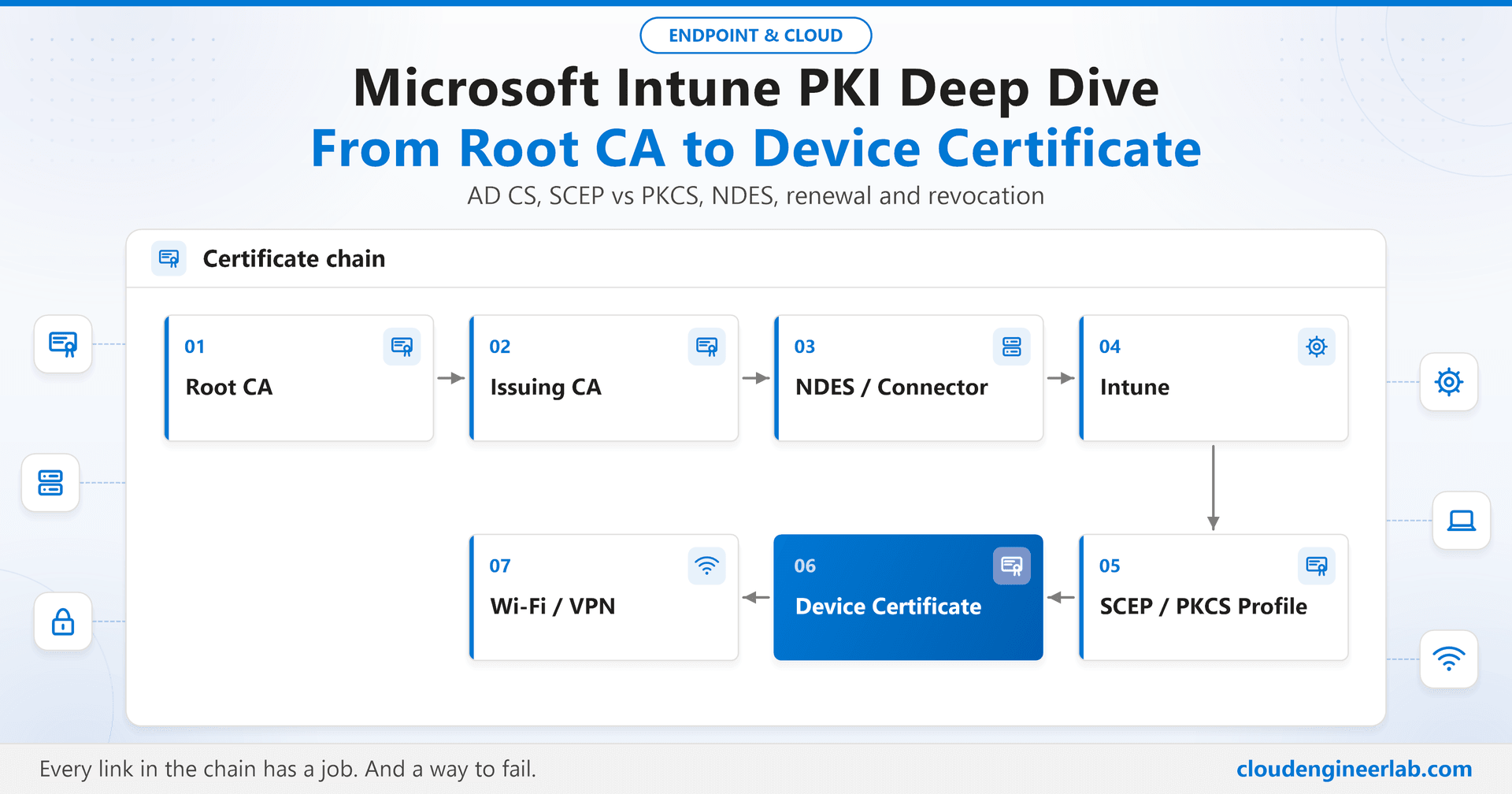
Microsoft Intune PKI Deep Dive: From Root CA to Device Certificate
How a certificate gets from your Root CA onto an Intune-managed device: AD CS, templates, SCEP vs PKCS, NDES, the Certificate Connector, renewal and revocation.
Every "connect to the corporate Wi-Fi without a password" experience, every always-on VPN that just works on a brand new laptop, sits on top of a certificate that arrived on the device silently. When it works, nobody thinks about it. When it breaks, it breaks for everyone at once, usually on a Monday morning, and the error message on the device says almost nothing useful.
This post follows one certificate from the very top of the trust chain all the way down to the moment a laptop presents it to a Wi-Fi access point. Not "click here, then here", but what each component actually does, why it exists, and where each one tends to fail.
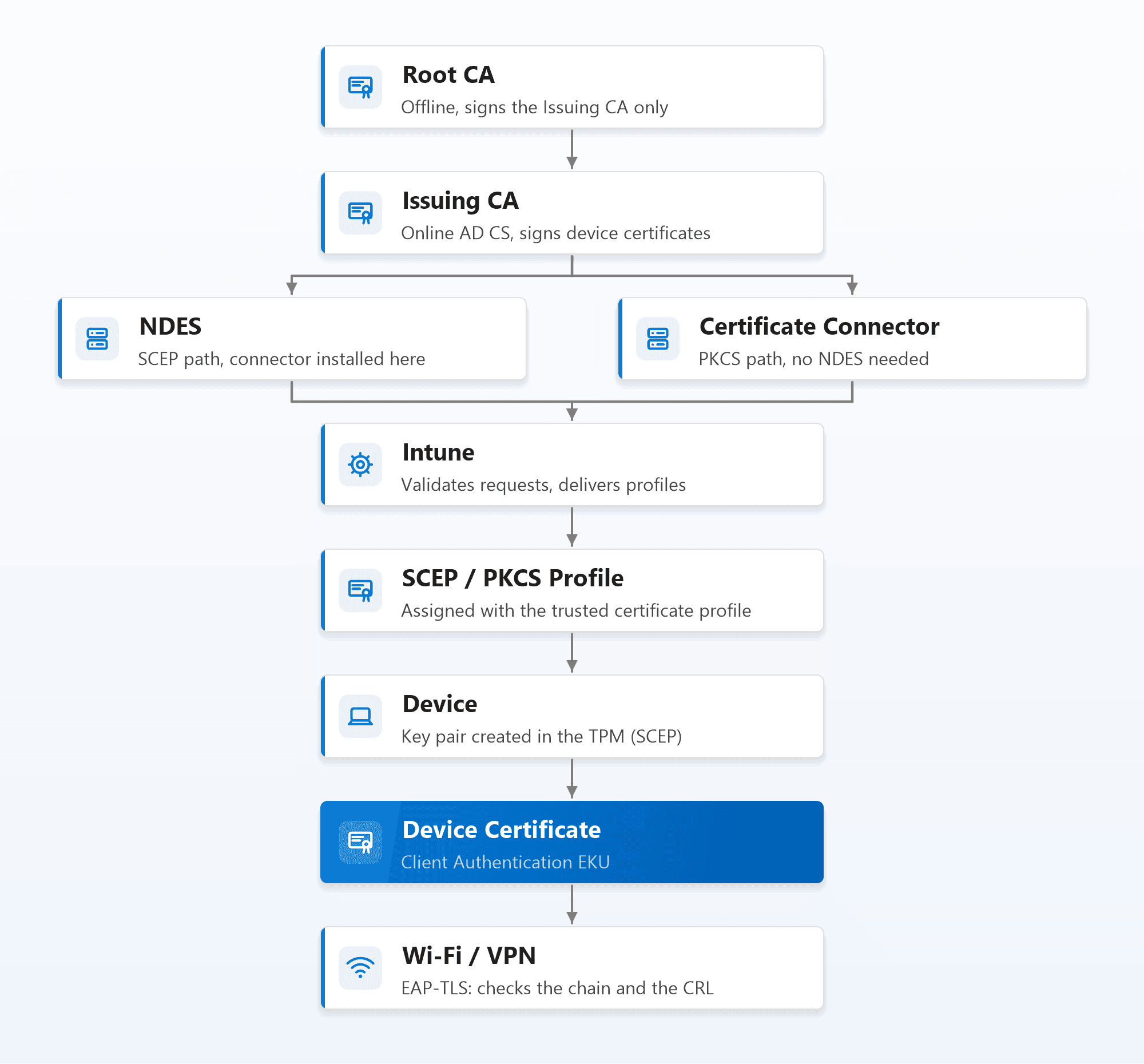
Notice where the two paths split. In a SCEP deployment the Certificate Connector is installed on the NDES server itself, where it acts as the bridge between NDES and Intune. In a PKCS deployment there is no NDES at all, and the connector talks to the Issuing CA directly. Two genuinely different paths, one shared destination.
The Journey at a Glance
Root CA vs Issuing CA
A certificate is only as trustworthy as whoever signed it. The Root CA is the top of that chain: its own certificate is self-signed, and every device that trusts your PKI trusts it explicitly, by having its certificate in the Trusted Root store.
That makes the Root CA's private key the single most valuable secret in the whole design. If it leaks, an attacker can mint certificates your entire estate will accept, and the only fix is rebuilding the PKI and redistributing trust to every device. So in a well-designed hierarchy, the Root CA does almost nothing:
- It is a standalone CA, not domain-joined.
- It is kept offline, powered off or disconnected, and brought online only to sign a new Issuing CA certificate or publish a fresh CRL.
- It signs exactly one kind of thing: subordinate CA certificates.
The Issuing CA (also called a subordinate or intermediate CA) does the daily work. It is an enterprise CA, domain-joined, online, and it signs every user and device certificate. Its own certificate is signed by the Root CA, which is how a device that trusts the Root also trusts whatever the Issuing CA signs.
| Root CA | Issuing CA | |
|---|---|---|
| Online? | No, offline by design | Yes, always available |
| Domain-joined? | No (standalone) | Yes (enterprise CA) |
| Signs | Issuing CA certificates only | User and device certificates |
| Uses templates? | No | Yes |
| Typical validity | 10 to 20 years | 5 to 10 years |
| If compromised | Rebuild the entire PKI | Revoke it, issue a new Issuing CA from the Root |
Why two tiers is the sweet spot
A single-tier PKI (one online Root that issues everything) puts your most important key on a server that is permanently reachable. Three tiers adds a policy CA layer that most organisations never need. Two tiers, offline Root plus online Issuing CA, is what the vast majority of Intune deployments should use.
AD CS Architecture
Active Directory Certificate Services is the Windows Server role that provides the CA itself, plus a few optional companions. For Intune, the pieces that matter are:
- Certification Authority: the Issuing CA role, which holds the templates and signs requests.
- Network Device Enrollment Service (NDES): needed only for SCEP. Lives on its own member server, never on the CA.
- Online Responder: optional, provides OCSP for real-time revocation checks.
- CRL Distribution Point (CDP) and Authority Information Access (AIA) locations: usually plain HTTP paths on an internal web server, where the CA publishes its CRL and its own certificate so relying parties can find them.
The CDP and AIA locations are easy to treat as an afterthought, and they are the single most common reason a perfectly issued certificate gets rejected later. Every relying party, your RADIUS server, your VPN gateway, has to be able to reach those URLs. More on that in the revocation section.
Certificate Templates
A template is the rulebook the Issuing CA applies to every request. It decides what the certificate is for, how long it lasts, what can go in the subject, and who is allowed to ask for it. Intune never bypasses the template: whatever Intune asks for, the CA still enforces the template's rules.
The settings that matter most for Intune certificates:
- Subject Name tab: set to Supply in the request. Intune builds the subject and SAN from device or user attributes, so the CA has to accept them from the request instead of building them from Active Directory. A cloud-only Entra joined device doesn't have an AD object to build from at all.
- Extensions tab: the Application Policies (Enhanced Key Usage) must include Client Authentication, since that is what Wi-Fi and VPN will check for.
- Security tab: grant Read and Enroll to the account that will submit requests. For SCEP that is the NDES service account; for PKCS it is the account the Certificate Connector runs as (or the connector server's computer account).
- Request Handling tab (PKCS only): enable Allow private key to be exported, because in the PKCS flow the key pair is created away from the device and has to travel to it.
- Validity period: the template's maximum. Intune can request a shorter period, but never a longer one.
Duplicate, never edit
Always duplicate a built-in template (the Computer or User template is a sensible starting point) and edit the copy. Then remember the step everyone forgets: a new template does nothing until you publish it on the Issuing CA through Certificate Templates > New > Certificate Template to Issue.
SCEP vs PKCS
This is the most important decision in the whole design, because it changes where the private key is born.
SCEP (Simple Certificate Enrollment Protocol): the device generates its own key pair, locally, and sends only a certificate signing request. The private key never leaves the device, and on Windows it can be generated inside the TPM, so it can't be exported even by an administrator on that machine.
PKCS: the key pair is created away from the device, the CA issues the certificate, and the certificate plus its private key are packaged and delivered to the device, encrypted, through Intune. Simpler infrastructure, but the key existed somewhere other than the device for a moment.
| SCEP | PKCS | |
|---|---|---|
| Where the private key is created | On the device (TPM-capable) | Off the device, then delivered |
| Needs NDES? | Yes | No |
| Inbound access from the internet? | Yes, NDES must be reachable by devices | No, the connector only makes outbound calls |
| On-premises footprint | NDES server plus the connector on it | Certificate Connector only |
| Best fit | Device authentication, Wi-Fi, VPN | Simpler rollouts, and cases where the same key must exist in more than one place |
There is also a third option, imported PKCS: certificates you already have (typically S/MIME encryption certificates, where every device a user owns must hold the same private key to read old encrypted mail) are uploaded to Intune and pushed to the user's devices. Signing and Wi-Fi authentication don't need this; email decryption usually does.
The practical default
For device authentication to Wi-Fi and VPN, prefer SCEP with the key stored in the TPM. It is more infrastructure, but it is the only option where the private key is physically bound to the device that uses it, which is the whole point of certificate-based device trust. PKCS is a reasonable choice when you can't publish NDES, or as a first step.
And if you would rather not run any of this on-premises at all, Microsoft Cloud PKI provides a hosted Root and Issuing CA that issue SCEP certificates straight from the Microsoft cloud, no NDES, no connector, no CRL hosting. It is licensed as part of the Intune Suite, and it is one of the capabilities that stayed Suite-only in the July 2026 licensing change. For a full side-by-side of the two approaches, and when to combine them, see Microsoft Cloud PKI vs AD CS.
NDES
NDES is the SCEP server. Devices talk to it over HTTPS, it talks to your Issuing CA, and with the Certificate Connector installed alongside it, it checks with Intune before letting any request through.
How a SCEP request actually flows:
1. Intune sends the SCEP profile
The profile tells the device what to request (subject, SAN, key size, key storage) and where to send it (the NDES URL). It also includes a one-time challenge, generated by Intune for that specific device.
2. The device builds a request
The device generates its key pair, in the TPM if the profile says so, and sends a certificate signing request plus the challenge to the NDES URL.
3. NDES asks Intune whether this request is legitimate
The Intune policy module (part of the Certificate Connector on the NDES server) validates the challenge with Intune and checks the request matches what Intune actually told that device to ask for. A request with a forged or reused challenge is rejected here.
4. NDES forwards it to the Issuing CA
NDES submits the request using the template it is configured for. The CA applies the template rules and signs the certificate.
5. The certificate returns to the device
NDES hands the signed certificate back, the device pairs it with the private key it kept, and it reports success back to Intune.
Things worth getting right when you build it:
- Dedicated server. NDES must not run on the CA, and it shouldn't share a server with anything else either.
- A dedicated service account for the NDES application pool, with Read and Enroll on the SCEP template.
- Template mapping in the registry. NDES picks its template from three values under
HKLM\SOFTWARE\Microsoft\Cryptography\MSCEP:SignatureTemplate,EncryptionTemplateandGeneralPurposeTemplate. Set them to your template's name (not its display name), then restart IIS. - Publish it safely. Devices outside the corporate network must reach the NDES URL. Use Microsoft Entra application proxy or a reverse proxy, rather than exposing the NDES server directly.
Intune Certificate Connector
The Certificate Connector for Microsoft Intune is the single on-premises agent that links your CA to Intune. It replaced the older separate "NDES connector" and "PFX connector", and one installation can provide any combination of:
- SCEP: installed on the NDES server, validating requests as described above.
- PKCS: requesting certificates from the Issuing CA on a device's behalf.
- Imported PKCS: delivering certificates you uploaded to Intune.
- Revocation: telling the CA to revoke certificates Intune no longer wants to exist.
The connector only makes outbound HTTPS connections to Intune; nothing on the internet connects in to it. For production, install at least two connectors on separate servers. Intune spreads work across them, so losing one server doesn't stop certificate issuance.
Trusted Certificate Profiles
Before a device can request anything, it has to trust your PKI. A trusted certificate profile deploys your Root CA certificate into the device's Trusted Root store, and a second one deploys the Issuing CA certificate into the Intermediate store.
This profile is not optional, and the rule that trips almost everyone up is about assignment:
Same groups, every time
A SCEP profile references a trusted certificate profile directly. If the trusted certificate profile and the SCEP profile are assigned to different groups, devices in the SCEP group never receive the Root it depends on, and the SCEP profile fails with no obvious reason why. Assign them together, to the same device or user groups.
SCEP Certificate Profiles
The SCEP profile is where Intune describes exactly what each device should end up with. The settings that matter:
| Setting | What to choose |
|---|---|
| Certificate type | Device for Wi-Fi and VPN device authentication; User when the user's identity must be in the certificate |
| Subject name format | For device certificates, something unique and stable, for example CN={{AAD_Device_ID}} |
| Subject alternative name | Usually the device's DNS name or UPN, whichever your RADIUS or VPN server matches against |
| Key storage provider (Windows) | Enroll to TPM KSP, otherwise fail, so the private key can't be exported |
| Key size | 2048 bits minimum |
| Hash algorithm | SHA-2 |
| Root certificate | Your trusted certificate profile for the Root CA |
| Extended key usage | Client Authentication (1.3.6.1.5.5.7.3.2) |
| Renewal threshold | 20% is a sensible default |
| SCEP server URL | Your published NDES URL, with more than one if you have them |
Variables, not hard-coded names
Values like {{AAD_Device_ID}}, {{DeviceName}} and {{UserPrincipalName}} are filled in by Intune per device, so one profile serves your entire estate. Pick a subject your relying party can actually map back to something it knows, or the certificate will be issued perfectly and still be rejected at the Wi-Fi access point.
A PKCS certificate profile looks similar, but instead of NDES URLs it names the Issuing CA and the template directly, since the connector requests the certificate on the device's behalf.
Certificate Renewal
Certificates expire on purpose, and renewal is where a deployment either becomes invisible or becomes a recurring outage. This section covers the essentials; the certificate lifecycle post goes much deeper into failed renewals, leavers, deleted devices and revocation timing.
Intune handles renewal through the renewal threshold in the profile. When the remaining lifetime of the certificate falls below that percentage, the device requests a new certificate at its next check-in, before the old one expires. With a one-year certificate and a 20% threshold, renewal starts roughly 73 days before expiry, which leaves plenty of room for a device that is switched off for a few weeks.
Two things to know:
- The CA has the final say on validity. If the profile asks for two years but the template allows one, the certificate gets one year.
- Renewal needs the device to check in. A laptop that hasn't contacted Intune for months can let its certificate expire; here is what is actually going on when a device stops checking in.
Revocation
Issuing certificates is only half of a PKI. The other half is being able to say "this certificate is no longer trustworthy" before it expires on its own.
Intune can revoke certificates it issued when a device is retired or wiped, or when the certificate profile is removed from it. The Certificate Connector carries that instruction to the Issuing CA. For it to work, the connector's account needs the Issue and Manage Certificates permission on the CA, otherwise Intune records the revocation as wanted but the CA never actually does it.
Revocation also matters outside Intune. A laptop reported stolen should be retired and wiped through Intune, and its certificate revoked, so it can't keep authenticating to Wi-Fi or VPN even if the thief finds a way in to the device.
CRL and OCSP
Revoking a certificate on the CA only matters if relying parties find out. There are two ways they check:
- CRL (Certificate Revocation List): the CA periodically publishes a signed list of revoked serial numbers to its CDP location. Relying parties download it and cache it until it expires.
- OCSP (Online Certificate Status Protocol): an Online Responder answers "is this specific certificate still good?" in real time, without downloading a full list.
The CRL has an expiry date of its own, and that is the trap:
The outage nobody schedules
If a CRL expires and nobody publishes a new one, relying parties can't confirm that any certificate is unrevoked, and most of them fail closed. Every device's Wi-Fi and VPN authentication stops at once. The Root CA's CRL is the classic culprit: it is published rarely (often every 6 to 12 months) from an offline machine, so it is easy to forget. Put the Root CRL renewal in a calendar with an owner, and monitor the expiry dates of every CRL you publish.
Make sure the CDP and AIA URLs in every issued certificate are plain HTTP paths reachable from wherever the relying party sits, including any cloud-hosted RADIUS or VPN service.
The Destination: Wi-Fi and VPN
The certificate's whole purpose is to prove the device's identity to something else. A Wi-Fi profile set to EAP-TLS, or a VPN profile set to certificate authentication, references the SCEP or PKCS profile, and the device presents that certificate automatically when it connects.
The relying party (a RADIUS server for Wi-Fi, the VPN gateway for VPN) then checks three things: that the certificate chains to a Root it trusts, that it hasn't been revoked, and that the subject or SAN maps to a known device or user. That last check is easy to overlook. If your RADIUS server is Microsoft NPS, it authenticates against on-premises Active Directory, so certificates for cloud-only Entra joined devices need a mapping strategy, which is one reason many organisations move to a cloud RADIUS service once they go cloud-native.
The full Wi-Fi and VPN side, including 802.1X, NPS and EKUs, is covered in certificate-based authentication end-to-end.
This is the same idea behind phishing-resistant MFA applied to devices: a credential bound to hardware, proven with cryptography rather than a shared secret.
Troubleshooting Certificate Enrollment
When a certificate doesn't arrive, work along the chain in order instead of guessing. The same principle as following the device instead of the portal applies here.
1. Start in Intune
Open the certificate profile's device status. Note whether the trusted certificate profile succeeded first; if it didn't, the SCEP profile never had a chance.
2. Check the device
On Windows, open the certificate stores (certlm.msc for device certificates, certmgr.msc for user certificates) and confirm the Root and Issuing CA certificates are present. Then check Event Viewer under Applications and Services Logs > Microsoft > Windows > DeviceManagement-Enterprise-Diagnostics-Provider > Admin for SCEP errors.
3. Check NDES reachability
From outside the corporate network, browse to your published NDES URL (ending in /certsrv/mscep/mscep.dll). A timeout means a publishing or firewall problem; a 503 usually means the NDES application pool has stopped, often because its service account password changed.
4. Check the connector
On the connector server, check Event Viewer under Applications and Services Logs > Microsoft > Intune > CertificateConnectors. Challenge validation failures and CA communication errors show up here.
5. Check the CA
Open the Certification Authority console and look at Failed Requests. A denied request almost always shows the reason directly: template permissions, a subject the template doesn't accept, or a template that isn't published.
The failures you will see most often, in rough order of frequency:
| Symptom | Usual cause |
|---|---|
| SCEP profile fails, trusted certificate profile also missing | The two profiles are assigned to different groups |
| Request denied at the CA | Template not published, or missing Read and Enroll for the requesting account |
| Device-only failures on some models | Profile requires the TPM KSP and those devices have no usable TPM |
| Certificate issued but Wi-Fi rejects it | Subject or SAN doesn't match what RADIUS expects, or RADIUS doesn't trust the chain |
| Everything fails at once, overnight | An expired CRL somewhere in the chain |
| SCEP works on-site but not remotely | NDES URL not published, or the proxy is blocking it |
Summary
A certificate on an Intune device is the end of a long chain, and every link has a job: an offline Root that anchors trust, an Issuing CA that signs, a template that sets the rules, NDES or the Certificate Connector that bridges cloud to on-premises, Intune profiles that describe exactly what each device should get, and a relying party that checks it all again, including whether it has been revoked.
Get the design decisions right once (two-tier hierarchy, SCEP with TPM-backed keys for device authentication, trusted and SCEP profiles assigned together, revocation wired up, CRLs owned and monitored) and certificates become what they should be: invisible. To build the whole chain yourself, stage by stage with a checkpoint after each one, follow the enterprise PKI implementation lab. If you want to see where certificates sit in a full device build, this fits naturally after the Conditional Access stage of building a secure Windows endpoint from scratch.

Written by
Chetan Yamger
Cloud Engineer · AI Automation Architect · Modern Workplace Consultant
Cloud Engineer, AI Automation Architect, and Modern Workplace Consultant based in Amsterdam, Netherlands. Specializing in scalable, secure enterprise solutions with Microsoft Azure, Intune, PowerShell, and AI-driven automation using ChatGPT, Gemini, and modern LLM technologies.
Stay in the loop.
New articles, straight to you.
Deep-dive technical articles on Intune, PowerShell, and AI — no noise, no spam.
Discussion
Share your thoughts — your email stays private
Leave a comment