
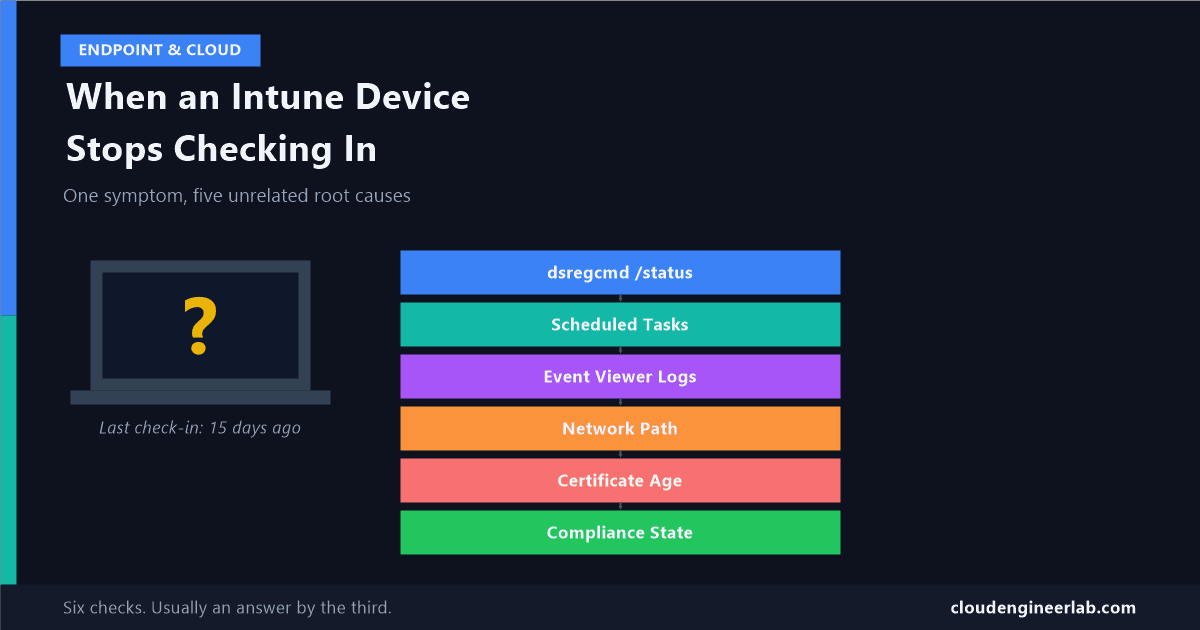
What Happens When an Intune Device Stops Checking In?
"Hasn't checked in" isn't one problem, it's at least five different problems wearing the same badge. A real diagnostic flow, log by log, command by command.
"LAPTOP-042 hasn't checked in for two weeks" is the single most common Intune ticket, and also one of the least useful sentences in IT. It describes a symptom that at least five completely unrelated failures can produce: a dead network path, a blocked push notification, an expired certificate, a disabled scheduled task, or a genuinely broken agent. Treating "hasn't checked in" as one problem is why these tickets sit open for days.
This post walks through what "checking in" actually is, mechanically, then works through each place that mechanism can break, with the actual commands and logs to tell them apart, and finishes with a real diagnostic session on a specific device.
What "Checking In" Actually Means
A Windows device talks to Intune over OMA-DM, the same device management protocol used across the MDM industry, not something Microsoft invented just for Intune. Two independent triggers cause a check-in:
The scheduled poll
Roughly every 8 hours, the device's built-in MDM client contacts Intune on its own, whether or not anyone asked it to.
The push-triggered sync
When an admin clicks "Sync" in the Intune portal, or a policy changes, Intune sends a push notification through Windows Notification Service (WNS). That notification tells the device to check in immediately instead of waiting for its next scheduled poll.
This is not the same channel Win32 apps use
I've covered this before, but it's worth repeating because it's the single most common source of confusion: the Intune Management Extension runs on its own independent roughly-8-hour cycle, completely separate from the OMA-DM channel above. A device can be checking in perfectly on one channel while the other is silently stuck. "Checking in" and "Win32 apps aren't installing" are not automatically the same investigation.
The MDM Channel
The actual client-side piece doing this work is the device's built-in enrollment client, and its trust in Intune rests entirely on a certificate issued during enrollment, commonly referred to as the MS-Organization-Access certificate. No valid certificate, no trusted channel, no check-in, regardless of how healthy the network connection is.
The first command to run on any device that's stopped checking in isn't an Intune command at all:
dsregcmd /statusThree fields matter most:
| Field | What a healthy device shows |
|---|---|
AzureAdJoined | YES |
AzureAdPrt | YES |
AzureAdPrtUpdateTime | Within the last few hours |
If AzureAdPrt is NO, the device failed to get a Primary Refresh Token from Entra ID, which breaks far more than just Intune. If AzureAdPrtUpdateTime is stale by more than roughly four hours, something is preventing token refresh, and that's worth chasing before touching anything Intune-specific.
Intune Management Extension
Since this runs on its own separate cycle, it needs its own separate check. If the main MDM channel above looks healthy but Win32 apps or scripts still aren't running, the IME's own logs at C:\ProgramData\Microsoft\IntuneManagementExtension\Logs are the next stop, specifically IntuneManagementExtension.log for its check-in behaviour, not the OMA-DM diagnostics covered above.
Two systems, two independent failure points
Don't assume a healthy dsregcmd /status means Win32 app deployment is fine, or that a working Company Portal means scripts are running. Confirm each channel independently before concluding which one is actually broken.
Scheduled Tasks
Every check-in, on either channel, ultimately runs through Windows Task Scheduler. Open Task Scheduler Library → Microsoft → Windows → EnterpriseMgmt → <enrollment GUID> and you'll find the tasks actually responsible for this:
- PushLaunch: wired to fire the moment a specific system-level notification (
WNF_ENTR_PUSH_RECEIVED) is raised. This is what actually reacts to the WNS push described above, launching the enrollment client to check in immediately. - Schedule created by enrollment client: the periodic poll described earlier, plus a short-lived version that runs every 5 minutes for the first day after a Group Policy refresh, specifically to catch auto-enrollment quickly.
A missing EnterpriseMgmt folder is a real, checkable cause
Third-party cleanup tools, aggressive Group Policy task scheduler restrictions, or a botched unenroll/re-enroll cycle can delete or disable these tasks outright. If the EnterpriseMgmt folder is empty or missing entirely on a device that should be enrolled, you've found your root cause: nothing is left to trigger a check-in at all, on a schedule or on demand.
Sync
Understanding the mechanism above makes the "Sync" button in the Intune portal much less mysterious: clicking it does not talk to the device directly. It asks Intune's service to send a WNS push notification, which the device's PushLaunch task is waiting for.
This gives you a genuinely useful diagnostic split:
If Sync never seems to do anything, but the device does eventually pick up changes on its own
WNS delivery is likely blocked somewhere between Microsoft's notification service and the device. The scheduled 8-hour poll doesn't depend on WNS, so it keeps working while on-demand sync silently fails.
If neither Sync nor the scheduled poll ever happens
The problem is upstream of WNS entirely, look at the MDM channel, scheduled tasks, or network connectivity below, not the push mechanism specifically.
Logs
Three tools cover almost every case:
| Tool | What it shows |
|---|---|
dsregcmd /status | Entra join and token health, the foundation everything else depends on |
mdmdiagnosticstool.exe -area "DeviceEnrollment;DeviceProvisioning;Autopilot" -zip <path> | A full diagnostic bundle, including MDMDiagHtmlReport.html, a human-readable summary of management URL, certificates, and policy state |
| Event Viewer: Applications and Services Logs → Microsoft → Windows → DeviceManagement-Enterprise-Diagnostics-Provider → Admin | The actual check-in event log |
Look for Event ID 75 first
Event ID 75 marks a successful autoenrollment. If it's missing from a device's history entirely, autoenrollment never completed in the first place, a completely different problem from a device that enrolled successfully months ago and has since gone quiet.
Network Connectivity
Intune's own documentation is specific about two things that break silently rather than loudly:
manage.microsoft.comand*.manage.microsoft.comdo not support SSL inspection. A corporate proxy that intercepts and re-signs TLS traffic for security scanning will break the MDM channel without necessarily throwing an obvious error, the connection just quietly fails or the certificate chain doesn't validate.- Some actions specifically require unauthenticated access to
manage.microsoft.com,*.azureedge.net, andgraph.microsoft.com. A proxy that forces authentication on all outbound traffic can block exactly the requests that need to bypass it.
A generic 'can this device reach the internet' test is not enough
A device can have full, working internet access, load any website fine, and still be completely unable to check in, because the specific endpoints above are blocked, intercepted, or forced through an authentication prompt an unattended MDM client can't answer.
Entra ID Registration
The certificate mentioned earlier isn't permanent. It has a real lifecycle:
Normal validity
Roughly one year from issuance.
The 40-day cliff
If a device fails to check in with Intune at all in the 40 days before that certificate expires, it drops out, the trust relationship breaks entirely, independent of anything else being healthy.
Instant, not gradual
Removing or corrupting that certificate doesn't degrade the device's management gradually. It becomes Azure AD Unjoined, in effect, immediately.
This is why a device that's been powered off or off-network for a long stretch, a laptop left in a drawer during extended leave, a device shelved during a hardware refresh, can come back online and never recover on its own. Past that 40-day cliff, no amount of network connectivity fixes it; the device needs to be re-enrolled.
Compliance Evaluation
Here's the gotcha that catches people who jump straight to the compliance report: a device that's stopped checking in does not immediately show as non-compliant. Compliance state reflects the last successful evaluation. A device that went quiet 10 days ago can still show "Compliant" today, not because it's healthy, but because nothing has told Intune otherwise since its last real check-in.
That's a different problem from the one covered in why compliance reporting and compliance state aren't the same thing. A stale "Compliant" status isn't evidence of health, it's evidence of silence. Cross-reference last check-in time against compliance state before trusting either one in isolation.
A Real Diagnostic Session
Here's how this actually plays out on a real ticket: "LAPTOP-042, last check-in 15 days ago."
Step 1: dsregcmd /status on the device
AzureAdJoined: YES, but AzureAdPrtUpdateTime shows a date matching almost exactly 15 days ago. The device thinks it's still joined, but hasn't refreshed anything since it went quiet. This rules out "never enrolled" and points at something that changed 15 days ago specifically.
Step 2: Check the EnterpriseMgmt scheduled tasks
They exist and are enabled. Not a deleted-task problem.
Step 3: Check Event Viewer for recent DeviceManagement-Enterprise-Diagnostics-Provider entries
The last entries, right around that 15-day mark, show repeated connection timeouts to manage.microsoft.com. Not silence, active failure.
Step 4: Correlate with a known change
IT rolled out a new SSL-inspecting web filtering proxy fleet-wide 15 days ago. That's not a coincidence, that's the root cause.
Step 5: Confirm and fix
Add manage.microsoft.com and *.manage.microsoft.com to the proxy's SSL inspection bypass list. Within one scheduled poll cycle, the device checks in on its own, no re-enrollment needed, because the certificate hadn't hit the 40-day cliff yet.
Five steps, each one either confirming or ruling out an entire category from the sections above, is a much shorter path than guessing and re-enrolling devices one at a time hoping something sticks.
The Full Diagnostic Flow
Work through it in that order and "hasn't checked in" stops being a vague, days-long mystery. It becomes one specific, confirmable answer, usually inside the first three steps.
What's the most common root cause you've actually found behind a "hasn't checked in" ticket in your own environment? I'd guess SSL-inspecting proxies are more common than most admins realise. Drop a comment below.

Written by
Chetan Yamger
Cloud Engineer · AI Automation Architect · Modern Workplace Consultant
Cloud Engineer, AI Automation Architect, and Modern Workplace Consultant based in Amsterdam, Netherlands. Specializing in scalable, secure enterprise solutions with Microsoft Azure, Intune, PowerShell, and AI-driven automation using ChatGPT, Gemini, and modern LLM technologies.
Stay in the loop.
New articles, straight to you.
Deep-dive technical articles on Intune, PowerShell, and AI — no noise, no spam.
Discussion
Share your thoughts — your email stays private
Leave a comment