
BitLocker and Endpoint Encryption: What Happens to Your Data When a Laptop Is Lost?
Not how to turn BitLocker on. What actually happens, at the cryptographic level, between a laptop going missing and its data staying unreadable, or not.
A laptop gets left in the seat pocket on a flight. Within the hour, someone else has it in their hands, in a location where nobody from your company will ever see it again. Whether that moment becomes a non-event or a breach notification comes down to seven specific stages that happened, or didn't happen correctly, long before the laptop was ever lost.
This isn't another "how to turn BitLocker on" walkthrough. It's what's actually happening underneath that toggle, and exactly where the whole chain can quietly fail.
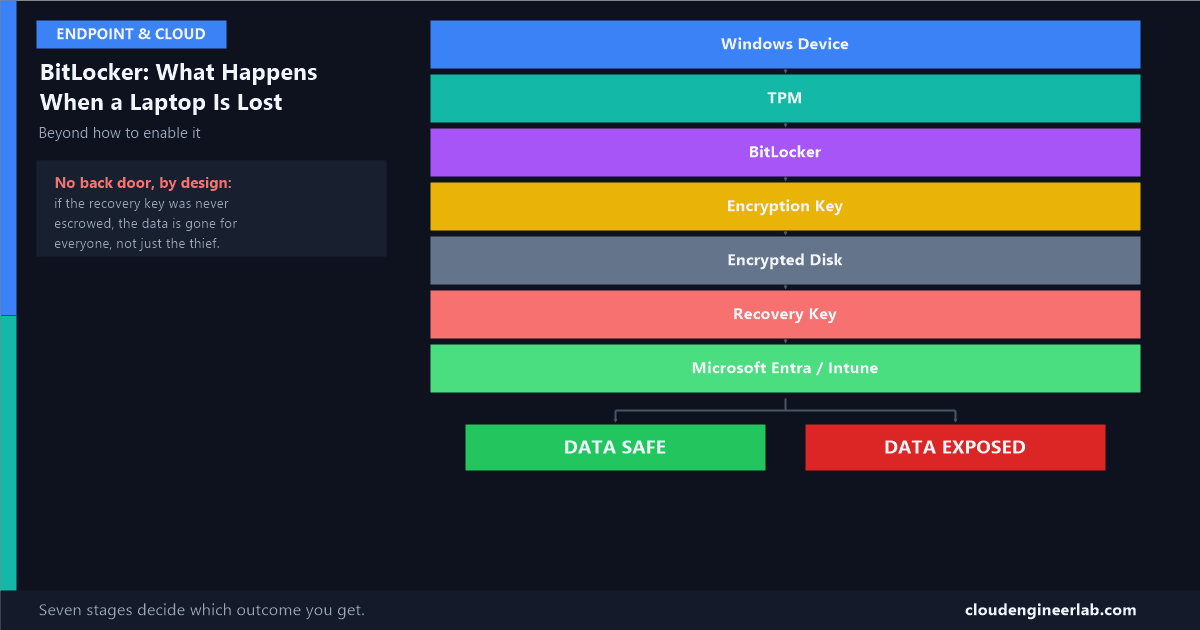
Windows Device
      ↓
TPM
      ↓
BitLocker
      ↓
Encryption Key
      ↓
Encrypted Disk
      ↓
Recovery Key
      ↓
Microsoft Entra / Intune
The Seven Stages
Stage 1: Windows Device, the Thing That Walks Out the Door
Without encryption, a lost laptop's disk is just a filing cabinet with no lock. Pull the drive, connect it to any other machine as a secondary disk, and every file is readable exactly as it was left, no Windows password required, because a login prompt only protects the operating system session, not the raw data sitting on the physical platters or flash chips underneath it. This is the actual risk BitLocker exists to close: not someone guessing a password, but someone bypassing the login screen entirely by going around it.
Stage 2: TPM, the Chip That Says No
The Trusted Platform Module is a small, dedicated security chip built into the motherboard (or emulated in firmware on newer devices as fTPM), and its job is far more specific than "store a password." It seals a cryptographic key against a measurement of the exact boot state of the machine, secure boot status, boot loader version, firmware configuration, taken at the moment BitLocker was first enabled.
What 'sealed' actually means
Every time the device boots, the TPM re-measures that same boot state and compares it to what was recorded when the key was sealed. If they match, the TPM releases its part of the key automatically, no PIN needed, that's why a healthy BitLocker-protected laptop boots straight to the Windows sign-in screen with no extra prompt. If the boot state has changed, disk moved to different hardware, firmware tampered with, secure boot disabled, the TPM refuses to release anything at all. It has no opinion about who's asking, it only checks whether the boot environment looks like the one it remembers.
This is precisely why pulling the drive out of a lost laptop and connecting it to a different machine doesn't work as an attack. The disk's encryption key was sealed to the original device's specific TPM and boot measurements. A different machine has a different TPM, or no matching seal at all, and the drive just looks like unreadable ciphertext, because that's exactly what it is without the key.
Stage 3: BitLocker, the Feature Orchestrating All of This
BitLocker itself doesn't do the cryptography, it coordinates it: talking to the TPM, generating and managing the key hierarchy in the next stage, encrypting the volume, and deciding when to demand the recovery key instead of unlocking silently. On Windows 10/11 Enterprise and Education editions, this is the fully manageable version; consumer editions get a simplified equivalent called Device Encryption, which escrows its recovery key to a personal Microsoft account instead of an organisation's Entra ID tenant, and is not what you want protecting company data.
Stage 4: Encryption Key, a Hierarchy, Not One Password
This is the stage most explanations skip entirely, and it's the one that actually explains why losing a PIN doesn't mean losing your data.
The Full Volume Encryption Key (FVEK)
The actual key that encrypts and decrypts every byte on the disk. This never changes once encryption begins, and it's never directly exposed to a user or an admin.
The Volume Master Key (VMK)
A second key that encrypts the FVEK. This indirection matters: if a protector needs to change (a new PIN, a re-issued recovery key), only the much smaller VMK needs re-wrapping, not the entire multi-gigabyte disk.
Key protectors: the different ways to unlock the VMK
The VMK itself is protected by one or more "protectors": the TPM's automatic release, a TPM+PIN combination for extra assurance, and always, as a mandatory fallback, a 48-digit numerical recovery password. Multiple protectors can exist on the same volume simultaneously, any one of them unlocks it.
Why this hierarchy matters in practice
Because the VMK sits between the FVEK and every protector, adding, removing, or rotating a protector, switching from TPM-only to TPM+PIN, for instance, doesn't require re-encrypting the disk from scratch. Only the small VMK wrapper changes. This is also why a stolen or guessed PIN alone isn't enough to unlock a device remotely: the PIN unlocks the VMK on that specific device, it isn't a password you could type into a different machine to reach the same data.
Stage 5: Encrypted Disk, What "Encrypted" Actually Means
Once the FVEK is generated, BitLocker encrypts the volume using XTS-AES, a mode of AES specifically designed for disk encryption, applied per sector rather than to the file as a whole. Two practical choices affect how this actually happens:
| Setting | What it means | When to use it |
|---|---|---|
| Full encryption | Every sector on the disk, used or not, gets encrypted immediately | Devices being redeployed or where residual data on "empty" sectors from a previous use is a real concern |
| Used-space-only encryption | Only sectors currently holding data get encrypted; new writes are encrypted as they happen | Brand-new devices at Autopilot provisioning, dramatically faster initial encryption with no meaningful security tradeoff on genuinely new hardware |
Stage 6: Recovery Key, the Backup for When the TPM Says No
The 48-digit numerical recovery password exists for exactly the moment described in Stage 2: the TPM detects a boot state it doesn't recognise and refuses to auto-unlock. This isn't rare or exotic, it happens from routine events too: a BIOS/UEFI firmware update, a motherboard replacement, certain Windows update scenarios, or a user innocently changing a boot order setting.
This is where the story usually splits into two outcomes
If the recovery key was properly escrowed before this happened, an authorised admin retrieves it and the device unlocks normally, a brief interruption, nothing more. If it wasn't escrowed anywhere, that data is now permanently unreadable, not to an attacker, to anyone, including the organisation that owns the device. BitLocker doesn't have a back door. The recovery key isn't a formality, it's the only other key that exists.
Stage 7: Microsoft Entra / Intune, Where the Recovery Key Actually Lives
For an enterprise-managed device, the recovery key is automatically escrowed to the device's object in Microsoft Entra ID the moment encryption completes, with Intune's disk encryption policy being what makes this automatic rather than dependent on a user remembering to back it up somewhere.
Encryption completes on the device
BitLocker generates the recovery password as one of the key protectors.
The recovery key uploads to Entra ID
This happens silently, tied to the device's identity in the same directory that Conditional Access reads the compliance attribute from.
An authorised admin can retrieve it later
Through the Intune admin centre or the Entra ID device blade, searching for the specific device and viewing its BitLocker recovery keys, an action that's itself audit-logged.
The device unlocks using the retrieved key
Entered once at the BitLocker recovery screen, which restores normal boot, the device re-seals against the TPM's current boot state, and goes back to unlocking silently from then on.
A compliant-looking device can still fail at exactly this stage
I've covered before how a device can report 'Compliant' while actually being wrong in some specific way, and this is a real example of it: a device can show BitLocker as "on" in compliance reporting while its recovery key genuinely never made it to Entra ID, a failed sync, a policy applied before the device was fully enrolled, a timing issue during provisioning. The only way to know for certain is to actually check Devices → Monitor → BitLocker recovery keys for that specific device, not just trust the green checkmark.
The Actual Lost-Laptop Timeline
The laptop is left in a seat pocket
Whoever finds it has full physical access: they can open it, remove the battery, connect it to other hardware, take as long as they want.
Attempt 1: try to sign in normally
Blocked by the Windows lock screen. Nothing gained without the user's credentials, and even those alone wouldn't matter for what happens next.
Attempt 2: pull the drive, connect it to another PC
The disk mounts as an unreadable encrypted volume. The FVEK is wrapped by a VMK, which is sealed to the original device's TPM. A different machine's TPM can't produce the same seal. The data is cryptographically inaccessible, not just password-protected.
Attempt 3: boot the original laptop with the boot order changed, or secure boot disabled
The TPM re-measures the boot state, finds it doesn't match what was sealed, and refuses to release its part of the key automatically. BitLocker drops to the recovery screen, demanding the 48-digit key. The person holding the laptop doesn't have it, and has no way to obtain it.
Meanwhile, at the company
The employee reports the laptop lost. IT's actual priority isn't retrieving the BitLocker recovery key, the device being encrypted already means the data is safe without any action from them. The real response is revoking the device's access: disabling the account, revoking sign-in sessions, and if the device ever reappears on the network, remotely wiping it. The recovery key in Entra ID matters for the opposite scenario, recovering a legitimately owned device that failed to boot, not for stopping a thief who was already stopped at Attempt 3.
This is the outcome when every stage was configured correctly. The failure version of this story isn't usually "BitLocker was hacked," it's one of the earlier stages never actually happening: encryption silently failing during provisioning, a recovery key that never escrowed, or a device that was never enrolled in Intune at all and so never had a policy requiring encryption in the first place. The full hardening baseline covers where BitLocker fits alongside the other controls worth verifying, not just enabling.
What BitLocker Does Not Protect Against
Encryption protects data at rest, not an unlocked session
If a laptop is stolen while it's already signed in and unlocked, at a coffee shop, left open for a few minutes, BitLocker has already done its job of unlocking the disk for the legitimate active session, exactly as it's supposed to. Encryption defends against the device being off or locked when it leaves your control, not against someone walking away with an already-unlocked machine. That's a different problem, solved by screen lock timeouts, Windows Hello re-authentication, and the same account-and-session revocation steps that matter regardless of how the device was taken.
Summary
The seven stages, restated
A physical device (1) has a TPM that seals a key to its specific, untampered boot state (2). BitLocker orchestrates the process (3) of generating a layered key hierarchy, an FVEK wrapped by a VMK, unlocked by one or more protectors (4), to encrypt every sector of the disk (5). When the TPM won't release its protector automatically, boot state changed, hardware changed, a 48-digit recovery key is the only other way in (6), and for a managed device, that key already lives safely in Entra ID, retrievable only by an authorised admin (7). Every one of those seven stages has to actually happen for the story to end with "the data was safe." Any one of them silently failing is how a properly-configured-looking laptop still ends up in a breach report.
Have you ever had to pull a BitLocker recovery key from Entra ID for a real incident, a firmware update, a forgotten PIN, an actual lost device? What did that process look like in your tenant? Drop a comment below.

Written by
Chetan Yamger
Cloud Engineer · AI Automation Architect · Modern Workplace Consultant
Cloud Engineer, AI Automation Architect, and Modern Workplace Consultant based in Amsterdam, Netherlands. Specializing in scalable, secure enterprise solutions with Microsoft Azure, Intune, PowerShell, and AI-driven automation using ChatGPT, Gemini, and modern LLM technologies.
Stay in the loop.
New articles, straight to you.
Deep-dive technical articles on Intune, PowerShell, and AI — no noise, no spam.
Discussion
Share your thoughts — your email stays private
Leave a comment