
Windows Endpoint Hardening with Microsoft Intune: A Practical Security Baseline
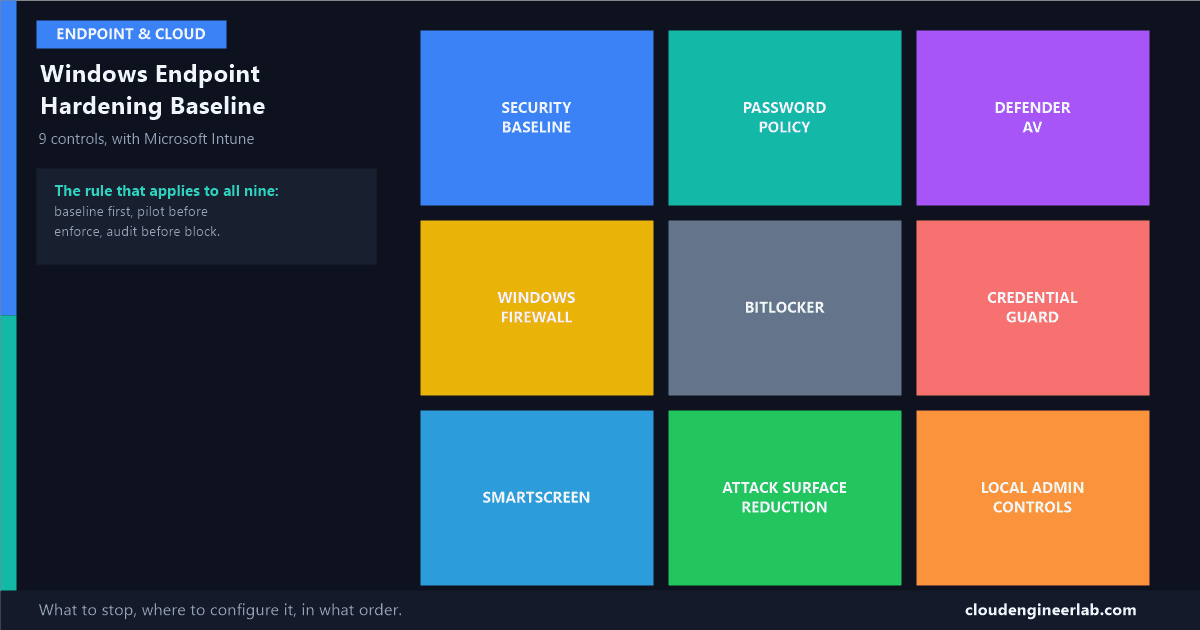
Nine controls that actually move the needle on Windows security, what each one stops, the exact Intune blade to configure it in, and the order to roll them out safely.
"Harden the endpoints" is the kind of instruction that sounds like a single task and is actually nine separate configuration surfaces, each with its own blade in Intune, its own gotchas, and its own way of quietly breaking something if you enable it wrong. This is the practical version: what each control actually stops, where to configure it, and the order that gets you a genuinely hardened fleet without generating a helpdesk queue on day one.
Configuration alone was never the whole story, compliance is a checklist, not a security guarantee, but a checklist that includes the right nine items is a very different starting point from one that doesn't.
The Nine Controls, At a Glance
1. Security Baselines: Start Here, Not Last
A Security Baseline in Intune is a pre-configured group of hundreds of individual settings, based on Microsoft's own recommended configuration for a given Windows version, that you deploy as a single profile instead of hand-picking every value yourself.
Go to Endpoint Security → Security Baselines
Intune admin centre → Endpoint security → Security baselines. Choose MDM Security Baseline for the current Windows version.
Start from the template, don't accept it blindly
Every baseline ships with Microsoft's recommended value for each setting already filled in. Review the full list, not just the summary, some defaults (like screen lock timeout or specific audit policy verbosity) are genuinely too aggressive for a general office fleet and worth tuning before you assign anything.
Assign to a small pilot group first
Baselines touch hundreds of settings at once. Assign to 10-20 devices, not the whole tenant, and watch for anything that behaves differently for a full patch cycle before widening.
Track baseline versions deliberately
Microsoft ships new baseline versions as Windows itself changes. Moving to a new version is a real change, not an automatic background update, review what changed before reassigning.
Why start here instead of configuring each of the other eight from scratch
The baseline gets you 80% of the way on most of the settings below for free, with Microsoft's own security team having already made the hard calls on hundreds of low-level registry and policy values you'd otherwise have to research individually. Everything else in this post is about the handful of settings worth deliberately overriding or adding on top, not replacing the baseline entirely.
2. Password Policy and Windows Hello for Business
The single biggest shift in password guidance over the last several years: length and MFA beat complexity and rotation. Forcing a password change every 60 days trains users to increment a number at the end of the same password, it doesn't produce meaningfully stronger security.
| Setting | Old-school approach | Current recommendation |
|---|---|---|
| Minimum length | 8 characters | 14+ characters |
| Complexity rules | Mixed case, digit, symbol required | Length matters more than character mix |
| Expiration | Every 60-90 days | Don't expire passwords that meet length requirements, expiration without evidence of compromise just trains bad habits |
| Primary defense | The password itself | Windows Hello for Business, removing the password from daily sign-in entirely |
Configure this through Endpoint Security → Account Protection, where Windows Hello for Business policy lives alongside the older password-complexity CSPs. If a device has WHfB configured, the user signs in with a PIN backed by the device's TPM, or biometrics, and the actual password is used dramatically less often, which is exactly the point: a stolen password does nothing on its own if MFA and modern authentication are already doing the real work.
3. Microsoft Defender Antivirus
Defender is the patrol guard in the security team analogy, watching live behaviour rather than checking configuration or identity. The baseline settings that matter most, configured under Endpoint Security → Antivirus:
| Setting | Recommended value | Why |
|---|---|---|
| Real-time protection | On | The core always-scanning engine, turning it off is the single most common way a "protected" device isn't |
| Cloud-delivered protection | On | Lets Defender check a file against Microsoft's live threat intelligence in near real time, instead of relying only on signatures already on the device |
| Cloud block level | High | Blocks more aggressively on files with no established reputation, at the cost of occasionally flagging a brand-new legitimate file |
| Potentially unwanted application (PUA) protection | Block | Stops bundled adware and unwanted toolbars that aren't quite malware but aren't wanted either |
| Tamper Protection | On | Stops malware, or a user with local admin rights, from disabling Defender itself |
| EDR in block mode | On | Lets Defender for Endpoint's detection engine actively block, not just alert, even when a third-party antivirus is the primary AV on the device |
Tamper Protection breaks scripted AV changes for a reason
Once Tamper Protection is on, PowerShell scripts and Group Policy can no longer disable Defender, change exclusions, or turn off real-time protection, even from an account with local admin rights. This is deliberate: if it could be turned off that easily by a script, malware running with the same rights could do exactly the same thing. Manage exclusions through Intune policy, not local scripting, once this is enabled.
4. Windows Firewall
Intune manages Windows Firewall through Endpoint Security → Firewall, with separate profiles for the three network location types Windows itself recognises: Domain, Private, and Public.
Keep the firewall on for all three profiles, always
It sounds obvious, but "Public network, firewall off" is a real setting some legacy configurations still carry over from a specific troubleshooting session years ago that never got reverted.
Default to block inbound, allow outbound
Inbound connections should be blocked unless there's a specific rule allowing them, remote management tools, a specific line-of-business app, and nothing else, are the usual legitimate exceptions.
Create explicit rules for what you actually need, not a blanket allow
A firewall rule that allows "any application, any port" defeats the purpose of having a firewall rule at all. Scope every exception to the specific executable and port it needs.
Turn on firewall logging for dropped packets
Without logging, you have a firewall with no visibility into what it's actually blocking, which matters the first time you're troubleshooting why a legitimate tool can't connect.
5. BitLocker
BitLocker makes the data on a disk unreadable without the recovery key the moment that disk is physically separated from a working Windows sign-in, lost laptop, stolen drive, decommissioned hardware sold without wiping it properly.
| Setting | Recommended value |
|---|---|
| Encryption method | XTS-AES 256-bit for fixed drives |
| Startup authentication | TPM only (for most fleets) or TPM + PIN for higher-security groups |
| Recovery key escrow | Microsoft Entra ID (for cloud-managed devices) or Active Directory (for on-prem) |
| Silent enablement | Enabled, so encryption happens automatically without requiring the end user to manually start it |
| Removable drive encryption | Require encryption before write access, block write access to unencrypted removable drives |
Configure this under Endpoint Security → Disk encryption. The setting worth double-checking before wide deployment is recovery key escrow: a device that encrypts successfully but whose recovery key never made it to Entra ID or AD is a device that's one BIOS update or hardware change away from being permanently locked, with no way back in for anyone, including you.
Verify escrow actually happened, don't assume it did
Check Devices → Monitor → BitLocker recovery keys for your pilot group after the policy deploys. A missing recovery key here is a policy that looks successful in compliance reporting while quietly leaving a device unrecoverable if something goes wrong.
6. Credential Guard
Credential Guard uses virtualization-based security (VBS) to isolate the process that stores authentication secrets, LSASS, in a separate, hardware-protected memory space that the main operating system, and anything running on it including malware with admin rights, cannot directly access.
What it actually stops: the class of attack where malware dumps LSASS memory to extract cached password hashes or Kerberos tickets, then reuses those credentials to move to other machines, pass-the-hash and pass-the-ticket, both extremely common in real ransomware and lateral-movement toolkits.
Hardware requirements are real, check before deploying broadly
Credential Guard needs UEFI with Secure Boot, a 64-bit CPU with virtualization extensions enabled in firmware, and Windows 10/11 Enterprise or Education edition (not Pro, for the fully managed policy path). A pilot group with older or inconsistent hardware will surface compatibility gaps that a spec sheet alone won't.
Configure it through Endpoint Security → Account Protection, alongside Windows Hello for Business. Some older applications and certain legacy authentication methods that rely on directly accessing credential material in memory can break once Credential Guard is active, which is exactly why this is a pilot-first rollout, not a tenant-wide flip.
7. SmartScreen
SmartScreen is a reputation check that runs before a downloaded file executes or a site loads, checking it against Microsoft's cloud database of known-good and known-bad applications and sites.
| Component | What it checks | Where it's configured |
|---|---|---|
| Windows SmartScreen | Downloaded executables with no established reputation | Endpoint Security → App and browser control |
| Microsoft Defender SmartScreen for Edge | Phishing sites and malicious downloads inside the browser | Same policy, Edge-specific settings |
| Enhanced Phishing Protection | Warns if a user types their work password into a site that isn't a legitimate Microsoft sign-in page | Endpoint Security → Account Protection |
Set both Check apps and files and SmartScreen for Microsoft Edge to Block, not just Warn. Warn mode gives users a dismissible prompt they'll click through under time pressure; Block actually stops the file from running until an admin makes an exception.
8. Attack Surface Reduction (ASR) Rules
ASR rules don't scan for known malware signatures, they block specific behaviours that legitimate software almost never needs and malware relies on constantly: an Office document spawning a child process, a script pulling content from the internet and executing it directly, a process trying to read credentials out of LSASS memory.
Some of the highest-value rules to start with, all configured under Endpoint Security → Attack surface reduction:
| ASR rule | Blocks |
|---|---|
| Block credential stealing from the Windows local security authority subsystem | Direct attempts to read LSASS memory, the same technique Credential Guard defends against from a different angle |
| Block Office applications from creating child processes | The single most common macro-malware delivery pattern: a Word document spawning PowerShell or cmd |
| Block execution of potentially obfuscated scripts | Heavily obfuscated PowerShell and JavaScript, a strong signal of an attempt to evade detection |
| Block Office communication apps from creating child processes | The same pattern as above, specific to Outlook |
| Use advanced protection against ransomware | Behaviour-based ransomware detection independent of signature matching |
Deploy every new ASR rule in Audit mode first
Audit mode logs what the rule would have blocked without actually blocking anything, exactly the same safety pattern as Conditional Access's Report-only mode.
Review the audit hits in Defender's reporting for at least a week
Microsoft Defender portal → Reports → Attack surface reduction. Look specifically for legitimate line-of-business tools triggering a rule, older macro-driven Excel workflows are the most common false positive.
Add exclusions for confirmed legitimate triggers, not blanket rule disablement
If one specific internal tool trips a rule, exclude that specific file path or process, don't turn the rule off for the whole fleet because of one exception.
Switch confirmed-clean rules to Block
Once a rule's audit logs show no unexpected hits for a full patch and business cycle, move it from Audit to Block.
9. Local Administrator Controls
The last control is about a different kind of risk entirely: what happens once someone, or something, already has code running on the device. If that code is running as local administrator, it can disable other protections, install anything, and move laterally far more easily than if it's running as a standard user.
Two Intune features work together here, and the full walkthrough for setting either one up is in the licensing guide:
| Control | What it solves |
|---|---|
| Windows LAPS | Rotates the built-in local administrator account to a unique, random, per-device password, so one compromised machine's local admin credentials are worthless on every other machine |
| Endpoint Privilege Management (EPM) | Lets standard users run specific, pre-approved elevated tasks (installing an approved app, for instance) without being made a standing local administrator at all |
These solve different problems, use both
LAPS assumes someone occasionally needs genuine local admin access and makes sure that access is unique and controlled. EPM's goal is to make standing local admin unnecessary for most users in the first place. A fleet with LAPS but no EPM still has users who are local admins every day, just with a rotated password on an account they never actually need to use.
Putting the Baseline Together
Weeks 1-2: Security Baseline + BitLocker
Deploy the MDM Security Baseline and BitLocker policy to a pilot ring. Verify recovery keys are actually escrowing before expanding.
Weeks 3-4: Defender hardening + Firewall
Enable Tamper Protection, cloud-delivered protection, and EDR in block mode. Confirm firewall profiles are on for all three network types with logging enabled.
Weeks 5-6: Credential Guard + SmartScreen
Pilot Credential Guard against your actual hardware mix before wider rollout. Move SmartScreen from Warn to Block once pilot feedback is clean.
Weeks 7-9: ASR rules in Audit, then Block
Start every rule in Audit mode. Review weekly. Move confirmed-clean rules to Block in stages, not all nine on the same day.
Ongoing: LAPS and EPM
Roll out LAPS fleet-wide as a baseline expectation, then introduce EPM to reduce how many users need standing local admin rights at all.
Summary Table
| # | Control | Stops | Intune Location |
|---|---|---|---|
| 1 | Security Baseline | Hundreds of individually risky default settings, all at once | Endpoint Security → Security baselines |
| 2 | Password Policy + WHfB | Weak, reused, and phishable passwords | Endpoint Security → Account Protection |
| 3 | Defender Antivirus | Known and cloud-identified malware | Endpoint Security → Antivirus |
| 4 | Windows Firewall | Unsolicited inbound connections and unscoped outbound traffic | Endpoint Security → Firewall |
| 5 | BitLocker | Data exposure from a lost or stolen physical device | Endpoint Security → Disk encryption |
| 6 | Credential Guard | Pass-the-hash and pass-the-ticket credential reuse | Endpoint Security → Account Protection |
| 7 | SmartScreen | Unrecognised malicious files and phishing sites | Endpoint Security → App and browser control |
| 8 | Attack Surface Reduction | The specific behaviours malware relies on to execute and spread | Endpoint Security → Attack surface reduction |
| 9 | LAPS + EPM | Standing local admin rights as an attack multiplier | Endpoint Security → Account Protection / Elevation rules |
None of these nine controls is optional in a genuinely hardened fleet, and none of them is safe to enable tenant-wide on day one. The pattern that runs through every single one, baseline first, pilot before enforce, audit before block, is the same discipline Conditional Access rollouts depend on, because it's the same underlying risk: a security control strong enough to matter is also strong enough to cause an outage if you skip the pilot step.
Which of these nine is still sitting on Microsoft's default rather than a deliberately reviewed value in your tenant? Attack Surface Reduction rules are the ones I see left in Audit mode the longest, often because nobody circled back to review the logs. Drop a comment with what's still pending in yours.

Written by
Chetan Yamger
Cloud Engineer · AI Automation Architect · Modern Workplace Consultant
Cloud Engineer, AI Automation Architect, and Modern Workplace Consultant based in Amsterdam, Netherlands. Specializing in scalable, secure enterprise solutions with Microsoft Azure, Intune, PowerShell, and AI-driven automation using ChatGPT, Gemini, and modern LLM technologies.
Stay in the loop.
New articles, straight to you.
Deep-dive technical articles on Intune, PowerShell, and AI — no noise, no spam.
Discussion
Share your thoughts — your email stays private
Leave a comment