
How to Implement Your First Conditional Access Policy in Microsoft Entra
A real, step-by-step rollout, from one test user to full monitoring, built so your first policy can't accidentally lock out the whole organisation.
I've covered how Conditional Access actually makes its decisions. This post is the doing part: building and rolling out your actual first policy, in an order specifically designed so a mistake shows up as a log entry, not a company-wide lockout.
That last part matters more than it sounds. A Conditional Access policy is one of the few things in Microsoft 365 that can genuinely lock every single user, including admins, out of the tenant at once, if it's created wrong and switched on immediately. Everything in this walkthrough exists to prevent that specific failure.
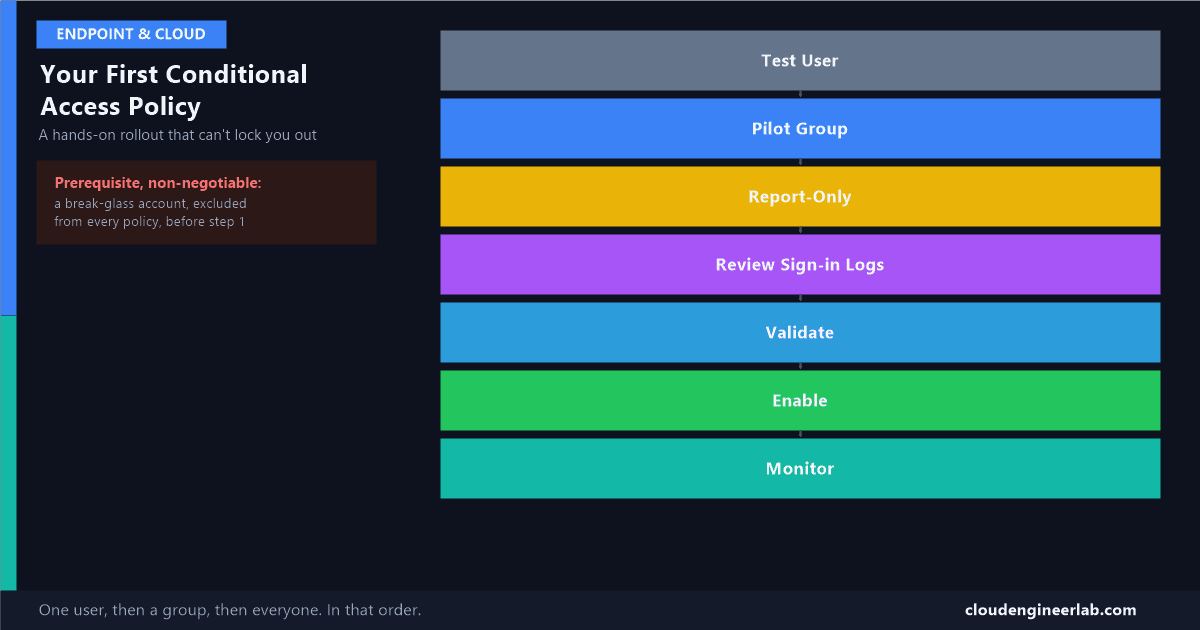
Test User
   ↓
Pilot Group
   ↓
Report-Only
   ↓
Review Sign-in Logs
   ↓
Validate
   ↓
Enable
   ↓
Monitor
Before Any of This: Create a Break-Glass Account
This isn't in the pipeline above because it isn't a step, it's a prerequisite that has to exist before you create your first policy at all.
Non-negotiable, do this first
Create one or two dedicated emergency access accounts, cloud-only, with strong, randomly generated passwords stored somewhere secure and offline. Put them in a security group, call it something like CA-BreakGlass, and exclude that group from every single Conditional Access policy you ever create, starting with this one. If a policy misfires and locks everyone else out, these accounts are how you get back in to fix it. Skipping this step is the single most common way a first Conditional Access policy turns into an outage.
Step 1: Test User
Don't start with a group, start with one account, ideally a dedicated test account or your own. The goal here isn't statistical confidence, it's catching an obviously broken configuration, a typo in the app selection, a control that doesn't make sense, before it touches anyone else at all.
Step 2: Pilot Group
Once a single test sign-in behaves the way you expect, create a dedicated Entra security group, 5 to 10 people, deliberately varied: a mix of device types, at least one person who regularly signs in from outside the office, someone on a phone. A pilot group that's all identical laptops on the same office network won't surface the edge cases a broader rollout will hit.
Step 3: Report-Only
This is where the actual policy gets built, and the setting that matters most is the very last one.
Navigate to Conditional Access
In the Microsoft Entra admin centre: Security → Conditional Access → New policy.
Name it properly
Use a real naming convention from day one, something like CA001 - Require MFA for pilot group - Report-Only. A tenant with a dozen policies all named "Policy 1," "Policy 2" is a tenant nobody can safely maintain six months from now.
Set the assignment: your pilot group, minus break-glass
Under Users, include the pilot group you created in Step 2. Under Exclude, add your CA-BreakGlass group. Every policy, forever, gets that exclusion.
Choose the target resources
Under Target resources, select which apps this policy applies to. For a first policy, "All resources" (previously "All cloud apps") is the standard, simplest starting scope.
Set the grant control
Under Access controls → Grant, choose Require multifactor authentication. This is the most common, lowest-risk first policy for exactly the reason covered in the MFA ladder post: it closes a real, common gap without yet requiring device compliance or a specific authentication strength.
The setting that matters most: Enable policy → Report-only
Not On. Report-only. This is what makes the entire rest of this process safe: the policy evaluates against every real sign-in and logs exactly what it would have done, without actually blocking or prompting anyone.
Step 4: Review Sign-in Logs
Give it at least 24 to 48 hours of real sign-in activity from your pilot group before looking, then check the right place.
Go to the sign-in logs
Entra ID → Monitoring & health → Sign-in logs.
Open a specific sign-in from a pilot user
Click into any row to open the sign-in details pane.
Check the Report-only tab specifically
Not the "Conditional Access" tab, that one shows enforced policies. Report-only results live in their own Report-only tab, showing outcomes like Report-only: Success, Report-only: Failure, or Report-only: Not applied.
Use the Conditional Access Insights and Reporting workbook for the bigger picture
Instead of clicking through individual sign-ins one at a time, this workbook shows report-only results across your whole pilot group and time range at once, the faster way to spot a pattern.
Step 5: Validate
This is a judgment step, not a checkbox. You're looking for two things specifically:
What 'looks good' actually means
Every pilot user's legitimate sign-in shows Report-only: Success after they complete MFA, and nothing shows Report-only: Failure for a sign-in that should have been fine. A Not applied result on a sign-in you expected the policy to catch usually means an assignment or condition is scoped more narrowly than you intended, worth fixing before moving on, not after.
If something looks wrong, adjust the policy, still in Report-only, and give it another 24 to 48 hours. Don't flip it live hoping it'll sort itself out.
Step 6: Enable
Once validation genuinely looks clean, go back into the policy and change Enable policy from Report-only to On. At this point it's still scoped to your pilot group only, real enforcement, small blast radius. Only after this group has run successfully under real enforcement for a real stretch of time does it make sense to widen the assignment toward the rest of the organisation, and even then, in stages, not in one jump to "All users."
Step 7: Monitor
Enabling a policy isn't the finish line. Keep checking the sign-in logs, now the actual Conditional Access tab instead of Report-only, on an ongoing basis, and remember the same reporting lag that applies everywhere else in this stack applies here too: what you see in the logs is never more current than the sign-in that already happened. Monitoring means catching drift over the following weeks, a new app that should have been included, a user group that changed shape, not a one-time check the day after enabling it.
The Full Walkthrough, End to End
Prerequisite
Test User
Pilot Group
Report-Only
CA001 - Require MFA for pilot group, targeting All resources, grant set to Require MFA, Enable policy set to Report-only.Review Sign-in Logs
Validate
Enable
Monitor
The Mistakes That Actually Cause Outages
In order of how often they actually happen
Skipping the break-glass exclusion, the one that turns a bad policy into a real lockout. Setting Enable policy to On instead of Report-only on the very first attempt, skipping the entire safety net this walkthrough is built around. Assigning straight to "All users" instead of a pilot group, so a problem affects everyone simultaneously instead of ten people. And checking the wrong tab in the sign-in logs, reading the Conditional Access tab for a policy that's still in Report-only mode, where it will never show anything at all.
Have you ever had a Conditional Access policy go live before you meant it to? What actually caught it, or didn't? Drop a comment below, this is exactly the kind of mistake worth other people learning from secondhand.

Written by
Chetan Yamger
Cloud Engineer · AI Automation Architect · Modern Workplace Consultant
Cloud Engineer, AI Automation Architect, and Modern Workplace Consultant based in Amsterdam, Netherlands. Specializing in scalable, secure enterprise solutions with Microsoft Azure, Intune, PowerShell, and AI-driven automation using ChatGPT, Gemini, and modern LLM technologies.
Stay in the loop.
New articles, straight to you.
Deep-dive technical articles on Intune, PowerShell, and AI — no noise, no spam.
Discussion
Share your thoughts — your email stays private
Leave a comment