
Conditional Access Policies Every Microsoft 365 Administrator Should Understand
Ten real Conditional Access patterns explained through the actual scenario each one exists to stop, not just the settings screen you'd click through.
Conditional Access Explained covered how the decision engine works. Implementing Your First Policy covered how to roll one out without locking anyone out. This post is neither of those. It's the catalog: ten specific policies, the real situation each one exists to stop, and the settings that make it work.
If you've already read the enterprise baseline guide, some of these will look familiar, that post organises policies by deployment urgency and walks through a week-by-week rollout timeline. This one is organised differently: by what's actually being protected, with the scenario that makes each policy make sense. A few of these, protecting the registration process itself, controlling external access, and stepping up privileged operations, aren't covered there at all.
The Four Things Conditional Access Actually Protects
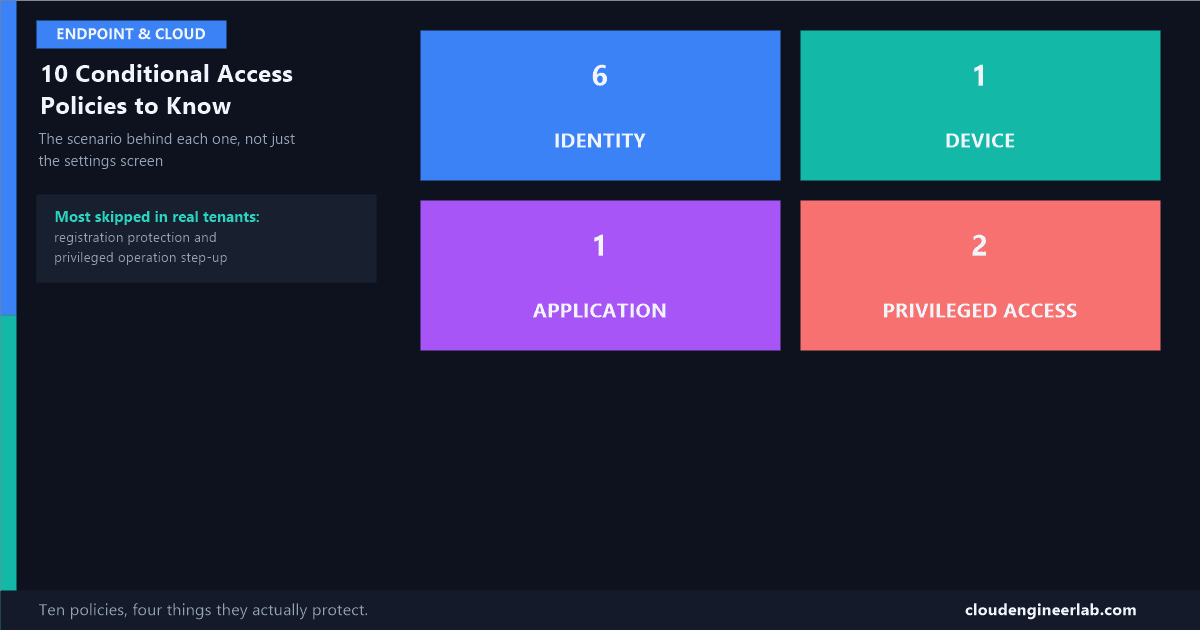
Every policy on this list exists to defend one of four things, the same four layers from Endpoint Security Explained: who someone claims to be, the device they're using, the application they're reaching, and the specific operations that can do real damage if the wrong person performs them.
Identity Policies
1. Require MFA for All Users
The scenario: A finance employee reuses a password across three different websites. One of those websites gets breached. The username and password pair shows up in a dump on a criminal forum three weeks later, still valid, because nobody made them change it.
Without this policy, that leaked password is the entire attack. With it, the attacker also needs the employee's phone, their Authenticator app, or their security key. That single extra requirement is why Microsoft's own telemetry attributes the overwhelming majority of successful account takeovers to accounts that never had MFA turned on at all.
| Setting | Value |
|---|---|
| Users | All users |
| Exclude | Break-glass accounts, service accounts |
| Target resources | All resources |
| Grant | Require multifactor authentication |
Order matters
Check MFA registration completion before switching this from Report-only to On. A user who hasn't registered a second factor yet doesn't get a friendly prompt to set one up, they get locked out mid-sign-in.
2. Require MFA for Administrators
The scenario: An attacker who already has one set of valid credentials will always try them against your admin accounts first, because one Global Administrator session is worth more than a hundred regular user accounts combined.
This policy exists because "everyone has MFA" and "admins specifically have MFA, checked separately, with tighter controls" are not the same guarantee. Scoping a dedicated policy to directory roles gives you a policy you can audit, tighten, and report on independently of the general population, and it's usually the policy that gets a stronger authentication requirement first when you're ready to move past basic MFA.
| Setting | Value |
|---|---|
| Users | Directory roles: Global Administrator, Security Administrator, Exchange Administrator, SharePoint Administrator, Intune Administrator, Conditional Access Administrator, and other privileged roles |
| Exclude | Break-glass accounts |
| Target resources | All resources |
| Grant | Require multifactor authentication (or stronger, see policy 7) |
3. Block Legacy Authentication
The scenario: A multifunction printer on the third floor has been scanning to a shared mailbox for six years using a stored username and password over basic SMTP. Nobody remembers configuring it, and it has never once been asked for MFA, because the protocol it uses has no concept of MFA at all.
Legacy authentication protocols, basic auth, POP3, IMAP, older SMTP AUTH, don't support modern authentication, which means they can't enforce MFA even when every other policy in your tenant requires it. An attacker with a stolen password routes around every MFA policy you've built simply by using a legacy protocol instead. This policy closes that door entirely rather than trying to police it protocol by protocol.
| Setting | Value |
|---|---|
| Users | All users |
| Exclude | Break-glass accounts |
| Target resources | All resources |
| Conditions | Client apps: Exchange ActiveSync clients, Other clients |
| Grant | Block access |
Audit before you enable
Run the sign-in logs filtered to legacy authentication client types for at least two weeks first. Printers, old scripts, and third-party sync tools are the usual culprits, and they need to be migrated or explicitly excluded before this goes live, not discovered after.
4. Block High-Risk Sign-Ins
The scenario: A sign-in comes in from an IP address already flagged as part of a known botnet, at 3 a.m. local time, for a user whose last real sign-in was eleven hours earlier from a different continent. No password was typed wrong, no MFA prompt failed, the credentials are technically correct. The pattern itself is the problem.
This is where Conditional Access stops checking "did they prove who they are" and starts checking "does this look like an attack in progress." It requires Microsoft Entra ID Protection (P2), which scores every sign-in in real time using signals like impossible travel, anonymous IP usage, and credentials seen in leaked-password lists, and lets you block on that score before the session is ever established.
| Setting | Value |
|---|---|
| Users | All users |
| Exclude | Break-glass accounts |
| Target resources | All resources |
| Conditions | Sign-in risk: High |
| Grant | Block access |
5. Protect Security Info Registration
The scenario: An attacker gets hold of a valid password through phishing. Instead of trying to sign in and immediately hitting an MFA prompt they can't pass, they go to the security info registration page and try to register their own phone number as a new MFA method on the account. If that succeeds, they now own MFA for that account too.
This is one of the least understood Conditional Access targets, because the app being protected isn't email or SharePoint, it's the registration process itself. Register security information is a selectable target resource specifically for this. Requiring a stronger check, or requiring the action happen from a trusted location or compliant device, closes a gap that a lot of otherwise well-configured tenants leave wide open.
| Setting | Value |
|---|---|
| Users | All users |
| Exclude | Break-glass accounts |
| Target resources | User actions: Register security information |
| Grant | Require multifactor authentication (using an existing method) or Require compliant device |
Why this one gets missed
Most admins build policies around apps: Exchange, SharePoint, the Azure portal. Registration isn't an app, it's an action, so it lives under a separate "User actions" target in the policy wizard rather than under "Cloud apps," which is exactly why it's easy to never notice it exists.
6. Control External Access
The scenario: A vendor is invited as a B2B guest for a three-week project and given access to a shared Teams channel. Eight months later, that guest account still exists, still has the same access, and nobody who granted it still works at the company. Guest accounts don't automatically inherit the same scrutiny as employee accounts unless you explicitly build a policy that applies to them.
By default, a Conditional Access policy scoped to "All users" does include guests, but a policy meant for your workforce (compliant device requirements, for instance) usually needs guests excluded, since their devices were never enrolled in your Intune tenant in the first place. Controlling external access means building a deliberate, separate policy for the guest and external user population, not assuming your internal policies quietly cover them the way you'd expect.
| Setting | Value |
|---|---|
| Users | Guest or external users: B2B collaboration guest users, B2B collaboration member users |
| Exclude | Break-glass accounts |
| Target resources | Selected apps guests actually need, not "All resources" |
| Grant | Require multifactor authentication, and consider Terms of Use acceptance |
The exclusion that's easy to forget
If policy 3 (Require compliant devices) targets "All users," add guests to its exclusion list. A guest's personal, unmanaged laptop will never show up as compliant in your Intune tenant, and without the exclusion they'll be locked out of a channel they were legitimately invited to.
Device Policies
7. Require Compliant Devices
The scenario: An employee's credentials are correct, their MFA is correct, but the laptop they're signing in from has no disk encryption, hasn't installed a security update in five months, and Defender has been disabled. Identity was never the weak point here, the device was.
This policy checks the device's compliance state as reported by Intune, BitLocker enabled, OS version current, antivirus running, before granting access to corporate resources. A correct password and a valid MFA prompt from a compromised or neglected device still don't get through.
| Setting | Value |
|---|---|
| Users | All users |
| Exclude | Break-glass, guests, service accounts |
| Target resources | Office 365, Teams, SharePoint Online |
| Grant | Require device to be marked as compliant, or Require Hybrid Azure AD joined device |
Sequencing this one matters more than any other
Enabling this before your device fleet is actually enrolled and compliant doesn't tighten security, it locks out everyone on a non-compliant or unenrolled device the instant it goes live. Check the Intune compliance dashboard first, every time.
Application Policies
8. Restrict Access to Sensitive Applications
The scenario: Your general population MFA policy is solid, but the payroll system, the HR platform holding every employee's salary and bank details, and the finance team's reporting tool all get exactly the same treatment as everyone reading email. One compromised regular-strength MFA session is now also a session inside payroll.
Not every application deserves the same trust level as the rest. This policy pattern is about identifying the handful of applications where a breach would be materially worse, payroll, HR, finance, source code repositories, and applying a distinct, stricter policy scoped only to those apps: a tighter authentication strength, a narrower allowed-location list, or a requirement that access only happens from a compliant, corporate device.
| Setting | Value |
|---|---|
| Users | All users, or the specific group with legitimate access |
| Exclude | Break-glass accounts |
| Target resources | The specific sensitive application only, not "All resources" |
| Grant | Require compliant device, and/or a stronger authentication strength |
Start with a list, not a policy
Before building this, get an actual list from the business: which three or four applications, if breached, would be a genuinely different category of incident than a compromised mailbox? That list is the scope of this policy. Trying to classify every app in the tenant this way turns into a maintenance burden nobody keeps up with.
Privileged Access Policies
9. Require Phishing-Resistant MFA
The scenario: An administrator gets an MFA push notification at 11 p.m., didn't initiate any sign-in, and taps "Approve" anyway out of habit or fatigue. This is a real, common technique, MFA fatigue, and it defeats push-based MFA specifically because the human, not the technology, is the point of failure.
Phishing-resistant MFA, a FIDO2 security key or Windows Hello for Business, removes that human failure point entirely. There's no push notification to approve by accident, no code to type into a fake login page, the cryptographic proof is tied to the specific device and the specific site being signed into. The MFA ladder post covers why this rung is different in kind, not just in strength, from everything below it. For administrator and privileged accounts specifically, this shouldn't be optional.
| Setting | Value |
|---|---|
| Users | Directory roles, or a dedicated privileged-access group |
| Exclude | Break-glass accounts (registered with a physical key as their own safeguard) |
| Target resources | All resources, or at minimum all admin portals |
| Grant | Require authentication strength: Phishing-resistant MFA |
10. Protect Privileged Operations
The scenario: An account with the Global Administrator role sits idle for most of the day doing ordinary work, reading email, joining Teams calls, and then once a week actually needs to activate that role to make a genuine administrative change. If that account is compromised during one of the ordinary-work hours, the attacker inherits standing admin rights they never should have had by default.
This is where Conditional Access meets Privileged Identity Management (PIM). Rather than granting permanent standing access, roles are activated just-in-time, for a limited window, and Conditional Access can require an additional authentication step specifically at the moment of activation, not just at the original sign-in hours earlier. The privileged operation itself gets its own checkpoint.
| Setting | Value |
|---|---|
| Users | Directory roles (targeting the role activation, via PIM integration) |
| Exclude | Break-glass accounts |
| Target resources | Role activation / privileged operations |
| Grant | Require authentication strength: Phishing-resistant MFA, re-confirmed at activation |
Why this is different from policy 2
Policy 2 checks MFA when an admin signs in for the day. This one checks it again, specifically, at the moment they elevate to use the privileged role itself. A session that started hours ago as a normal user shouldn't get a free pass into Global Administrator just because the original sign-in happened to satisfy MFA.
All Ten, at a Glance
| # | Policy | Protects against |
|---|---|---|
| 1 | Require MFA for all users | A leaked or guessed password being the entire attack |
| 2 | Require MFA for administrators | Admin accounts held to the same bar as everyone else, no tighter |
| 3 | Block legacy authentication | MFA policies being silently bypassed via an old protocol |
| 4 | Block high-risk sign-ins | Credentials that are technically correct but behaviourally suspicious |
| 5 | Protect security info registration | An attacker registering their own MFA method on a stolen account |
| 6 | Control external access | Guest and vendor accounts quietly outliving their purpose |
| 7 | Require compliant devices | A correct sign-in from a compromised or neglected device |
| 8 | Restrict access to sensitive applications | Payroll, HR, and finance getting the same trust as email |
| 9 | Require phishing-resistant MFA | MFA fatigue and real-time phishing defeating push notifications |
| 10 | Protect privileged operations | Standing admin sessions inheriting risk from hours earlier |
Where to Go Next
None of these ten exist in isolation, and none of them are safe to switch on all at once. If you haven't built a Conditional Access policy before, start with the hands-on walkthrough, which covers the pilot-group, Report-only, validate, enable sequence that keeps any one of these ten from becoming an outage. If you want the tiered, week-by-week deployment order for a full baseline, the enterprise baseline guide covers that in detail.
The common thread across all ten is the same one that runs through this entire series: identity, device, application, and privileged access are four different things, and treating them as one undifferentiated "is this person allowed in" check is exactly the gap these policies exist to close.
Which of these ten do you not have deployed yet? Drop a comment, security info registration and privileged operation protection are the two I see skipped most often, and they're rarely skipped on purpose.

Written by
Chetan Yamger
Cloud Engineer · AI Automation Architect · Modern Workplace Consultant
Cloud Engineer, AI Automation Architect, and Modern Workplace Consultant based in Amsterdam, Netherlands. Specializing in scalable, secure enterprise solutions with Microsoft Azure, Intune, PowerShell, and AI-driven automation using ChatGPT, Gemini, and modern LLM technologies.
Stay in the loop.
New articles, straight to you.
Deep-dive technical articles on Intune, PowerShell, and AI — no noise, no spam.
Discussion
Share your thoughts — your email stays private
Leave a comment