
Conditional Access Explained: How Microsoft Decides Whether to Allow Access
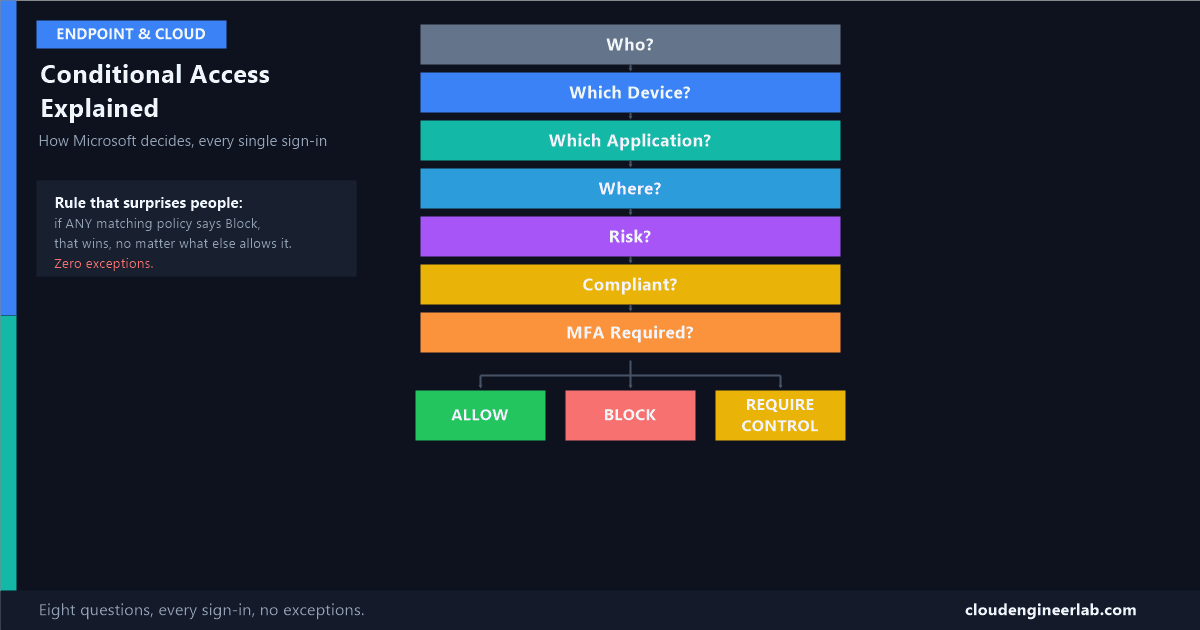
Every sign-in gets asked the same eight questions before Microsoft decides anything. Here's the actual decision engine, walked through with real examples.
Every single time someone signs in to a Microsoft 365 account, the exact same set of questions gets asked before anything is granted. Not sometimes, not for suspicious logins only, every time, for every user, on every device. Microsoft describes this as "the policy engine that combines signals such as user, device, and location to make access decisions," and that description is accurate but abstract. Here's what it actually looks like as a real sequence of questions, with real examples showing exactly how a decision comes out the other end.
I've touched on Conditional Access as the Decision Maker in the security team analogy and why it needs more than one signal to be meaningful. This is the cornerstone piece: the actual mechanics of how it decides.
User Sign-in
     ↓
Who?
     ↓
Which Device?
     ↓
Which Application?
     ↓
Where?
     ↓
Risk?
     ↓
Compliant?
     ↓
MFA Required?
     ↓
ALLOW / BLOCK / REQUIRE CONTROL
The Eight Questions, One at a Time
Who?
Which user, and which groups they belong to. This is the starting point because policies are assigned to specific people, not applied blindly to everyone the same way. A policy for Finance doesn't evaluate for someone in Sales.
Which Device?
What kind of device is this, a Windows laptop, an iPhone, an unmanaged personal tablet. This matters before compliance even comes up, because a policy might apply differently, or not at all, depending on the platform.
Which Application?
What's actually being accessed, Exchange, SharePoint, a custom line-of-business app. A single tenant can have completely different rules for different apps, tighter for finance systems, looser for a public-facing intranet page.
Where?
The network location the request is coming from, a trusted corporate IP range, or somewhere the organisation has never had a legitimate reason to sign in from before.
Risk?
Entra ID Protection's real-time sign-in and user risk signals, now fused with signal from Defender across the whole tenant, not just Entra's own isolated view.
Compliant?
Specifically Intune's compliance verdict for this device, a checklist result, not a live security guarantee, but a real, checkable signal Conditional Access can require.
MFA Required?
Which authentication strength this specific request needs to satisfy, basic MFA, passwordless, or phishing-resistant, depending on how sensitive what's being accessed actually is.
The Decision
Everything above gets combined into exactly one of three outcomes: Allow, Block, or Require Control (something has to happen first, MFA, a compliant device, an approved app, before access is granted).
How the Engine Actually Combines All of This
This is the part most explanations skip, and it's the actual mechanism, not just a list of signals.
Rule 1: if any matching policy says Block, that's the final answer
Conditional Access evaluates every policy that applies to a sign-in at the same time, not one after another. If even one of those policies is configured to block the request, the sign-in is blocked, full stop, regardless of what any other, more permissive policy would have allowed. A single broad block policy can silently override everything else you've carefully configured.
Rule 2: across policies, everything required must be satisfied
If one matching policy requires MFA and a separate matching policy requires a compliant device, the user needs to satisfy both, not just one. Policies combine with AND logic. This is why a tenant with many overlapping policies can end up requiring more than any single policy alone appears to ask for.
Rule 3: inside one policy, you choose AND or OR
Within a single policy's grant controls, an admin explicitly chooses "require all the selected controls" (MFA and a compliant device) or "require one of the selected controls" (MFA or a compliant device, either one satisfies it). This default is AND, and it's a deliberate setting, not an accident, worth checking if a policy feels stricter than intended.
Three Real Sign-Ins, Walked Through
Example 1: A Normal Morning (Allow)
Who?
Which Device?
Which Application?
Where?
Risk?
Compliant?
MFA Required?
Decision: ALLOW
Example 2: An Impossible Sign-In (Block)
Who?
Which Device?
Which Application?
Where?
Risk?
Compliant?
MFA Required?
Decision: BLOCK
Example 3: The Middle Ground (Require Control)
Who?
Which Device?
Which Application?
Where?
Risk?
Compliant?
MFA Required?
Decision: REQUIRE CONTROL
Why "Require Control" Is the Answer Most Often Missed
Beginners tend to think of Conditional Access as a yes/no gate. In practice, Require Control is where most real policies actually land, MFA, a compliant device, an approved client app, or some combination, rather than a flat allow or block. The three examples above show why: the same person, the same app, can land on three completely different outcomes purely based on device and context, and the middle outcome is normal, not an edge case.
Putting the Whole Engine Together
Conditional Access isn't one rule, it's an engine that runs every applicable rule at once and resolves them with the two combination rules above. Understanding those two rules, block always wins, and required controls stack, is the difference between designing policies deliberately and discovering what they actually do after they've already surprised someone.
Which outcome catches people off guard most in your own experience, an unexpected Block from an old policy nobody remembered, or a Require Control step that felt like it came from nowhere? Drop a comment below with what actually happened.

Written by
Chetan Yamger
Cloud Engineer · AI Automation Architect · Modern Workplace Consultant
Cloud Engineer, AI Automation Architect, and Modern Workplace Consultant based in Amsterdam, Netherlands. Specializing in scalable, secure enterprise solutions with Microsoft Azure, Intune, PowerShell, and AI-driven automation using ChatGPT, Gemini, and modern LLM technologies.
Stay in the loop.
New articles, straight to you.
Deep-dive technical articles on Intune, PowerShell, and AI — no noise, no spam.
Discussion
Share your thoughts — your email stays private
Leave a comment