
How to Build a Secure Windows Endpoint From Scratch: A Complete Practical Lab
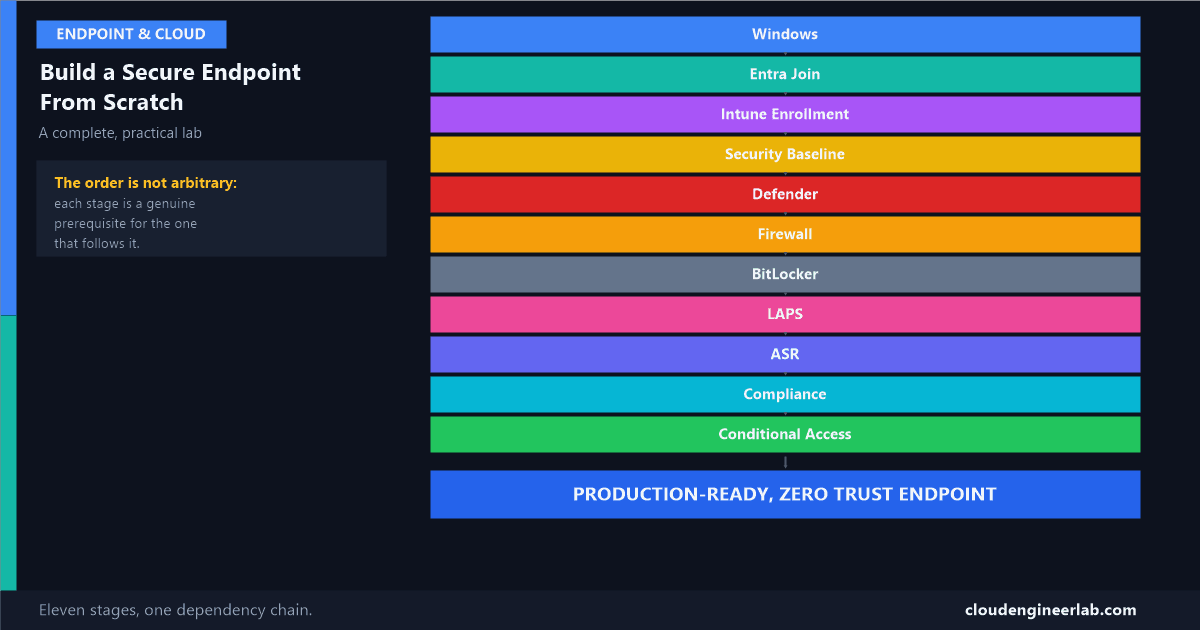
Eleven stages, in the exact order they actually depend on each other, from a blank Windows machine to a fully hardened, Conditional-Access-protected endpoint.
Every control covered elsewhere on this site, Conditional Access, BitLocker, ASR rules, the full hardening baseline, has been explained as its own topic. This post is the opposite exercise: one machine, built in the exact order these controls actually depend on each other, from a blank Windows installation to a fully hardened, Conditional-Access-protected endpoint. Not eleven separate settings. One build, eleven stages, each one a genuine prerequisite for the stage after it. The structural map of how these components relate to each other and the organisational program for rolling this out across an entire enterprise, not just one device are the two companion pieces to this lab.
Windows
  ↓
Entra Join
  ↓
Intune Enrollment
  ↓
Security Baseline
  ↓
Defender
  ↓
Firewall
  ↓
BitLocker
  ↓
LAPS
  ↓
ASR
  ↓
Compliance
  ↓
Conditional Access
Why the order in this post isn't arbitrary
Every stage below is a genuine dependency for the one after it, not just a logical grouping. You cannot push a Security Baseline to a device that hasn't enrolled in Intune. You cannot evaluate Compliance without policies that reference settings the baseline and BitLocker stages already configured. You cannot require a compliant device in Conditional Access if nothing upstream has ever produced a compliance signal. Building out of order doesn't just look messy, specific later stages will silently fail to do anything at all.
Prerequisites Before Stage 1
Licensing
At minimum, Microsoft Entra ID P1 and Intune Plan 1 for every stage through Compliance and Conditional Access. The full licensing breakdown, including exactly what LAPS needs, is covered here.
Hardware
TPM 2.0 and UEFI with Secure Boot support are non-negotiable prerequisites for BitLocker's silent auto-unlock and for Windows Hello for Business later. The full hardware chain of trust these stages depend on is covered here.
A pilot group, not the whole fleet
Every stage below should be validated against a small, deliberately varied pilot group before wider assignment, the same discipline that runs through every hardening post on this site.
Stage 1: Windows
Start from a clean Windows 11 installation, or a factory-reset device fresh out of the box. Nothing in the stages below can begin until an actual instance of Windows exists to build on top of, an obvious statement, but the point worth making explicit: every later stage is additive configuration on top of this one, not a replacement for it. A misconfigured or already-compromised base image undermines everything layered on afterward.
Stage 2: Entra Join
Choose the join type
Microsoft Entra joined for a cloud-only device (the standard modern path), Hybrid Microsoft Entra joined if the device also needs to authenticate against an on-premises Active Directory domain during a migration period.
Complete the join during Out of Box Experience (OOBE)
On a fresh device, choosing "Set up for work or school" during initial setup and signing in with a work account triggers Entra join automatically. Windows Autopilot automates this entire experience for fleet deployment, rather than requiring manual OOBE steps per device.
Verify the device object exists in Entra ID
Entra admin centre → Identity → Devices, confirm the new device appears with a join type of Microsoft Entra joined.
Why this has to come before Intune Enrollment
Intune enrollment for a modern, cloud-managed device rides on top of the device already having an identity in Entra ID. Without Stage 2, there's no device object for Intune's policies, or later Conditional Access's compliance check, to ever attach to.
Stage 3: Intune Enrollment
Confirm MDM auto-enrollment is configured
Entra admin centre → Mobility (MDM and MAM), ensure Microsoft Intune is set to auto-enroll for the relevant user scope.
Enrollment completes automatically after Entra join
For a Microsoft Entra joined device, enrollment happens as part of the same OOBE flow, no separate manual step required once auto-enrollment is configured correctly.
Verify in the Intune admin centre
Devices → All devices, confirm the device appears with a management state of Managed.
Why everything after this stage depends on it
Every remaining stage, the baseline, Defender configuration, Firewall, BitLocker, LAPS, ASR, is delivered as an Intune policy. None of it reaches a device that hasn't completed this stage. This is the actual gate the rest of the lab passes through.
Stage 4: Security Baseline
Deploy the MDM Security Baseline
Endpoint Security → Security baselines, assign the current Windows baseline to the pilot group. The full walkthrough, including why you shouldn't accept every default blindly, is here.
Review, don't just accept, before wider assignment
Confirm the specific values (screen lock timeout, audit policy verbosity) match what's actually reasonable for this specific fleet.
Why this comes before the individually configured controls
The baseline sets sane defaults for hundreds of settings, including several that overlap with the stages below. Deploying it first means Defender, Firewall, and BitLocker's individual policies in the next three stages are refinements on an already-reasonable foundation, not the first security configuration this device has ever seen.
Stage 5: Defender
Configure the Antivirus profile
Endpoint Security → Antivirus, enable real-time protection, cloud-delivered protection, and Tamper Protection. Full setting-by-setting detail here.
Confirm Tamper Protection specifically
Verify it shows as On in the Defender portal for this device, this is what prevents the later stages' protections from being scripted away, even by an account with local admin rights.
Stage 6: Firewall
Configure the Firewall profile
Endpoint Security → Firewall, ensure all three network profiles, Domain, Private, Public, are enabled with logging turned on for dropped packets. Full detail here.
Scope any required inbound exceptions narrowly
Name the specific executable and port, never "any application, any port."
Stage 7: BitLocker
Configure the Disk Encryption profile
Endpoint Security → Disk encryption, XTS-AES 256-bit, silent enablement, recovery key escrow to Microsoft Entra ID.
Verify escrow actually happened for this specific device
Devices → Monitor → BitLocker recovery keys, confirm a recovery key is present. Why this step is not optional, and what the full key hierarchy underneath it looks like, is covered in depth here.
Why BitLocker comes after Entra Join and Intune Enrollment
The recovery key has to escrow somewhere. That "somewhere" is the device's own object in Entra ID, established back in Stage 2, and this only works reliably once Intune management (Stage 3) is actively delivering the policy that turns encryption on in the first place.
Stage 8: LAPS
Designate the local administrator account to manage
Endpoint Security → Account Protection, create a Windows LAPS policy targeting the built-in local administrator account.
Set rotation interval and password complexity
A rotation of every 7 days is a reasonable enterprise default. The full walkthrough of how Windows LAPS actually works is here.
Verify retrieval works before relying on it
From the Intune or Entra ID device blade, confirm an authorised admin can actually retrieve the current password for this specific device.
Stage 9: Attack Surface Reduction (ASR)
Deploy ASR rules in Audit mode first, no exceptions
Endpoint Security → Attack surface reduction. The individual rules, and the exact technique each one targets, are explained in full here.
Review audit hits before enforcing anything
Use Advanced Hunting in the Defender portal to see exactly what would have been blocked, on this pilot group specifically, before moving any rule to Block.
Optional extensions to this stage
Application control (WDAC) and USB device control sit in the same Endpoint Security area and extend this same behavioural-hardening layer further, allowlisting what's permitted to execute, and restricting what removable media can do. Both are genuinely valuable additions, and both deserve their own careful audit-then-enforce rollout exactly like ASR rules, which is why they're called out separately here rather than folded into this specific eleven-stage lab.
Stage 10: Compliance
Create a compliance policy referencing the stages above
Devices → Compliance policies, require BitLocker encryption, a minimum OS version, and Defender status, values this device can now actually satisfy, because Stages 5 through 7 already configured them.
Verify the device reports Compliant
Devices → All devices, check the device's compliance status directly, don't assume it's correct just because the policy deployed successfully. The actual mechanism behind how this status reaches Entra ID is covered here.
Why Compliance has to come after, not alongside, the earlier stages
A compliance policy checking for BitLocker on a device that hasn't had Stage 7 deployed yet just reports Non-compliant, correctly, but unhelpfully, if you were expecting it to pass. Compliance policies should be built to check for the state your earlier stages actually produce, not deployed speculatively ahead of them.
Stage 11: Conditional Access
Build the first policy in Report-only mode
The full hands-on walkthrough for a safe first rollout is here: break-glass account excluded, pilot group only, Report-only before anything else.
Require the compliance signal Stage 10 now produces
Grant control: Require device to be marked as compliant, now meaningful specifically because Stage 10 gives it something real to check.
Layer in the wider policy catalog once this first policy is solid
Why this is the last stage, not an early one
Conditional Access enforcing "require compliant device" against a fleet where nothing upstream has ever configured BitLocker, Defender, or a compliance policy locks out every device at once, because none of them can possibly satisfy a requirement nothing has ever evaluated for them. This stage is the payoff for everything above it, not a starting point.
Verifying the Whole Lab Actually Worked
| Stage | Verification check |
|---|---|
| 2. Entra Join | Device object exists in Entra ID with the correct join type |
| 3. Intune Enrollment | Device shows as Managed in the Intune admin centre |
| 4. Security Baseline | Baseline profile shows as Succeeded for this device |
| 5. Defender | Tamper Protection reads On in the Defender portal |
| 6. Firewall | All three network profiles show Enabled with logging on |
| 7. BitLocker | A recovery key is present under Devices → Monitor → BitLocker recovery keys |
| 8. LAPS | An authorised admin can retrieve a current local admin password |
| 9. ASR | Advanced Hunting shows audit or block events, or a clean log after review |
| 10. Compliance | Device compliance status reads Compliant, not just "policy assigned" |
| 11. Conditional Access | A Report-only sign-in shows the expected Report-only: Success result |
What This Buys You, Mapped to Real Scenarios
Every stage exists because of a specific, real failure mode
A stolen password alone gets nowhere, Conditional Access (11) requires more. A phished credential still needs a compliant, encrypted device to do real damage, Compliance and BitLocker (10, 7) close that gap. A lost laptop's disk stays unreadable, BitLocker (7) again, worked through in full here. A malicious macro can't spawn a shell, ASR (9). A shared local admin password across the whole fleet is gone, LAPS (8). None of these are hypothetical, each is a documented, common real-world attack pattern this exact build order closes off, one stage at a time.
Have you built this exact sequence in a real tenant? Which stage took the longest to actually get right, not just configure, in your environment? Drop a comment, Compliance and BitLocker escrow verification are the two I see teams assume are done when they aren't.

Written by
Chetan Yamger
Cloud Engineer · AI Automation Architect · Modern Workplace Consultant
Cloud Engineer, AI Automation Architect, and Modern Workplace Consultant based in Amsterdam, Netherlands. Specializing in scalable, secure enterprise solutions with Microsoft Azure, Intune, PowerShell, and AI-driven automation using ChatGPT, Gemini, and modern LLM technologies.
Stay in the loop.
New articles, straight to you.
Deep-dive technical articles on Intune, PowerShell, and AI — no noise, no spam.
Discussion
Share your thoughts — your email stays private
Leave a comment