
Application Control: How to Stop Unapproved Software From Running
WDAC, AppLocker, and App Control for Business explained properly: how allowlisting actually decides what runs, and how to roll it out without breaking the fleet.
Attack Surface Reduction blocks specific malicious behaviours from applications that are otherwise allowed to run. Application control asks a completely different question: should this piece of software have been allowed to run at all? Get that answer right, and it doesn't matter whether the malware is brand new, unsigned, or something no antivirus signature has ever seen. If it was never approved, it never executes.
That's a genuinely different security model from almost everything else in this series, and it's worth understanding properly rather than just enabling and hoping.
Blocklisting vs Allowlisting
Antivirus, ASR rules, and most traditional security tools work on a blocklist model: define what's bad, block it, allow everything else by default. This has an unavoidable structural weakness, something has to be recognised as bad first, which means a genuinely novel threat, one nobody has categorised yet, gets a free pass by default.
Allowlisting flips that default entirely: nothing runs unless it matches something explicitly approved. A never-before-seen piece of malware doesn't need to be recognised as malicious at all, it just needs to not be on the approved list, which it never will be, because nobody approved it.
The tradeoff is real, not hypothetical
Allowlisting is dramatically more effective against novel threats, and dramatically more operationally demanding. You have to actually know, and keep current, what software your organisation legitimately runs. A blocklist tool never asks you that question. An allowlist tool asks it constantly, and gets it wrong (as a false block) the moment your inventory of what's "approved" falls out of date.
WDAC, AppLocker, and "App Control for Business"
Microsoft currently markets this whole space under the umbrella term App Control for Business, but underneath it are two genuinely different technologies with different capabilities, and knowing which one you're actually configuring matters.
| WDAC (Windows Defender Application Control) | AppLocker | |
|---|---|---|
| Enforcement level | Kernel-mode, enforced below the operating system layer itself | User-mode only |
| Can a local admin bypass it | No, not even an account with local administrator rights can override a kernel-enforced policy | Yes, a local admin can disable AppLocker's service |
| Controls kernel drivers | Yes | No, applications only |
| Per-user targeting | No, one policy applies device-wide | Yes, rules can target specific users or groups |
| Multiple simultaneous policies | Yes, a base policy plus multiple supplemental policies can combine | No, one consolidated rule set |
| Edition requirement | Broadly available, full functionality on Enterprise/Education | Enterprise/Education for the full feature set |
| Modern management (Intune) | Yes, first-class support | Limited, largely legacy Group Policy oriented |
Why AppLocker still comes up
AppLocker's per-user targeting is a genuine capability WDAC doesn't have, useful for scenarios like "this specific group of users can run this specific tool, nobody else can," on a shared or multi-user machine. For a modern, Intune-managed, security-focused fleet where the policy should apply to the device regardless of who's signed in, and shouldn't be bypassable by whoever holds local admin, WDAC is almost always the right primary choice today.
The Rule Types That Build an Allowlist
Publisher rules (certificate-based)
Trusts software signed by a specific code-signing certificate, from a specific vendor. This is the most maintainable rule type for commercial software: it survives every future update automatically, since the vendor keeps signing new versions with the same certificate, without you having to update the policy every patch cycle.
Path rules
Trusts anything located in a specific folder. This is the weakest rule type available: if that folder is writable by a standard user, anything they, or malware running as them, drops into that folder inherits trust automatically. Use path rules sparingly, and only for folders that are genuinely locked down from user write access.
Hash rules
Trusts one specific file, identified by its exact cryptographic hash. Extremely precise, and extremely brittle, the hash changes with every single update, meaning a hash rule needs active maintenance every time the trusted application patches.
Managed Installer
Designates a specific deployment tool, Intune itself, or Configuration Manager, as trusted to install software. Anything that tool deploys inherits trust automatically, without you writing a single explicit rule per application. This is the detail that makes allowlisting operationally realistic at real scale.
Intelligent Security Graph (ISG)
Uses Microsoft's own cloud reputation data, the same signal underlying SmartScreen, to automatically trust applications with an established, widespread, positive reputation, without an explicit local rule for each one.
Managed Installer is usually the real answer to 'this doesn't scale'
Without it, every single application your organisation uses needs its own explicit publisher, hash, or path rule, a genuinely large maintenance burden. Designate Intune as a managed installer, and everything you deploy through Intune, the normal way software already reaches your fleet, is automatically trusted the moment it's installed that way. Combined with ISG covering well-known reputable software, the explicit rule list you actually have to maintain by hand shrinks to genuinely custom, in-house, or unusual line-of-business tools.
Policy Structure: Base Policies and Supplemental Policies
A single WDAC deployment rarely means a single policy file. The structure that actually works at scale:
A developer team that legitimately needs to run unsigned, internally built tools is the classic case for this: a supplemental policy scoped only to their device group, layered on top of the same strict base policy everyone else has, rather than weakening the base policy tenant-wide to accommodate one team's workflow.
Audit Mode Before Enforcement, the Same Discipline as Everything Else in This Series
Deploy the policy in Audit mode first, always
Audit mode logs every application that would have been blocked, without actually blocking anything, exactly the same pattern as ASR rules and Conditional Access Report-only mode.
Review the Code Integrity operational log
Audit hits are recorded under Applications and Services Logs → Microsoft → Windows → CodeIntegrity → Operational in Event Viewer, as Event ID 3076 for an audit-mode block that would have occurred. Centralise this across the fleet through Intune's reporting or a Log Analytics/Sentinel pipeline for anything beyond a small pilot group.
Build rules for everything legitimate that shows up
A line-of-business tool with no code-signing certificate at all is common in real environments. Decide deliberately: get it properly signed, add a scoped hash or path rule, or add it to the Managed Installer's deployment pipeline so future updates inherit trust automatically.
Run audit mode for a genuinely representative period
A week rarely covers month-end finance tools, quarterly reporting software, or annual compliance utilities. The longer the audit window, the fewer surprise blocks land on users after enforcement.
Switch to Enforced only once the audit log is genuinely quiet
Event ID 3077 (an actual enforced block) should be a rare, investigable event after this point, not routine background noise from software you knew about all along.
Deploying Through Intune
Endpoint Security → Application Control
In the Intune admin centre, WDAC policies are managed as their own profile type, separate from the ASR rules profile, though both sit under the broader Endpoint Security area.
Start from a Microsoft-supplied base policy template
Microsoft ships example base policies (a default Windows-trust template is the common starting point) rather than requiring every organisation to build a policy completely from nothing.
Set the policy mode to Audit and assign to a genuine pilot group
The same small, deliberately varied pilot group discipline that applies to every other hardening control in this series, not the whole tenant on day one.
Configure Intune itself as a Managed Installer
This single setting is what keeps the operational burden manageable: every app pushed through Intune's normal application deployment is trusted automatically from that point forward.
Layer supplemental policies for groups with genuinely different needs
Rather than editing the base policy per exception, assign a scoped supplemental policy to the specific device group that needs broader trust.
Move to Enforced in stages, pilot group first, then wider rings
The same staged rollout as every other control here: pilot, review, widen, never a single tenant-wide flip.
A Worked Example
A phishing email delivers a disguised executable
An employee downloads and double-clicks a file disguised as an invoice PDF, actually a .exe with a spoofed icon.
WDAC checks it against every trust path, in sequence
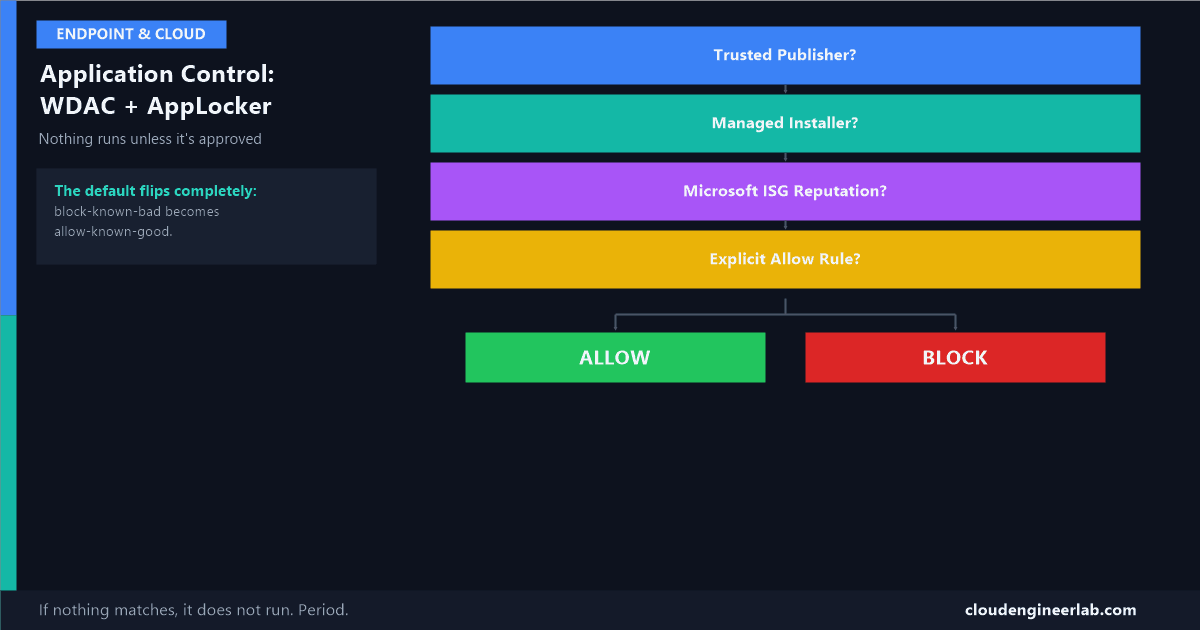
Is it signed by a trusted publisher? No. Was it deployed by the Managed Installer? No, it came from an email attachment, not Intune. Does it have an established Microsoft ISG reputation? No, it's a brand-new, never-seen file. Does an explicit hash or path rule cover it? No.
No trust path matched, so it doesn't run
The file doesn't need to be recognised as malware at all. It simply isn't on the approved list, and under an allowlist model, that's the entire decision. Windows blocks execution and, if the policy is enforced with logging, records the event.
Compare this to a pure antivirus-only environment: if that specific executable happened to be new enough that no signature existed for it yet, it would have run. Allowlisting doesn't have that gap, because it was never asking "is this bad," only "was this approved."
Summary
| Concept | What it means |
|---|---|
| Blocklisting vs Allowlisting | Block known-bad (always has a novel-threat gap) vs allow known-good (closes that gap, costs more to maintain) |
| WDAC | Kernel-enforced, can't be bypassed by local admin, the modern default choice |
| AppLocker | User-mode, bypassable by local admin, still useful for genuine per-user targeting |
| Publisher / Path / Hash rules | The three explicit ways to name what's trusted, in decreasing order of how well they survive updates |
| Managed Installer | Trusts anything your deployment tool installs, the key to making allowlisting operationally realistic |
| ISG | Cloud reputation trust for well-known software, without a local rule for every app |
| Base + Supplemental policies | One strict tenant-wide default, expanded per group without weakening it for everyone |
| Audit before Enforce | Identical discipline to ASR rules and Conditional Access, review before you block |
Application control is the strictest tool in this series because it inverts the entire default: instead of trusting everything until something proves itself bad, nothing is trusted until it's proven good. That's exactly why it closes gaps nothing else here can, and exactly why it demands the most disciplined rollout of any control covered so far.
Have you deployed WDAC in enforced mode across a real fleet? What ended up needing a supplemental policy that surprised you? Drop a comment, in my experience it's rarely the software people expect.

Written by
Chetan Yamger
Cloud Engineer · AI Automation Architect · Modern Workplace Consultant
Cloud Engineer, AI Automation Architect, and Modern Workplace Consultant based in Amsterdam, Netherlands. Specializing in scalable, secure enterprise solutions with Microsoft Azure, Intune, PowerShell, and AI-driven automation using ChatGPT, Gemini, and modern LLM technologies.
Stay in the loop.
New articles, straight to you.
Deep-dive technical articles on Intune, PowerShell, and AI — no noise, no spam.
Discussion
Share your thoughts — your email stays private
Leave a comment