
Conditional Access + Intune Compliance: How Device Security Becomes an Access Decision
A device isn't just compliant or not. Follow the actual six-stage path a laptop's security state travels before it becomes an Allow or Block.
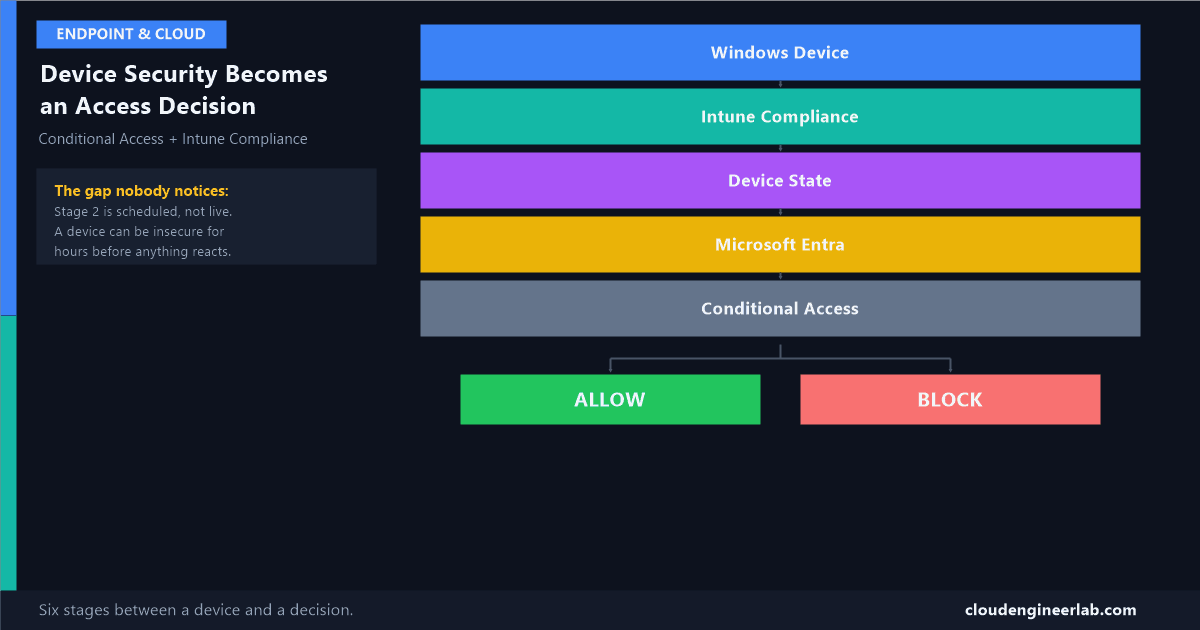
Ask most admins how device compliance connects to Conditional Access, and the honest answer is usually "you turn on the setting and it works." That's true, but it skips the part that actually matters: there are six distinct stages between a setting changing on a physical laptop and Microsoft 365 deciding whether that laptop gets in. Understanding those six stages is where the architecture behind Conditional Access and Intune actually clicks into place, rather than feeling like two separate products that happen to talk to each other.
Windows Device
      ↓
Intune Compliance
      ↓
Device State
      ↓
Microsoft Entra
      ↓
Conditional Access
      ↓
ALLOW / BLOCK
Not the same post as Compliance Is Not Security
That post is about the conceptual limits of compliance as a security signal. This one is about the plumbing: the actual mechanism that carries a device's state from the device itself into an access decision. Read that one for the "why compliance alone isn't enough," and this one for the "how does it even get there in the first place."
The Six Stages, One at a Time
Stage 1: Windows Device
Everything starts as facts sitting on the physical machine, with no interpretation attached yet. Is BitLocker turned on. What build of Windows is installed. Is a PIN configured. Is Microsoft Defender running and up to date. Is the firewall enabled. The device itself doesn't know or care whether any of this is "good enough," it just is what it is at this exact moment.
Stage 2: Intune Compliance
The Intune Management Extension on the device reports that raw state back to Intune, which checks it against the compliance policy you configured for that device's group: minimum OS version, encryption required, jailbreak/root detection, whatever rules apply. This isn't continuous. Windows devices check in on a schedule, roughly every 8 hours by default, or on-demand when a user forces a sync from the Company Portal app or Settings.
This is a scheduled evaluation, not a live feed
If BitLocker gets disabled on a device at 9 a.m. and the next scheduled check-in isn't until 3 p.m., that device still reports as compliant for those six hours. I've written before about how stale this signal can get when a device stops checking in entirely, the same lag exists even on a healthy device, just measured in hours instead of days.
Stage 3: Device State
Intune produces a result: Compliant, Non-compliant, or occasionally In Grace Period (a configurable window that gives users time to fix a new failure, like a just-expired OS build requirement, before enforcement kicks in). This result gets written back to the device record in Intune, and this is also the exact moment the "compliance is a checklist, not a security guarantee" distinction becomes real: this stage only knows about the rules you configured, nothing else.
Stage 4: Microsoft Entra
Here's the step that's easy to miss entirely: the compliance result doesn't stay inside Intune. It gets synchronised to the device's own object in Microsoft Entra ID, the same directory that holds your user accounts, as an attribute on that device record. This only works at all if the device is actually registered as an identity in Entra first, through Microsoft Entra joined, Hybrid Microsoft Entra joined, or Microsoft Entra registered. A device with no identity in Entra has nothing for a compliance flag to attach to, no matter how well-configured Intune's policy is.
Why this stage exists as a separate step
Conditional Access doesn't query Intune directly at sign-in time. It queries Entra ID, which already has the answer sitting on the device object because Intune wrote it there in advance. This separation is what lets Conditional Access evaluate a device compliance condition in milliseconds during authentication, instead of making a live call out to Intune's compliance engine on every single sign-in.
Stage 5: Conditional Access
When a sign-in happens, Conditional Access evaluates every policy that matches the request, and if one of them has Require device to be marked as compliant as a grant control, it checks exactly one thing at this stage: the compliance attribute already sitting on that device's Entra ID object from Stage 4. It isn't re-running Intune's rules, it's reading a result someone already calculated.
Stage 6: Allow or Block
If the compliance attribute says compliant and every other condition in the matching policy is satisfied, access is granted. If it says non-compliant, the user typically sees a message pointing them to enrol or fix their device, not a generic access-denied error. If the device has no compliance attribute at all (never enrolled, never registered), Conditional Access treats that the same as non-compliant: no evidence of compliance means the grant control isn't satisfied.
A Worked Example: The Laptop That Loses BitLocker
8:55 a.m., on the device
A technician runs a repair tool on a laptop that, as a side effect, suspends BitLocker encryption. Nobody notices. The device is still fully usable, still signed in, still has an active session in Outlook and Teams.
9:00 a.m., still nothing changes
The user opens SharePoint in a browser they weren't already signed into. Their existing session token doesn't automatically get re-checked mid-use, so this specific new sign-in is what actually triggers Conditional Access evaluation, not the BitLocker change itself.
9:02 a.m., Conditional Access checks Entra
The device's compliance attribute in Entra ID still reads "Compliant," because Intune's last scheduled check-in was hours ago, before BitLocker was suspended. The sign-in succeeds. This is Stage 4's data being accurate as of the last sync, not as of right now.
Sometime before 5:00 p.m., the scheduled check-in happens
Intune's next evaluation cycle reports the actual current state: BitLocker is off. Compliance policy fails this device. Stage 3 now produces "Non-compliant," and Stage 4 updates the Entra ID device object accordingly.
The next new sign-in after that
Any sign-in requiring a fresh token, opening a new app, a new browser session, an access token expiring, now hits Stage 5 with the updated attribute. Conditional Access blocks it. The user is prompted to fix the device, and once BitLocker is re-enabled and the device checks in again reporting compliant, the next sign-in succeeds normally.
The device was insecure for hours before anything actually stopped it. That gap is the direct, mechanical consequence of Stage 2 being scheduled rather than continuous, not a bug in the design, just a real limit worth knowing rather than assuming compliance means "right now."
Where This Fits With Everything Else
This six-stage pipeline is specifically the device compliance path into Conditional Access. It's one input among several the decision engine can combine, alongside user identity, sign-in risk, location, and required authentication strength, covered in full in how Conditional Access actually decides. If you're setting up the actual policy that uses this pipeline, Require Compliant Devices is policy 7 in the field guide, and the hands-on rollout guide covers how to turn any new policy on without it turning into an outage.
Summary
The pipeline, restated
A device's real-world security state (Stage 1) gets checked against rules on a schedule, not continuously (Stage 2), producing a result that gets stored (Stage 3), synchronised into the device's identity in Entra ID (Stage 4), read by Conditional Access at the moment of sign-in (Stage 5), to produce an Allow or Block decision (Stage 6). Every one of those six stages can be the reason a device that "should" be blocked isn't yet, or a device that just got fixed hasn't been let back in yet. Knowing which stage you're looking at is what turns "it's not working" into an actual diagnosis.
Have you ever chased down why a device stayed compliant, or stayed blocked, longer than expected? Nine times out of ten it's the check-in schedule at Stage 2. Drop a comment with what you found if it was something else.

Written by
Chetan Yamger
Cloud Engineer · AI Automation Architect · Modern Workplace Consultant
Cloud Engineer, AI Automation Architect, and Modern Workplace Consultant based in Amsterdam, Netherlands. Specializing in scalable, secure enterprise solutions with Microsoft Azure, Intune, PowerShell, and AI-driven automation using ChatGPT, Gemini, and modern LLM technologies.
Stay in the loop.
New articles, straight to you.
Deep-dive technical articles on Intune, PowerShell, and AI — no noise, no spam.
Discussion
Share your thoughts — your email stays private
Leave a comment