
Microsoft Cloud PKI vs AD CS: Which PKI Architecture Should You Choose?
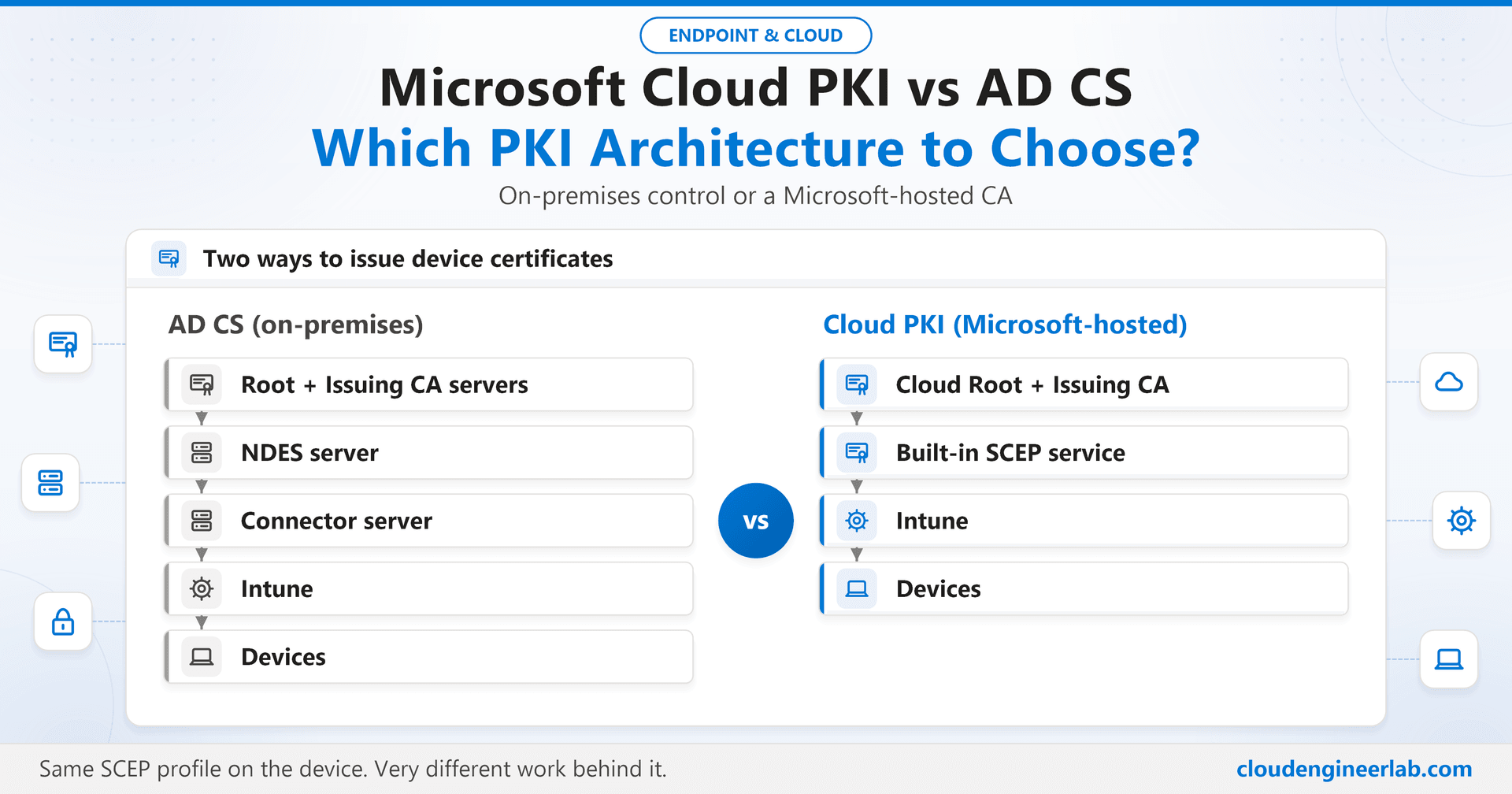
Cloud PKI removes the on-premises CA, NDES and the connector. AD CS can issue to anything. A practical comparison, and a guide to choosing, combining or moving.
For years, "how do we get certificates onto Intune devices" had exactly one answer: run your own PKI on Active Directory Certificate Services, publish NDES to the internet, install the Certificate Connector, and keep all of it patched and healthy. Microsoft Cloud PKI changes that. It moves the CA itself into the Microsoft cloud, and with it, most of the infrastructure that made certificate deployment a specialist job.
That doesn't make AD CS obsolete. It makes the choice a real architecture decision, with trade-offs on both sides. This post compares the two directly. If you want the full mechanics of the on-premises path first (templates, NDES, the connector, CRLs), they are covered step by step in the Intune PKI deep dive. Here we focus on what changes, and what you should choose.
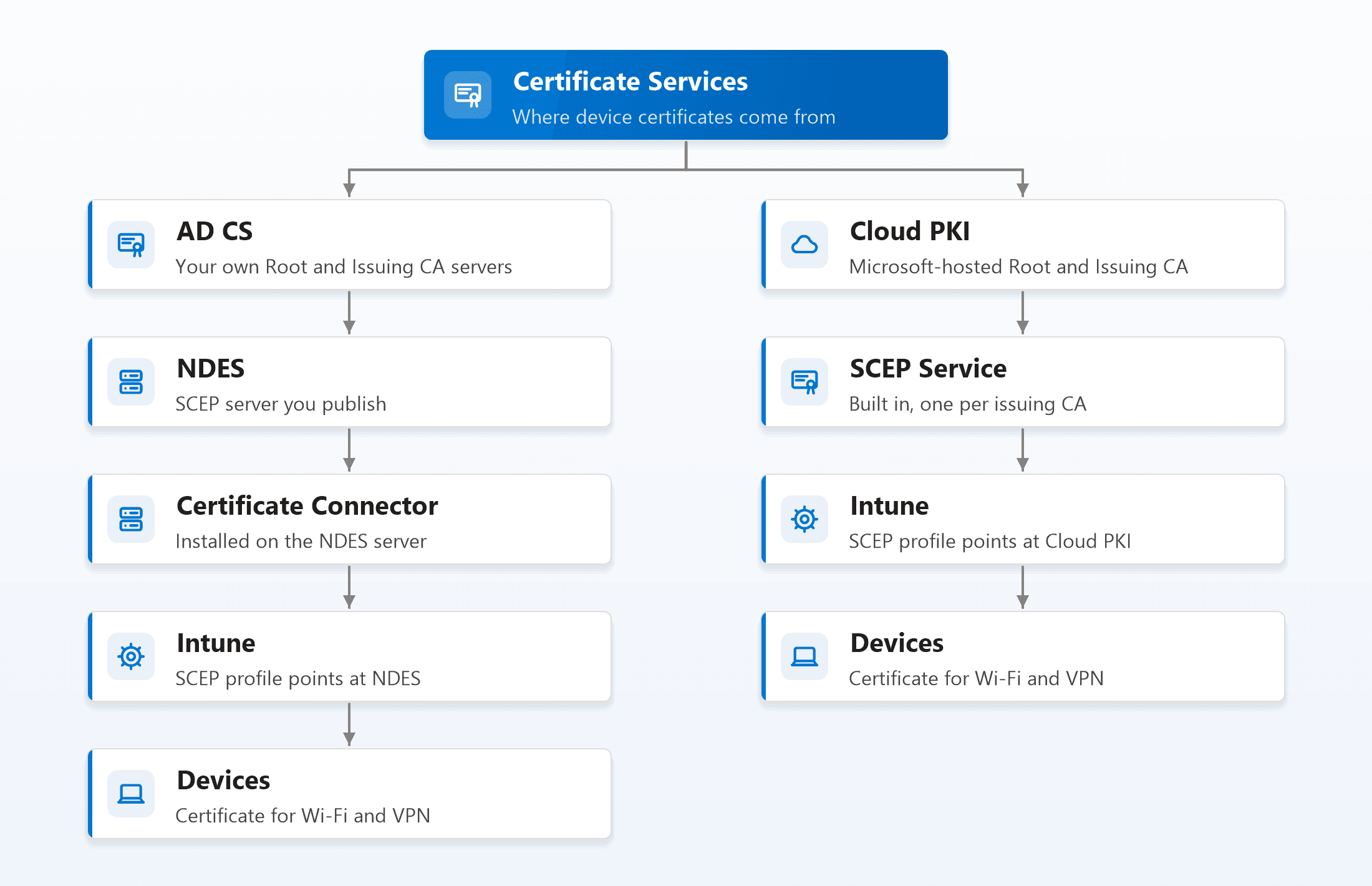
The left path has four components you build, host and maintain yourself before a single device receives a certificate. The right path has none of them: the CA, the SCEP endpoint and the revocation list are all run by Microsoft, and Intune talks to them directly.
The Two Paths at a Glance
That last point is easy to miss and it matters: from the device's point of view, both architectures use the same SCEP certificate profile. What changes is everything behind the URL in that profile.
The AD CS Path: You Own Every Layer
With AD CS, you build the whole chain yourself:
- An offline Root CA and an online Issuing CA on Windows Server.
- Certificate templates that define what each certificate may contain.
- An NDES server, published to the internet through an application proxy or reverse proxy, for SCEP.
- The Certificate Connector, on the NDES server for SCEP, or on its own server for PKCS.
- CRL and AIA locations on a web server that every relying party can reach.
The reward for all of that is control. AD CS can issue to anything: Intune devices, domain controllers, web servers, network equipment, code signing, smart cards. It supports PKCS and imported PKCS as well as SCEP, and its templates can express almost any certificate policy you need.
The cost is that every one of those components is yours to patch, back up, monitor, keep highly available and eventually migrate. NDES in particular is an internet-facing server whose only job is issuing credentials, which makes it worth protecting carefully.
The Cloud PKI Path: Microsoft Runs the CA
Cloud PKI is configured from Tenant administration > Cloud PKI in the Intune admin center. You create the CA hierarchy there, and Microsoft hosts it:
- A Cloud PKI root CA and one or more issuing CAs, created with a few clicks. The CA private keys are held in Microsoft-managed hardware security modules, never on a server you have to protect.
- Each issuing CA has its own SCEP URI. You copy it into a normal Intune SCEP certificate profile, and devices enroll directly against it.
- Revocation lists are published for you at Microsoft-hosted locations, so there is no CRL web server to run and no root CRL to remember to renew.
- Certificates can be revoked from the admin center, per certificate, without logging on to a CA console.
How a device gets a certificate on this path:
1. Create the CA hierarchy
Create a Cloud PKI root CA, then an issuing CA under it (or an issuing CA anchored to your own root, see BYOCA below). Choose the key size, validity and the extended key usages the CA may issue.
2. Deploy trust
Download the root and issuing CA certificates and deploy them with trusted certificate profiles, exactly as you would for AD CS. Devices must trust the chain before they will accept a certificate from it.
3. Create a SCEP profile
Create an ordinary Intune SCEP certificate profile and paste the issuing CA's SCEP URI as the server URL. Subject name, SAN, key storage and renewal threshold work exactly as before.
4. The device enrolls
The device generates its key pair (in the TPM, if the profile requires it), sends its request to the Cloud PKI SCEP service, and receives its certificate. No NDES, no connector, no on-premises hop at all.
The private key still never leaves the device
Cloud PKI is still SCEP. The device creates its own key pair and only sends a signing request, so moving the CA to the cloud doesn't move the device's private key anywhere. TPM-backed keys work exactly as they do with AD CS.
BYOCA: Keeping Your Existing Root
Many organisations can't simply start a new PKI. Their Wi-Fi, VPN and RADIUS infrastructure already trusts an existing AD CS root, sometimes on thousands of devices that Intune doesn't even manage.
Bring Your Own CA (BYOCA) solves exactly that. Instead of creating a new Cloud PKI root, you create a Cloud PKI issuing CA and have its certificate signed by your existing private CA. The result:
- Certificates issued from the cloud chain up to the root your environment already trusts.
- Relying parties that trust your AD CS root need no new trust anchor.
- You still lose NDES and the connector for Intune device certificates, because issuance happens in the cloud.
BYOCA is usually the most realistic migration route for an organisation with an established PKI: keep the root you have, move only the Intune issuing workload to the cloud.
Side-by-Side Comparison
| Area | AD CS | Cloud PKI |
|---|---|---|
| CA infrastructure | On-premises Windows Servers | Hosted by Microsoft |
| CA private key protection | Your responsibility (HSM optional, extra cost) | Microsoft-managed HSMs |
| NDES | Required for Intune SCEP | Not required |
| Intune Certificate Connector | Required | Not required |
| Revocation publishing | Your CRL / OCSP infrastructure | Published automatically |
| Certificate delivery methods | SCEP, PKCS, imported PKCS | SCEP |
| Who it can issue to | Anything: devices, servers, network gear, code signing | Intune-managed devices |
| Template flexibility | Very high | Focused on device and user authentication |
| Existing PKI integration | Excellent (it is the existing PKI) | Good, through BYOCA |
| Hybrid environments | Excellent | Excellent for Intune-managed devices; servers still need another CA |
| Cloud-first organisation | Heavy footprint to keep | Natural fit |
| Operational overhead | Higher | Lower |
| Licensing | Included with Windows Server | Intune Suite or Cloud PKI add-on |
Cloud PKI is not a general-purpose CA
Cloud PKI issues certificates to Intune-managed devices through SCEP. It doesn't issue web server TLS certificates, domain controller certificates, code signing certificates or certificates for network equipment that Intune doesn't manage. If you need any of those, you still need AD CS or another CA, and the realistic end state for many organisations is both.
What AD CS Really Costs You
The servers are the visible part. The real cost is ownership:
- At least three servers for a resilient design (offline root, issuing CA, NDES), plus a second NDES and connector for high availability.
- An internet-facing credential service. NDES has to be published, monitored and protected.
- CRL operations. Every CRL in the chain has an expiry date, and an expired one can stop every certificate-based Wi-Fi and VPN connection at once.
- Specialist knowledge. PKI skills are rare, and an AD CS deployment is often understood by one person.
- Security exposure. A misconfigured certificate template is one of the best-known routes to domain compromise, so templates need regular review.
None of this is a reason to avoid AD CS. It is a reason to count it honestly when comparing it against a hosted service.
What Cloud PKI Costs You
Cloud PKI removes most of the operational work, but it has its own trade-offs:
- A licence, through the Intune Suite or the standalone Cloud PKI add-on. It was one of the capabilities that stayed Suite-only in the July 2026 licensing change, so check what you already own.
- SCEP only. No PKCS and no imported PKCS, so S/MIME scenarios that need the same key on every device still need another solution.
- Intune-managed devices only, as above.
- Less control. You choose key sizes, validity and usages, but you don't get the deep template customisation AD CS offers.
- Relying parties still need to trust it. Your RADIUS server or VPN gateway must trust the Cloud PKI chain and be able to reach its CRL, unless you use BYOCA to anchor it to a root they already trust.
Which Should You Choose?
Choose Cloud PKI if...
You are cloud-first or heading there, the certificates you need are for Intune-managed devices (Wi-Fi, VPN, device authentication), and you don't want to run NDES, connectors and CRL hosting. This is the strongest fit for organisations without an existing PKI, or with one that is ageing and poorly understood.
Choose AD CS if...
You need certificates for servers, domain controllers, network equipment or code signing, you rely on PKCS or imported PKCS (for example S/MIME), or you need template control that Cloud PKI doesn't offer. If you already run a healthy AD CS estate, it remains a perfectly sound choice for Intune too.
Choose both if...
You have an established PKI that other systems depend on, but you want to stop running NDES for Intune. Use BYOCA to anchor a Cloud PKI issuing CA to your existing root, move Intune device certificates to the cloud, and keep AD CS for everything Intune doesn't manage.
Moving From AD CS to Cloud PKI
If you decide to move Intune certificate issuance to the cloud, treat it as a staged rollout, not a switch.
1. Decide on the root
Either create a new Cloud PKI root, or use BYOCA so the new issuing CA chains to your existing root. BYOCA avoids changing trust on every relying party.
2. Prepare the relying parties
Make sure RADIUS and VPN infrastructure trusts the new chain and can reach the Cloud PKI CRL locations. Do this first, or the first migrated devices will lose Wi-Fi.
3. Pilot new profiles alongside the old ones
Deploy the new trusted certificate and SCEP profiles to a pilot group. Devices can hold both certificates during the transition, so the old one keeps working while you validate the new one.
4. Switch the Wi-Fi and VPN profiles
Point the pilot group's Wi-Fi and VPN profiles at the new SCEP profile, confirm authentication works, then widen the rollout ring by ring.
5. Retire the old path
Remove the old SCEP profiles once every device has the new certificate. When no Intune workload uses NDES any more, decommission NDES and the connector, and keep AD CS only for what still needs it.
Roll out like any other access-critical change
A certificate change can lock users out of the network as effectively as a bad Conditional Access policy. The same pilot-then-widen discipline from rolling out your first Conditional Access policy applies here.
Summary
AD CS and Cloud PKI answer the same question in opposite ways. AD CS gives you complete control over a PKI that can issue to anything, at the cost of servers, an internet-facing NDES and ongoing operational care. Cloud PKI removes the on-premises CA, NDES and the connector entirely, for a focused job: certificates for Intune-managed devices.
For a cloud-first organisation, Cloud PKI is now the natural default for device certificates. For an organisation with an established PKI, the most practical answer is often both: BYOCA for Intune, AD CS for everything else. Either way, the device side stays the same, an Intune SCEP profile, a TPM-backed key and a certificate that makes Wi-Fi and VPN simply work. For how that device certificate is built and used, see the Intune PKI deep dive.

Written by
Chetan Yamger
Cloud Engineer · AI Automation Architect · Modern Workplace Consultant
Cloud Engineer, AI Automation Architect, and Modern Workplace Consultant based in Amsterdam, Netherlands. Specializing in scalable, secure enterprise solutions with Microsoft Azure, Intune, PowerShell, and AI-driven automation using ChatGPT, Gemini, and modern LLM technologies.
Stay in the loop.
New articles, straight to you.
Deep-dive technical articles on Intune, PowerShell, and AI — no noise, no spam.
Discussion
Share your thoughts — your email stays private
Leave a comment