
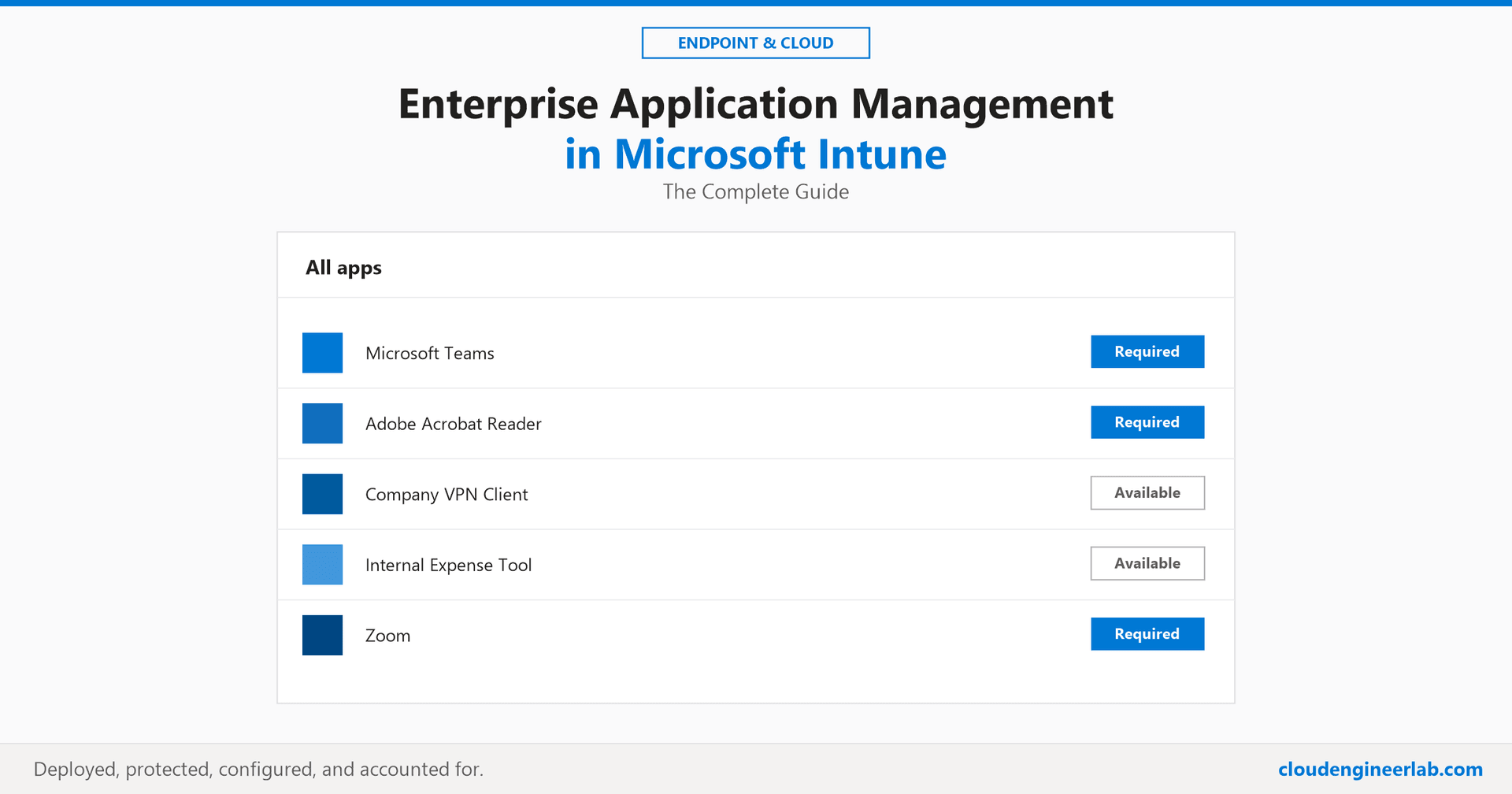
Enterprise Application Management in Microsoft Intune: The Complete Guide
Deploying an app is the easy part. Protecting its data, configuring it on arrival, and retiring it cleanly is where most app management actually lives.
Ask most admins what "application management" means in Intune and they'll describe uploading a .intunewin file and assigning it to a group. That's one stage of a much longer lifecycle, and it's usually not the stage where things actually go wrong. The harder, less-discussed parts, protecting what the app touches, configuring it correctly on arrival, and retiring it without leaving orphaned installs behind, are what separate a managed app estate from a pile of deployed software.
The one sentence to remember
Deploying an app answers "is it installed." Managing an app answers "is it the right app, configured correctly, protecting company data, and accounted for, for as long as it exists on the device."
This is the full picture: every app type Intune actually handles, how assignment really works, app protection and configuration policies (the two most under-discussed pieces of this whole system), and where to go for the deep dive on any one stage already covered elsewhere on this site.
The App Types Intune Actually Manages
| App type | What it is | When you'd use it |
|---|---|---|
| Win32 app | A standard Windows installer (.exe/.msi), wrapped into Intune's .intunewin format | Most desktop software, custom or third-party, that needs install logic, detection rules, and real configurability |
| Line-of-business (LOB) app | An app your own organisation built, packaged as an .msi or .appx | Internal tools with no public installer to wrap |
| Microsoft Store app | An app sourced from the Microsoft Store, centrally licensed | Common consumer-facing or lightweight utility apps already in the Store catalog |
| Web link | Not an install at all, a bookmark pushed to the Start menu or Company Portal | Internal web apps, portals, and SaaS tools with no client to install |
| Built-in app | Office, Edge, and other Microsoft apps with native Intune deployment support | Baseline productivity software every device needs |
| Enterprise App Catalog app | A pre-packaged, auto-updating Win32 app Microsoft maintains for you | Covered in full here: common third-party software where you'd otherwise be hand-packaging the same app everyone else also packages |
The decision isn't usually hard
If it's popular, public software, check the Enterprise App Catalog first. If it's internal, needs a non-default configuration, or requires strict version control, it's a Win32 or LOB app you build and own.
Assignment: Required, Available, and Uninstall
An app's assignment intent decides what a device actually does with it, independently of what the app itself is.
Required
Installs automatically on every targeted device, no user action needed. The default choice for anything the business mandates, security tools, baseline productivity apps, compliance-driving software.
Available
Listed in Company Portal for a user to install on demand. The right choice for optional software, a design tool one team needs, a utility not everyone wants taking up space by default.
Uninstall
Actively removes the app from targeted devices. Used to retire software, or to remove it from a group that should no longer have it, without waiting for a device wipe.
Intent interacts with other features in ways that catch people out
Auto-update for Enterprise App Catalog apps only behaves reliably when the app is assigned as Required. An app assigned as Available waits for a user to act, and that includes picking up a newer version, not just the first install.
Where to find this in the portal
Microsoft Intune admin center → Apps → All apps → select the app → Properties → Assignments.
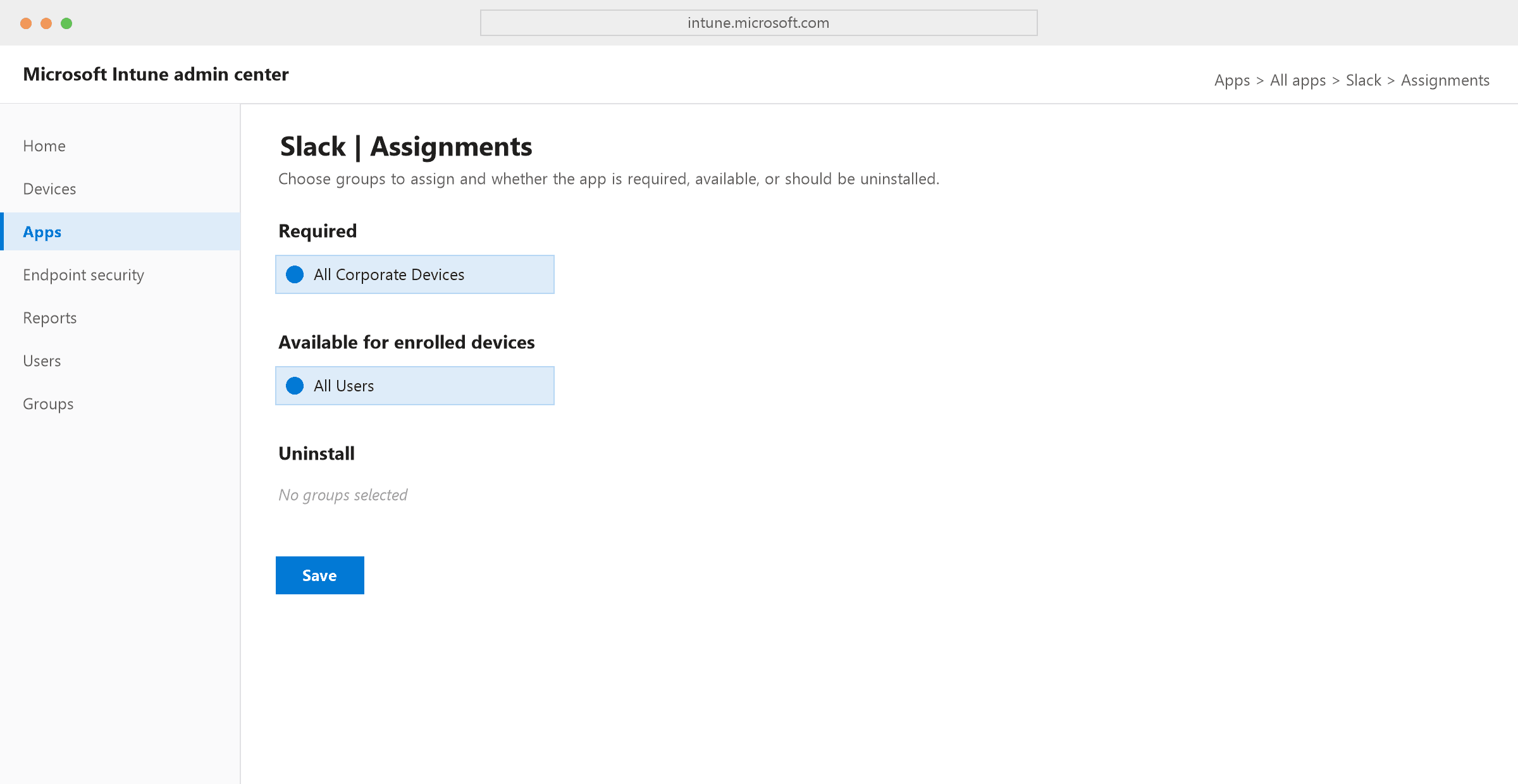
Assignment also targets users or devices separately, which matters for shared and kiosk-style machines: a user-targeted app follows the person across whichever device they sign into, a device-targeted app stays with the machine regardless of who's logged in.
The Full Lifecycle
Where the deep dives already live
Detect is covered in full in Intune Application Detection Rules. Update/Supersede is covered in Dependencies vs Supersedence. The whole Select-through-Install pipeline, automated end to end, is covered in Designing a Zero-Touch Application Packaging Pipeline, and what actually happens mechanically after you upload a package is in Win32 App Packaging: What Happens After Upload. This post is the map connecting all of them, plus the two stages, Protect and Configure, none of them cover.
App Protection Policies (MAM): Protecting Data Without Managing the Device
The distinction this whole section rests on
Mobile Device Management (MDM) manages the device itself, enrollment, compliance, configuration profiles. Mobile Application Management (MAM), delivered through app protection policies, manages what happens inside a specific app, regardless of whether the device is enrolled at all. A personal phone that's never touched Intune's enrollment process can still have a company email app running under a protection policy.
This is what makes BYOD actually workable: the business doesn't need to manage a user's personal phone to protect the company data flowing through Outlook or Teams on it.
PIN and encryption requirements
The app itself requires a PIN or biometric check before opening, and encrypts its own data at rest, independent of whatever the phone's own lock screen is set to.
Cut, copy, and paste restrictions
Controls whether data can be copied out of a managed app into an unmanaged one, the specific control that stops a user from pasting a company email into a personal messaging app.
Selective wipe
Removes company data and access from the app without touching the user's personal photos, messages, or apps, critical for BYOD offboarding where a full device wipe is neither appropriate nor something the business has the right to do.
Save-as and backup restrictions
Blocks a managed app from saving a file to an unmanaged personal storage location, closing an exfiltration path that device-level controls alone can't see.
App protection policies apply with or without enrollment
This is the detail people miss: the same policy that protects data on a fully managed, MDM-enrolled corporate laptop can also protect that same app on an employee's own unmanaged phone. The policy follows the app and the account signed into it, not the device's enrollment state.
Where to find this in the portal
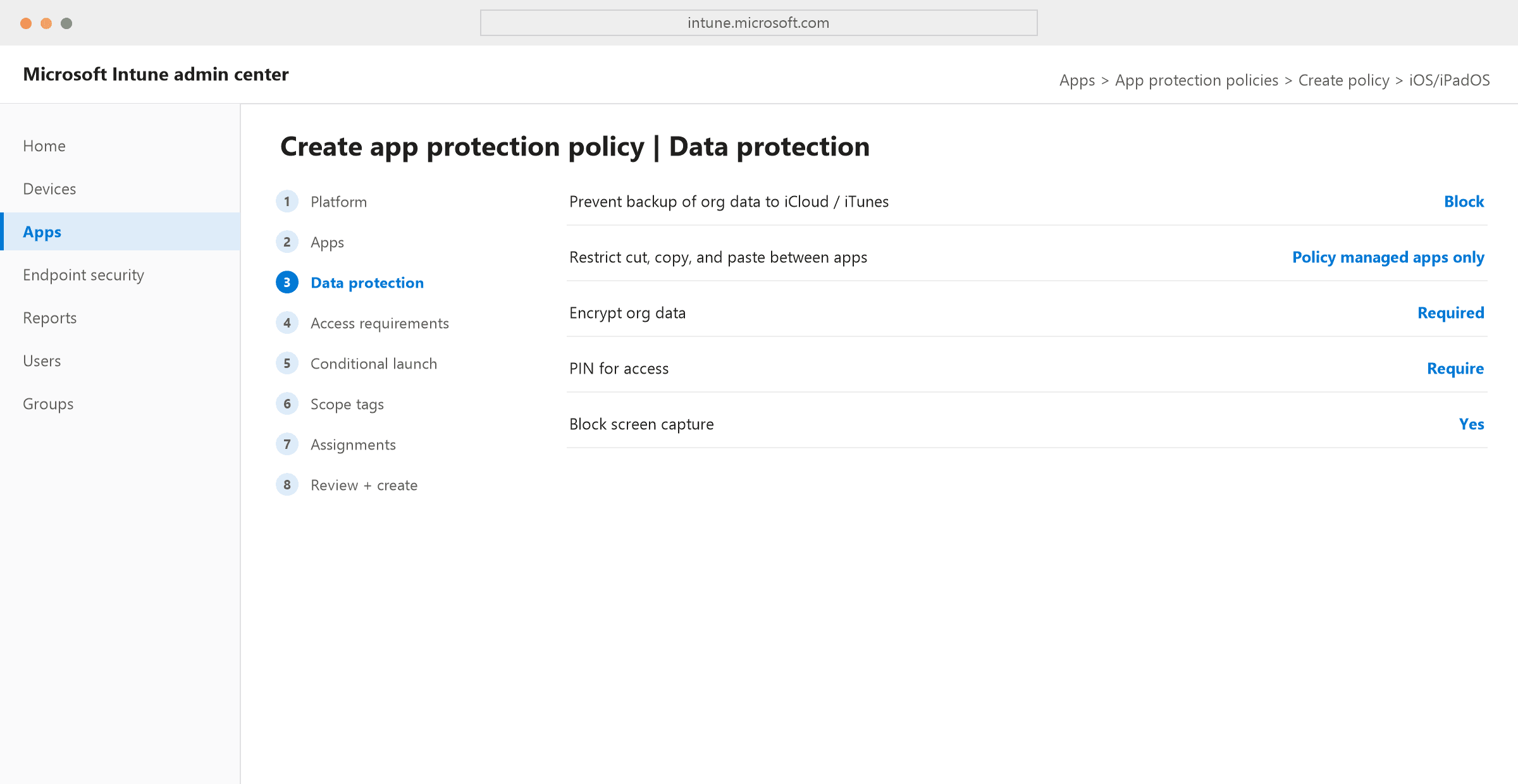
Microsoft Intune admin center → Apps → App protection policies → Create policy → choose a platform → Data protection.
App Configuration Policies: Setting Up the App Before the User Touches It
Different problem entirely: instead of restricting what an app can do, a configuration policy pre-fills settings into the app the moment it lands on a device, so the user never has to configure it manually.
A concrete example
A VPN client normally asks a user to type in a server address, a connection profile, and authentication settings on first launch. A configuration policy can push all of that in ahead of time, so the app opens already connected to the right server with the right profile, with zero setup screens for the user to get wrong.
This matters most for apps with any setup friction at all: email clients that need an account and server pre-configured, line-of-business apps that need an environment or tenant ID, and any app where "works correctly" depends on a setting a typical user wouldn't know to enter.
Configuration Designer, or raw JSON
Most settings can be built field-by-field in the Configuration Designer, a key, a value type (string, integer, boolean), and a value, no code required. Apps with a more complex schema accept a raw JSON payload instead, for settings the Designer's simple key-value model can't express.
Variables that fill in automatically per device or user
The real power of this feature: a value like {{userprincipalname}}, {{mail}}, or {{aaddeviceid}} gets substituted with each actual user or device's real value at deployment time. One policy configures the mail server field correctly for every single user, without a separate policy per person.
Scoped to Managed Devices or Managed Apps
The same device-vs-app distinction as protection policies applies here too: a Managed Devices configuration policy targets enrolled devices directly, a Managed Apps configuration policy targets the app itself, protected by an app protection policy, regardless of enrollment. Picking the wrong scope is the most common reason a configuration policy silently never applies.
Where to find this in the portal
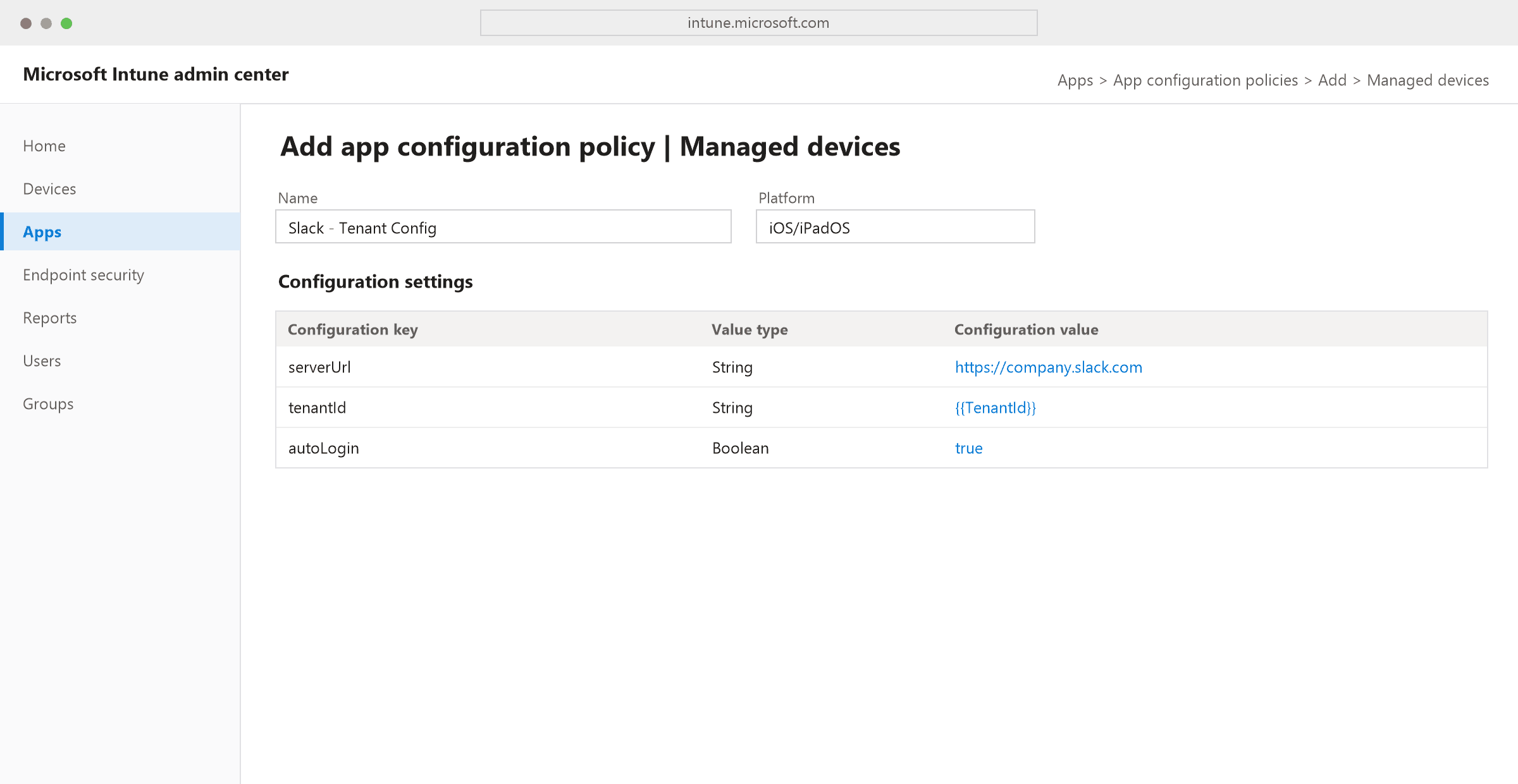
Microsoft Intune admin center → Apps → App configuration policies → Add → Managed devices (or Managed apps, for policies scoped by app protection policy instead of enrollment).
| App Protection Policy | App Configuration Policy | |
|---|---|---|
| Question it answers | What can this app do with company data? | What settings does this app start with? |
| Works without enrollment? | Yes | Usually requires at least the app to be managed, not necessarily full device enrollment |
| Typical use | PIN requirements, copy-paste restrictions, selective wipe | Pre-filled server addresses, account settings, feature flags |
Governance: Keeping the App Estate Itself Manageable
An app estate without governance degrades quietly, not suddenly
Nobody notices the first abandoned app. By the fortieth one with no clear owner, nobody can say whether it's safe to remove, because nobody can say who'd be affected if it disappeared.
- App categories: group apps in Company Portal (Productivity, Security, Line-of-Business) so an Available catalog that's grown to 60 apps is still something a user can actually navigate.
- Naming conventions: the same standards covering devices and groups apply directly to apps, a consistent prefix and version convention is what makes an app list searchable at scale instead of an alphabet soup of ad hoc names.
- Ownership: every app in the estate should have a named owner accountable for testing new versions, responding to detection failures, and making the call on retirement, the same accountability discipline already covered for prompts and code elsewhere on this site applies just as directly to a deployed application.
A Worked Example: Rolling Out a New Communication App
| Stage | What happens |
|---|---|
| Select | Checked the Enterprise App Catalog first, available, default config is acceptable |
| Assign | Required for all corporate devices, Available for a BYOD user group |
| Install / Detect | Catalog app, detection handled automatically |
| Protect | BYOD group gets an app protection policy, PIN required, no copy-paste into unmanaged apps, selective wipe enabled |
| Configure | A configuration policy pre-fills the corporate tenant ID so no employee has to look it up or type it in |
| Update | Auto-update handles new versions since it's a catalog app on Required assignment |
| Retire | When the contract ends, an Uninstall assignment removes it from corporate devices; a selective wipe clears it from BYOD devices without touching anything personal |
Every stage in that table is a decision, not an afterthought, and skipping any one of them (no protection policy on the BYOD group, no configuration policy, no retirement plan) is exactly how an app estate accumulates the kind of risk and clutter governance exists to prevent.
The Bottom Line
"Deploy the app" was never the whole job, it was the first third of it. The app types you choose from, the assignment intent you pick, whether company data inside the app is actually protected, whether the app arrives pre-configured instead of leaving setup to chance, and whether it has a real owner and an exit plan, together are what enterprise application management actually means. Most of the individual pieces are covered in depth elsewhere on this site. This is the map of how they fit together.
The audit worth running on your own app estate
Pick five apps currently deployed in your tenant. For each one: does it have an owner, a detection rule you trust, a protection policy if it touches company data, and a plan for what happens when it's retired? Any "no" in that list is a specific, fixable gap, not a reason to worry about the whole estate.
Which stage of this lifecycle does your own app estate handle worst, protection policies nobody set up, configuration left to users, or retirement nobody plans for? Drop a comment with the gap you'd fix first.

Written by
Chetan Yamger
Cloud Engineer · AI Automation Architect · Modern Workplace Consultant
Cloud Engineer, AI Automation Architect, and Modern Workplace Consultant based in Amsterdam, Netherlands. Specializing in scalable, secure enterprise solutions with Microsoft Azure, Intune, PowerShell, and AI-driven automation using ChatGPT, Gemini, and modern LLM technologies.
Stay in the loop.
New articles, straight to you.
Deep-dive technical articles on Intune, PowerShell, and AI — no noise, no spam.
Discussion
Share your thoughts — your email stays private
Leave a comment