
What Happens When Microsoft Defender Detects a Threat on an Intune Device?
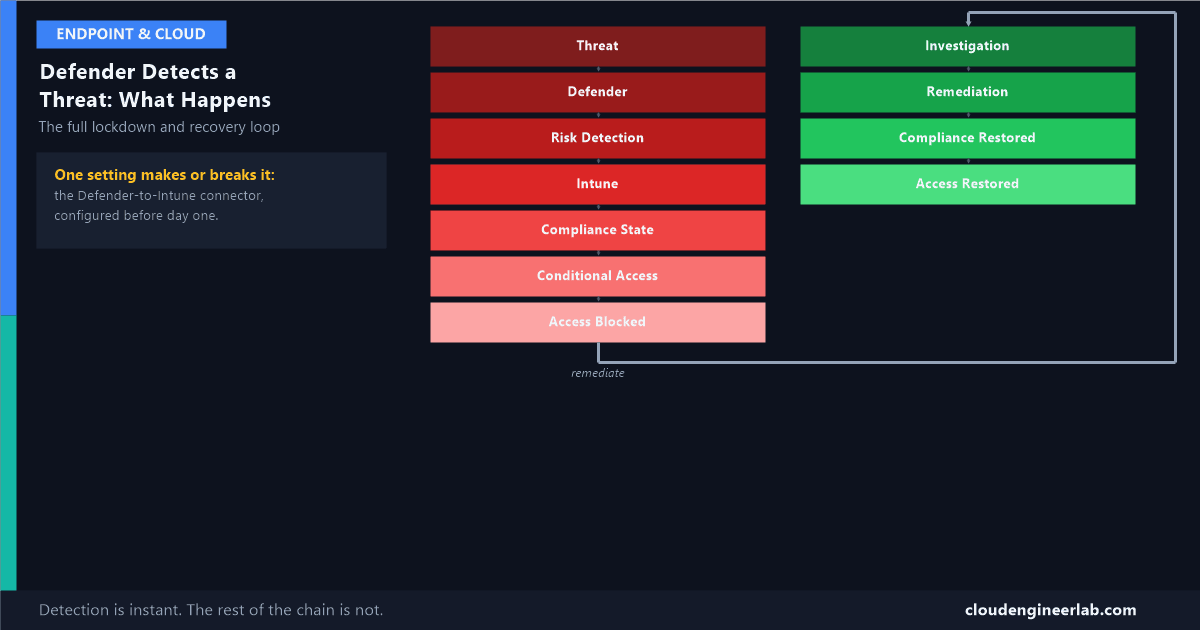
Eleven stages from a live threat to a locked-out device, and eleven more back to normal. The full closed loop, with the real lag at every handoff.
Zero Trust architecture treats Defender as the stage that keeps watching after access is already granted, feeding back into the next decision. This post is what that feedback loop actually looks like in practice, stage by stage, from the moment something goes wrong on a real device to the moment access is legitimately restored.
Threat
 ↓
Defender
 ↓
Risk Detection
 ↓
Intune
 ↓
Compliance State
 ↓
Conditional Access
 ↓
Access Blocked
 ↓
Investigation
 ↓
Remediation
 ↓
Compliance Restored
 ↓
Access Restored
The Scenario Running Through This Post
An employee opens an email attachment that looks like an invoice. It's not. The payload attempts to read lsass.exe's memory to harvest cached credentials, the exact technique an ASR rule and Credential Guard both specifically defend against, but the story here is what happens when a device gets flagged, not whether the attempt itself succeeds.
Stage 1: Threat, the Moment Something Goes Wrong
The attachment executes and attempts its LSASS memory read. This is the raw event, on the device, before any security product has reacted to it yet.
Stage 2: Defender, Detecting It in Near Real Time
Microsoft Defender for Endpoint's behavioural sensors catch the attempt as it happens, this is exactly the kind of live-behaviour detection that a static compliance checklist structurally can't see. Defender generates an alert, correlating the specific process, the memory-access attempt, and the parent process chain that led to it, and this typically happens within seconds to minutes of the actual behaviour, not on any scheduled cycle.
Stage 3: Risk Detection, a Score Gets Calculated
The alert feeds into a machine risk score for this specific device, Low, Medium, or High, based on the severity and category of active alerts. A single credential-theft attempt is a serious signal and typically pushes the device to at least Medium, often High, risk.
This score lives in Defender, not yet anywhere Intune can see
At this point, the risk score is a Defender-native concept. Nothing has happened yet that changes this device's status in Intune or Entra ID. The next stage is the specific, deliberate integration that has to already be configured for anything further to happen automatically.
Stage 4: Intune, Receiving the Signal
This only works if the Microsoft Defender for Endpoint connector is configured in Intune (Endpoint Security → Microsoft Defender for Endpoint), and if a compliance policy has the specific setting "Require the device to be at or under the machine risk score" configured with a threshold (Clear, Low, Medium, or High).
Without this specific setting, Stages 5 through 11 never happen
I've covered this exact gap before: Defender and Intune do not talk to each other automatically just because both are deployed in the same tenant. A device Defender has already flagged as High risk can remain "Compliant" in Intune indefinitely if this connector and compliance setting were never configured. This is the single most common reason this whole response chain silently doesn't fire in a real environment.
Stage 5: Compliance State, Flipping to Non-Compliant
With the integration configured, Intune's compliance engine picks up the new risk score at its next evaluation and compares it against the policy's threshold. A device now scored High risk, against a policy requiring "at or under Low," fails that specific compliance rule. The device's compliance state changes from Compliant to Non-compliant, and this result syncs to the device's object in Microsoft Entra ID, the same mechanism that carries any compliance signal into an access decision.
This is not instant, the same lag that applies everywhere else in this stack
Intune's compliance evaluation runs on its normal cycle, roughly every 8 hours by default, unless a sync is forced manually. A device that was flagged High risk by Defender within seconds may not actually flip to Non-compliant in Intune for hours, a real gap worth knowing about rather than assuming the whole chain reacts instantly.
Stage 6: Conditional Access, Reading the Updated Signal
At the device's next sign-in, or its next token refresh, Conditional Access evaluates any policy with Require device to be marked as compliant as a grant control, and reads the now-updated Non-compliant attribute from Entra ID. The full mechanics of this specific read are covered here.
Stage 7: Access Blocked
The sign-in fails the compliance grant control. The user sees a message pointing them toward the device being out of compliance, not a generic access-denied error, and Outlook, Teams, and SharePoint access through that device stop working for that account.
This is Zero Trust's feedback loop, made concrete
This is the exact mechanism described more abstractly in the Zero Trust architecture post: a device that looked entirely fine at this morning's sign-in can be locked out by lunchtime without anyone touching a policy, because Defender's live observation fed back into the next evaluation.
Stage 8: Investigation
An analyst opens the alert in the Microsoft Defender portal, reviewing the device timeline, the specific process tree, and how the detection maps to known attack techniques. The goal here is scoping: did the LSASS access attempt actually succeed, did anything move laterally from this device, is this an isolated event or part of something larger.
Review the device timeline
Every process, file, and network event Defender recorded around the alert, in order, to understand exactly what happened before and after the detection.
Consider isolating the device
Defender's Isolate device action cuts the device off from the network while still allowing Defender's own remote investigation tools to reach it, containing the incident without requiring anyone to physically touch the hardware.
Determine whether this was automated malware or a manual attacker action
This shapes the entire remediation approach, an automated payload usually has a much narrower, more predictable footprint than a human attacker actively working on the device.
Stage 9: Remediation
Depending on what the investigation found, remediation ranges from fully automated to entirely manual.
| Approach | When it applies |
|---|---|
| Automated Investigation and Response (AIR) | Defender's own automation can kill the malicious process, quarantine the file, and roll back specific changes without human intervention, for well-understood threat patterns |
| Manual remediation | A human-driven response, removing malware manually, applying a missing patch, resetting credentials that may have been exposed, for anything the automation doesn't fully resolve on its own |
| Full reimage | For a genuinely compromised device where confidence in a clean remediation is low, the safest option is provisioning a replacement rather than trusting the same disk going forward |
For this scenario, remediation likely includes confirming the credential-theft attempt didn't succeed (checking for any subsequent sign-ins using this user's credentials from unfamiliar locations), removing the malicious file, and resetting the affected user's password as a precaution regardless of whether the attempt was confirmed successful.
Stage 10: Compliance Restored
Once the threat is remediated, Defender's risk score for the device decreases, this isn't instant either, it reflects the absence of new alerts and the resolution of existing ones over the following evaluation cycles, not a single button that immediately zeroes the score. Once the score drops back under the compliance policy's threshold, Intune's next evaluation reports the device Compliant again, and that result syncs back to Entra ID exactly the way the Non-compliant result did in Stage 5.
Forcing this instead of waiting
A manual device sync from the Intune portal, or from the device itself, can trigger an out-of-cycle compliance re-evaluation rather than waiting for the next scheduled check-in, useful when a user is waiting on restored access after a confirmed clean remediation.
Stage 11: Access Restored
The next sign-in re-evaluates Conditional Access against the now-current, Compliant status, and access is granted normally. From the user's perspective, the entire incident may have shown up as nothing more than a few hours of being unable to reach email, with the actual detection, containment, and remediation having happened entirely behind that.
The Full Loop, Timed Honestly
| Stage | Typical timing |
|---|---|
| Threat → Defender detection | Seconds to minutes |
| Risk Detection scored | Near-immediate after detection |
| Intune compliance re-evaluation | Up to ~8 hours on the default cycle, or immediate with a forced sync |
| Conditional Access enforcement | At the next sign-in or token refresh after the compliance state updates |
| Investigation and Remediation | Minutes for automated response, hours to days for manual investigation of a serious incident |
| Compliance Restored | Requires the risk score to genuinely drop, then the next compliance cycle |
| Access Restored | At the next sign-in after compliance flips back |
The honest takeaway
This entire chain depends on one specific setting being configured in advance, the Defender-to-Intune compliance connector, and it moves at the speed of the slowest link in it, usually the compliance evaluation cycle, not the speed of Defender's own near-instant detection. Knowing that gap exists is what separates "we have Defender and Intune, so we're covered" from an actually verified, working response chain.
Has this exact chain fired for real in your environment, or did you find out during an actual incident that the connector wasn't configured? Drop a comment, that gap is more common than most tenants realise until it's tested under real conditions.

Written by
Chetan Yamger
Cloud Engineer · AI Automation Architect · Modern Workplace Consultant
Cloud Engineer, AI Automation Architect, and Modern Workplace Consultant based in Amsterdam, Netherlands. Specializing in scalable, secure enterprise solutions with Microsoft Azure, Intune, PowerShell, and AI-driven automation using ChatGPT, Gemini, and modern LLM technologies.
Stay in the loop.
New articles, straight to you.
Deep-dive technical articles on Intune, PowerShell, and AI — no noise, no spam.
Discussion
Share your thoughts — your email stays private
Leave a comment