
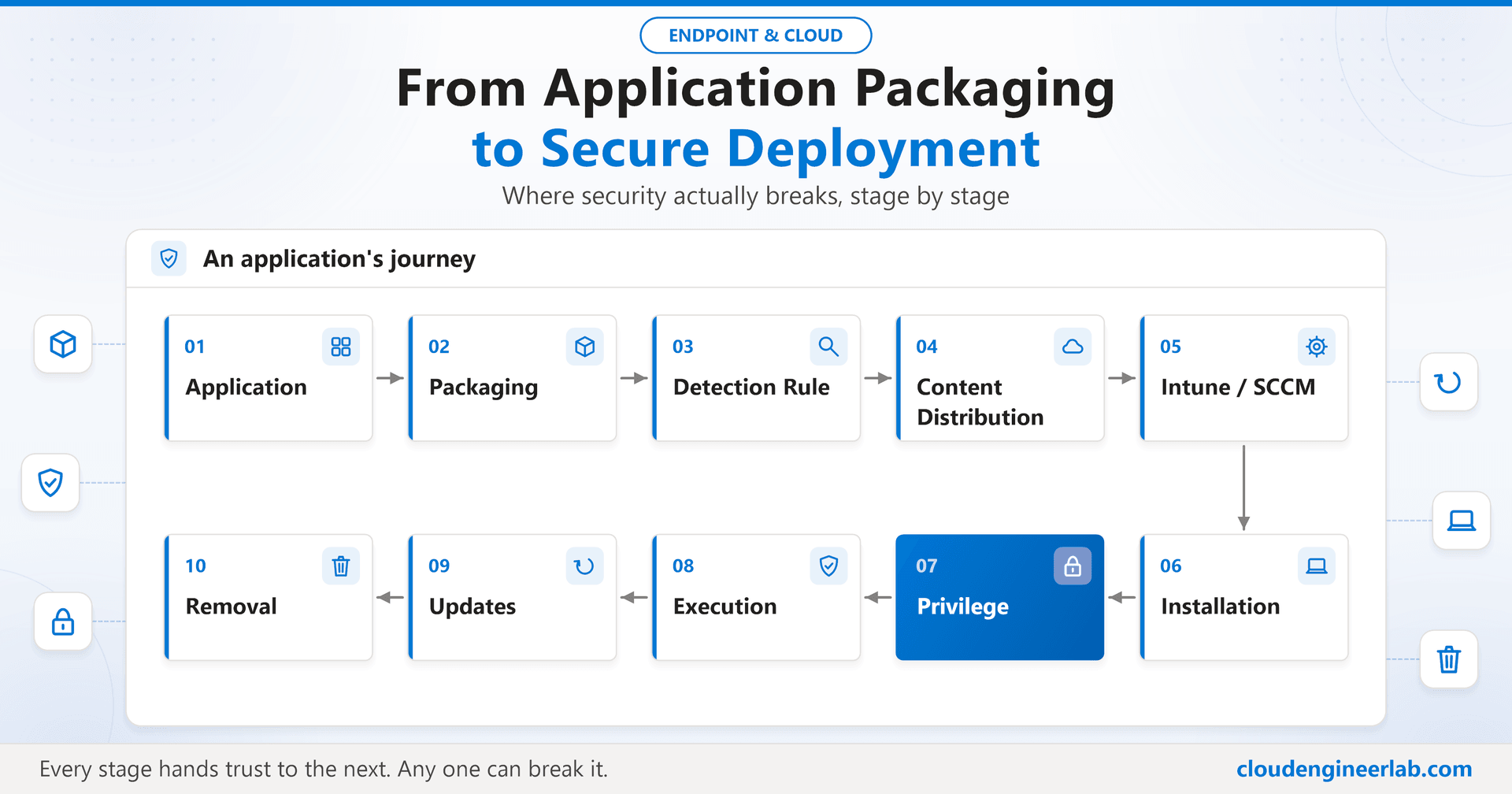
From Application Packaging to Secure Deployment: Where Security Actually Breaks
Follow one app from source to removal and see where security breaks: secrets in packages, fakeable detection, SYSTEM installs, writable folders and zombie apps.
Application deployment is usually owned by the packaging team and judged on one question: did it install? Security is usually owned by someone else and judged on a different question: is the device safe? The gap between those two questions is where real attacks live, because a deployment pipeline is, by design, a way to run code as SYSTEM on every device you own.
This post follows one application through its whole life, from the vendor's download page to the day it is removed, and looks at each stage the way an attacker would. Not "how do I package this" (the Win32 packaging deep dive covers that), but "where could this stage be abused, and what stops it?"
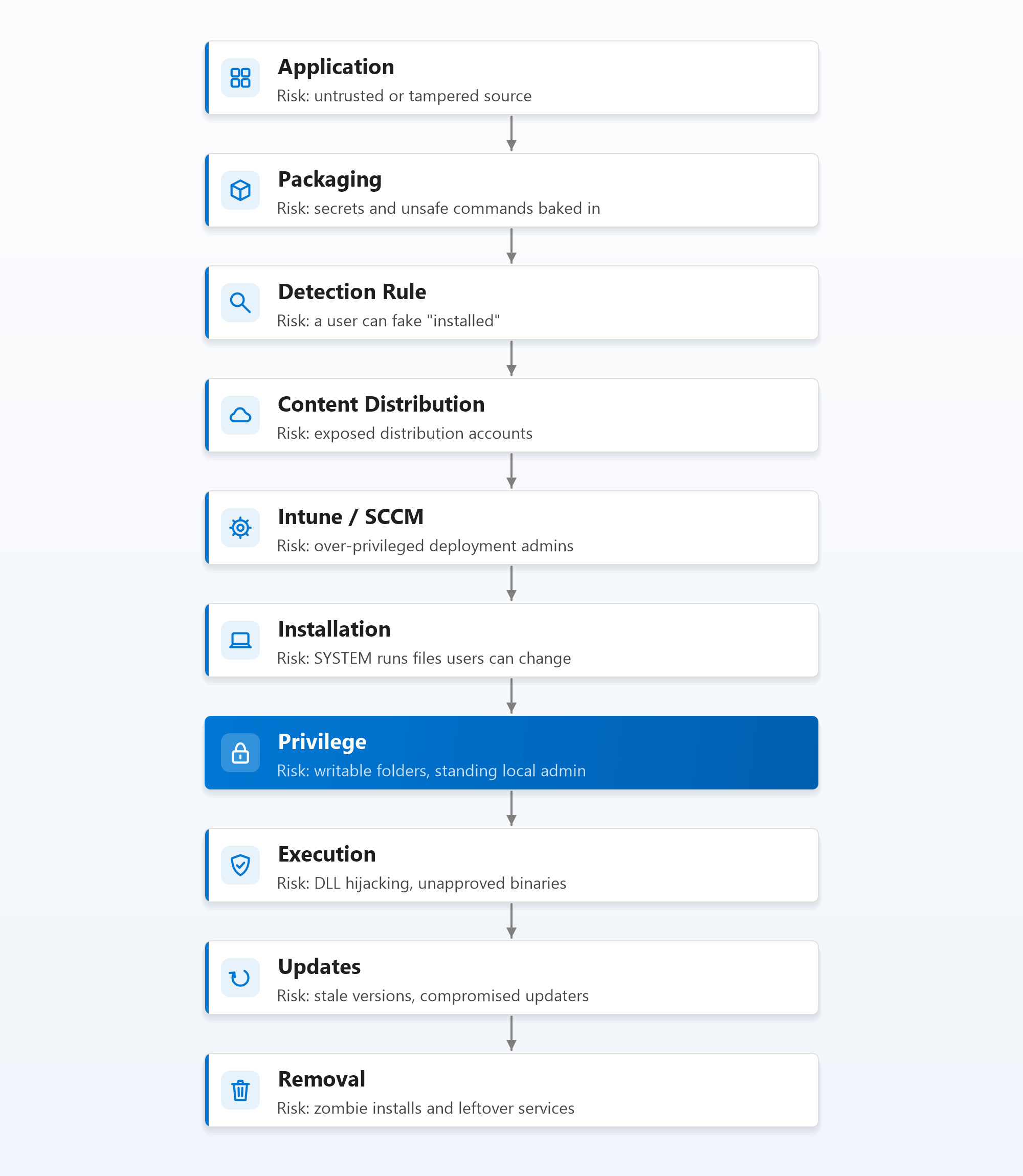
Stage 1: Application, Where Did It Come From?
Every later stage trusts whatever enters here. If the installer itself is compromised, perfect packaging and deployment just distribute the compromise efficiently.
Where it breaks:
- Installers downloaded from mirrors, search ads or "free download" sites instead of the vendor.
- No check that the file is what the vendor published. A signed installer can still be the wrong product, the wrong version, or (rarely, but it has happened, as with the CCleaner and 3CX incidents) a genuinely signed but compromised build.
- Packaging from whatever copy happens to be on a shared drive.
What stops it: download only from the vendor or a trusted source such as WinGet manifests or the Enterprise App Catalog; check the digital signature and publisher name (Get-AuthenticodeSignature) and compare the file hash with the vendor's published value where one exists; keep the source files in a controlled, versioned location. The zero-touch packaging pipeline automates exactly these checks as gates.
Stage 2: Packaging, What Did We Bake In?
Packaging is where people put things into an installer that they would never put into a script in a code repository.
Where it breaks:
- Secrets in install commands. License keys, service account passwords or API tokens passed on the command line. Install command lines can end up in deployment logs on the device, which are often readable by standard users.
- Install scripts that call files from user-writable locations, such as
C:\Users\Publicor a user's%TEMP%. The script runs as SYSTEM; whatever it calls runs as SYSTEM too. - Downloading at install time. An install script that fetches a file from the internet without checking it turns your deployment into a remote download of whatever that URL serves that day.
- Disabling security to make it install. Scripts that switch off Defender, UAC or the firewall "temporarily" and don't always switch them back on.
What stops it: no secrets in packages (use a licensing service, a certificate, or a post-install configuration step with a properly protected credential); every path in an install script must be one standard users can't write to; everything the installer needs is inside the package and verified; packaging scripts get code review like any other code.
Stage 3: Detection Rule, Can a User Fake "Installed"?
A detection rule decides whether Intune believes the app is present. If a standard user can make that rule return the answer they want, they control your deployment.
Where it breaks:
- Detection based on something the user can create. A system-context app detected by a file in the user's profile, or a key under
HKCU. A user creates the file or key, Intune decides the app is installed, and a security update never deploys to that device while reporting success. - Detection that is too loose. "File exists" instead of "file version is at least X" means the old, vulnerable version satisfies the rule, so the update is never needed as far as Intune is concerned.
- Custom detection scripts that read from user-writable locations, while running as SYSTEM.
What stops it: detect system-context apps only through locations standard users can't modify, such as HKLM, Program Files or the MSI product code, and include the version, so "installed" really means "the patched version is installed".
A fake 'installed' is worse than a failed install
A failed install shows up in your reports and someone fixes it. A falsely detected install reports success forever, so the vulnerable version stays on the device and nobody ever looks.
Stage 4: Content Distribution, Who Can Touch the Files on the Way?
Between your console and the device, the package travels through distribution infrastructure.
Where it breaks:
- Configuration Manager's network access account. Older SCCM designs use a domain account for clients to reach distribution points, and its credentials have long been recoverable by an attacker with local admin on any client. Microsoft's guidance is to use Enhanced HTTP and stop relying on a network access account.
- Distribution shares with loose permissions, where someone who can write to the source share can change what every device installs.
- Package source locations on file servers that far more people can edit than should.
What Intune gets right: Intune Win32 content is encrypted and hash-checked, and Delivery Optimization verifies content it gets from peers, so a tampered copy is rejected rather than installed. The weak point moves upstream, to whoever can upload or edit the package in the first place.
What stops it: remove the network access account where you can; lock down source and distribution shares to the packaging team; treat write access to package sources as equivalent to admin on every device, because that is what it is.
Stage 5: Intune / SCCM, Your Most Powerful Remote Execution Tool
This is the uncomfortable truth of endpoint management: the console that deploys apps can run any code, as SYSTEM, on every device, in minutes. Attackers know this. A compromised deployment admin account is one of the most valuable things in your environment.
Where it breaks:
- Too many people with permission to create and assign apps or scripts tenant-wide.
- Admin accounts used for email and browsing, protected only by standard MFA.
- No second person involved before something is deployed to every device.
What stops it:
- Role-based access with scope tags, so a regional team can only deploy to its own devices.
- Privileged access done properly: separate admin accounts, phishing-resistant MFA, and just-in-time elevation through PIM.
- Multi Admin Approval in Intune for app and script deployments, so one compromised account can't push code to the estate alone.
- Audit logs reviewed, especially for new apps and scripts assigned to large groups.
Stage 6: Installation, SYSTEM Runs What the User Can Change
Most enterprise apps install in system context: the Intune Management Extension runs the installer as SYSTEM. That is necessary, and it is also the single biggest source of privilege escalation in application deployment.
Where it breaks:
- The installer, or something it launches, reads files or DLLs from a location a standard user can write to.
- The installer creates a scheduled task or service pointing at a script in a user-writable folder.
- The installer leaves temporary files that are later reused.
What stops it: test every new package with a standard-user mindset: after installation, can a non-admin modify any file that SYSTEM will execute? The next stage gives you the commands to check.
Stage 7: Privilege, Where Most Attacks Land
This is the stage where weaknesses from earlier stages become real compromises, which is why it is highlighted in the diagram.
Where it breaks:
- Writable install folders. An app installed to
C:\AppNameorC:\ProgramData\AppNamewith permissions that let standard users modify its files. If a service or scheduled task runs one of those files as SYSTEM, any user can replace it and get SYSTEM. - Unquoted service paths. A service path like
C:\Program Files\Vendor App\service.exewithout quotes lets Windows tryC:\Program.exefirst, a classic escalation route where folder permissions allow it. - Standing local admin. Users made local admins "because the app needs it" can do anything, including disabling every control in this series.
Two checks worth running on a test device after every new package:
# Services with unquoted paths containing spaces (escalation risk)
Get-CimInstance Win32_Service |
  Where-Object { $_.PathName -and $_.PathName -notmatch '^"' -and $_.PathName -match '^[^"]+ [^"]+\.exe' } |
  Select-Object Name, StartName, PathName

# Who can write to the app's install folder? Standard users should not appear with (M), (W) or (F)
icacls "C:\Program Files\Vendor App"
What stops it: install only into Program Files (which standard users can't write to) or fix the folder permissions in the package; quote every service path; replace standing local admin with Endpoint Privilege Management rules that elevate one specific, approved file, and LAPS for the built-in admin account.
Stage 8: Execution, What Is Allowed to Run Next to It?
Once installed, the app runs as the user, every day. The question becomes what else can run in its place, or inside it.
Where it breaks:
- DLL search order hijacking. An app that loads a DLL from its own folder, a folder a user can write to, will load whatever DLL the user places there.
- Per-user installs into
AppData, which bypass your packaging, your updates and your inventory entirely. - Portable tools copied in by users, which run without ever being deployed.
What stops it: application control with Managed Installer, so only software that arrived through your deployment pipeline (or matches an explicit rule) can execute, plus ASR rules for the behaviours allowed apps can still be abused for.
Stage 9: Updates, The Stage Where Most Real Breaches Begin
Most real-world compromises through applications don't use clever packaging flaws. They use a known vulnerability in an old version nobody updated.
Where it breaks:
- Stale versions. The app was deployed once, two years ago, and never updated.
- Updates that don't replace the old version, leaving two versions installed, one of them vulnerable.
- Vendor auto-updaters running as SYSTEM that download and install from the internet without your control, a genuine supply-chain path if the vendor's update channel is ever compromised.
- Detection that accepts old versions (Stage 3), so Intune never knows an update is needed.
What stops it: an update process with an owner and a deadline for every app; supersedence configured to replace old versions; version-aware detection rules; and the Enterprise App Catalog's automatic updates for common apps. Decide deliberately whether each vendor's auto-updater stays on or is replaced by your own update process; don't leave it as an accident of installation.
Stage 10: Removal, Zombie Apps and Leftovers
Removing an app is the stage almost nobody tests, and the one that leaves the longest-lived risks.
Where it breaks:
- Removing an assignment doesn't uninstall the app. In Intune, deleting a Win32 app's Required assignment stops new installs but leaves it on every device that already has it. Without an Uninstall assignment, the app becomes a zombie: still installed, no longer updated, no longer owned.
- Uninstallers that leave things behind: services, drivers, scheduled tasks, firewall rules, certificates and stored credentials.
- Licences and service accounts the app used, still active long after the app is gone.
What stops it: retiring an app means an Uninstall assignment to the devices that have it, then verifying it's gone, then removing the app from Intune. Check a test device after uninstalling for leftover services and scheduled tasks:
Get-Service | Where-Object { $_.DisplayName -like "*Vendor*" }
Get-ScheduledTask | Where-Object { $_.TaskPath -like "*Vendor*" -or $_.TaskName -like "*Vendor*" }
The Security Checklist, Stage by Stage
| Stage | Question to ask | Owner |
|---|---|---|
| Application | Is this the vendor's genuine, signed installer? | Packaging |
| Packaging | Any secrets, user-writable paths or internet downloads in the package? | Packaging |
| Detection rule | Can a standard user make this rule say "installed"? Does it check the version? | Packaging |
| Content distribution | Who can write to the package source? Is there a network access account? | Endpoint engineering |
| Intune / SCCM | Who can deploy to every device? Is there a second approver? | Security + endpoint engineering |
| Installation | Does SYSTEM run anything a user can change? | Packaging + security review |
| Privilege | Writable folders, unquoted services, standing local admin? | Security |
| Execution | Is application control in place? | Security |
| Updates | Who owns updating this app, and by when? | App owner |
| Removal | Is there an Uninstall assignment, and was it verified? | App owner + packaging |
Add a security review to packaging, not after it
The cheapest place to catch every issue in this post is the packaging review, before the app is ever assigned. Ten minutes with the checklist above, plus the two PowerShell checks, prevents most of the problems that otherwise surface as an incident months later.
Summary
An application's journey from download to removal is ten handoffs of trust, and each one can break: a tampered source, a secret in a package, a detection rule a user can fake, an exposed distribution account, an over-privileged deployment admin, a SYSTEM installer running user-writable files, writable install folders, DLL hijacking, stale versions and zombie installs that nobody owns.
None of these are exotic. They are what happens when deployment is judged only on "did it install" and security only looks at the finished device. Put the checklist into your packaging process, give every app an owner for its updates and its removal, and treat your deployment tool as what it really is: the most powerful remote execution capability in your environment. For how the whole application lifecycle fits together in Intune, see the enterprise application management guide.

Written by
Chetan Yamger
Cloud Engineer · AI Automation Architect · Modern Workplace Consultant
Cloud Engineer, AI Automation Architect, and Modern Workplace Consultant based in Amsterdam, Netherlands. Specializing in scalable, secure enterprise solutions with Microsoft Azure, Intune, PowerShell, and AI-driven automation using ChatGPT, Gemini, and modern LLM technologies.
Stay in the loop.
New articles, straight to you.
Deep-dive technical articles on Intune, PowerShell, and AI — no noise, no spam.
Discussion
Share your thoughts — your email stays private
Leave a comment